
Open the primary customer’s Family tab
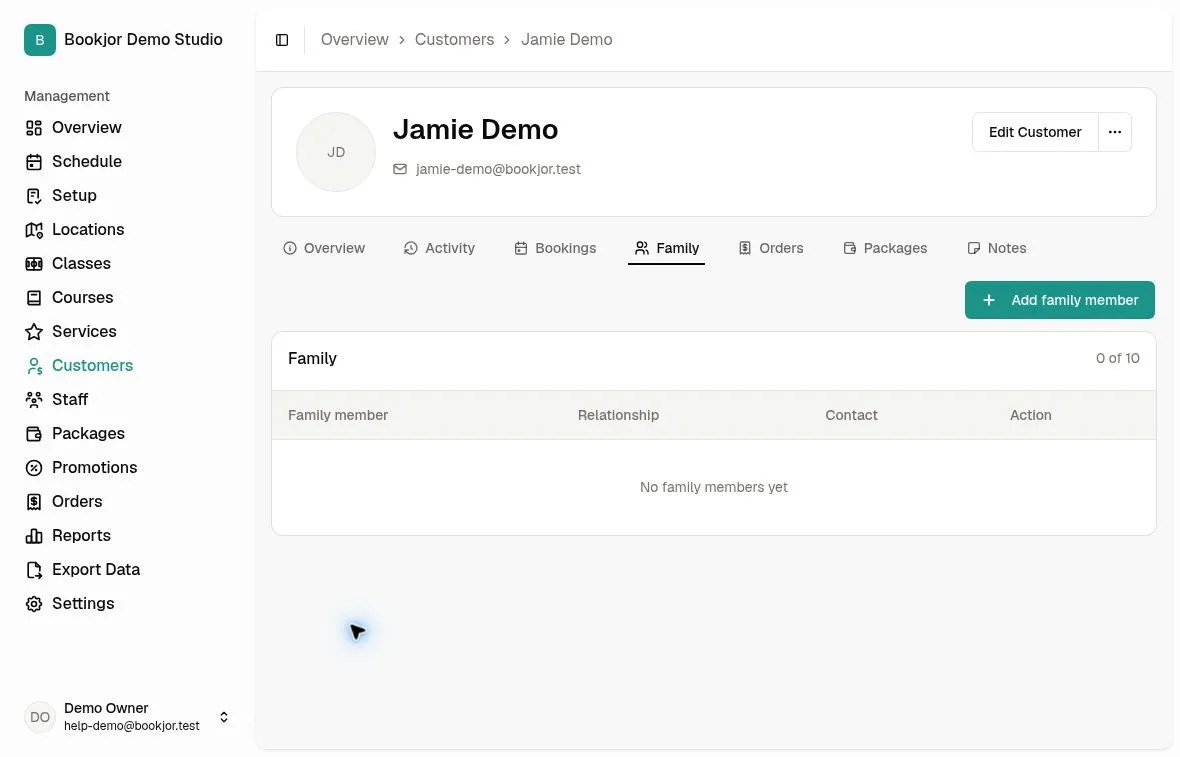
Go to Customers, open the primary customer, and select Family. Family members are separate attendee profiles connected to this customer, rather than new password-based customer accounts.
Family members are available on Pro and Deluxe. Each primary customer can have up to 10 active family members. The Family tab shows the current count and limit. Staff need customer-view permission to see the family and customer-management permission to add, edit, or remove members. If the tab or action is missing, ask the studio owner to check your plan and access.
Add the member’s details
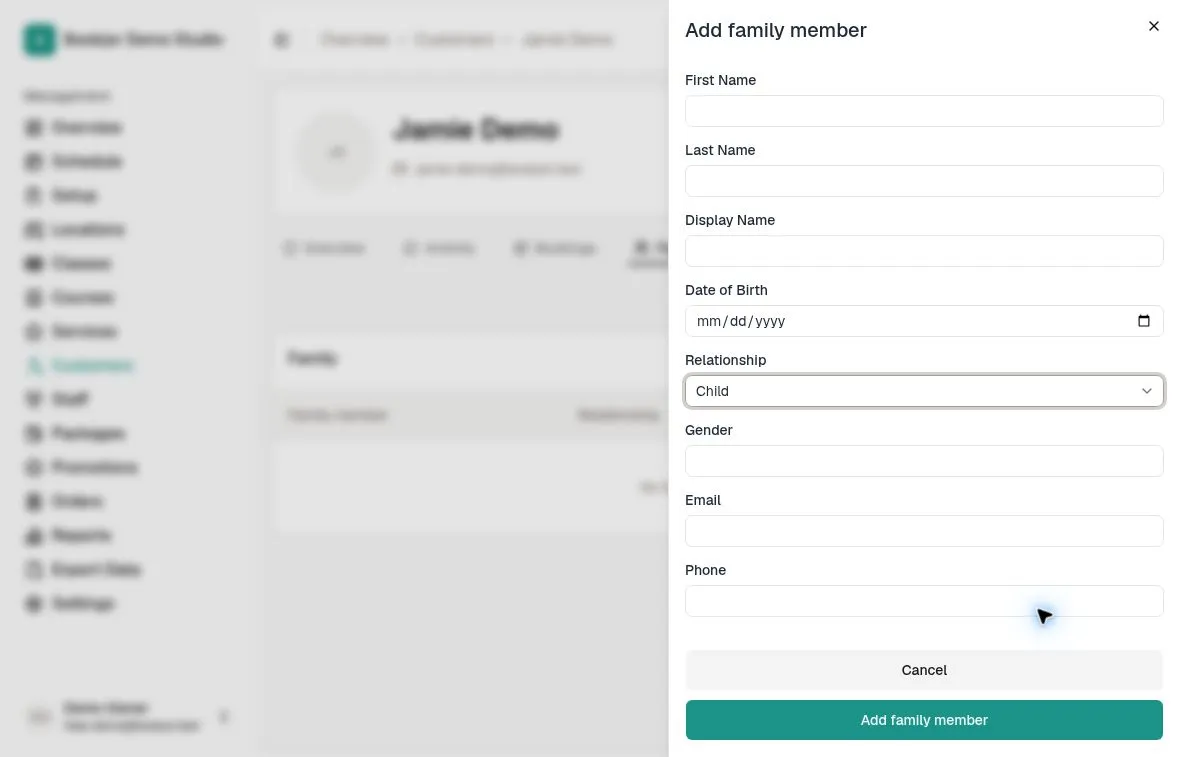
Click Add family member. Enter First Name, Last Name, and Display Name. Date of Birth, Gender, Email, and Phone are optional.
If you enter a phone number, include its country code, such as +85212345678. A date of birth must not be in the future. Adding an email or phone does not create a separate login for the member.
Choose the relationship and save
Choose the member’s Relationship to the primary customer: Child, Spouse or partner, Parent, Sibling, Dependent, or Other. Check the selected relationship rather than leaving the default if it does not apply.
Click Add family member and wait for the success message. Check that the member appears in the Family list and that the count has updated. Use Cancel or close the panel to leave without saving.
Open or edit a family-member profile
Click the member’s name in the Family list to open their profile. The family-member badge identifies the primary customer and links back to that customer’s profile.
Click Edit to change the member’s details or relationship, then Save Changes. Bookings, packages, and other profile sections are shown according to your staff permissions.
Customer custom fields belong to primary customer profiles; they are not available on family-member profiles.
Select the right attendee and package owner
When booking for a family member, select that member as the attendee rather than the primary customer. In the customer booking site, Who is joining? lets the primary customer choose themselves or an active family member; available packages update for the selected person.
When buying a package on the customer site, check Who is this package for? The selected person owns the package and its credits. Review package eligibility for the selected attendee before confirming a booking.
Remove a member only after checking their records
Return to the primary customer’s Family tab and click Remove beside the member. Read the confirmation, check the name, and confirm only when you intend to archive that family-member profile. Existing historical records are retained when the profile is archived.
Removal is blocked while the member has usable personal packages, upcoming bookings, active waitlist entries, or pending orders. Resolve the relevant record first; removing a member is not a way to cancel bookings or move package credits.
The admin Family list does not provide a restore action. If you removed someone by mistake, contact the Bookjor team before creating a duplicate profile.