
Open the class session
Open Classes in the admin and select the relevant class card. Switch to Overview and find the session the customer wants to attend.
Click the session row to open its details. You will see the enrolled customer list and the Add Customer button.
Choose a customer
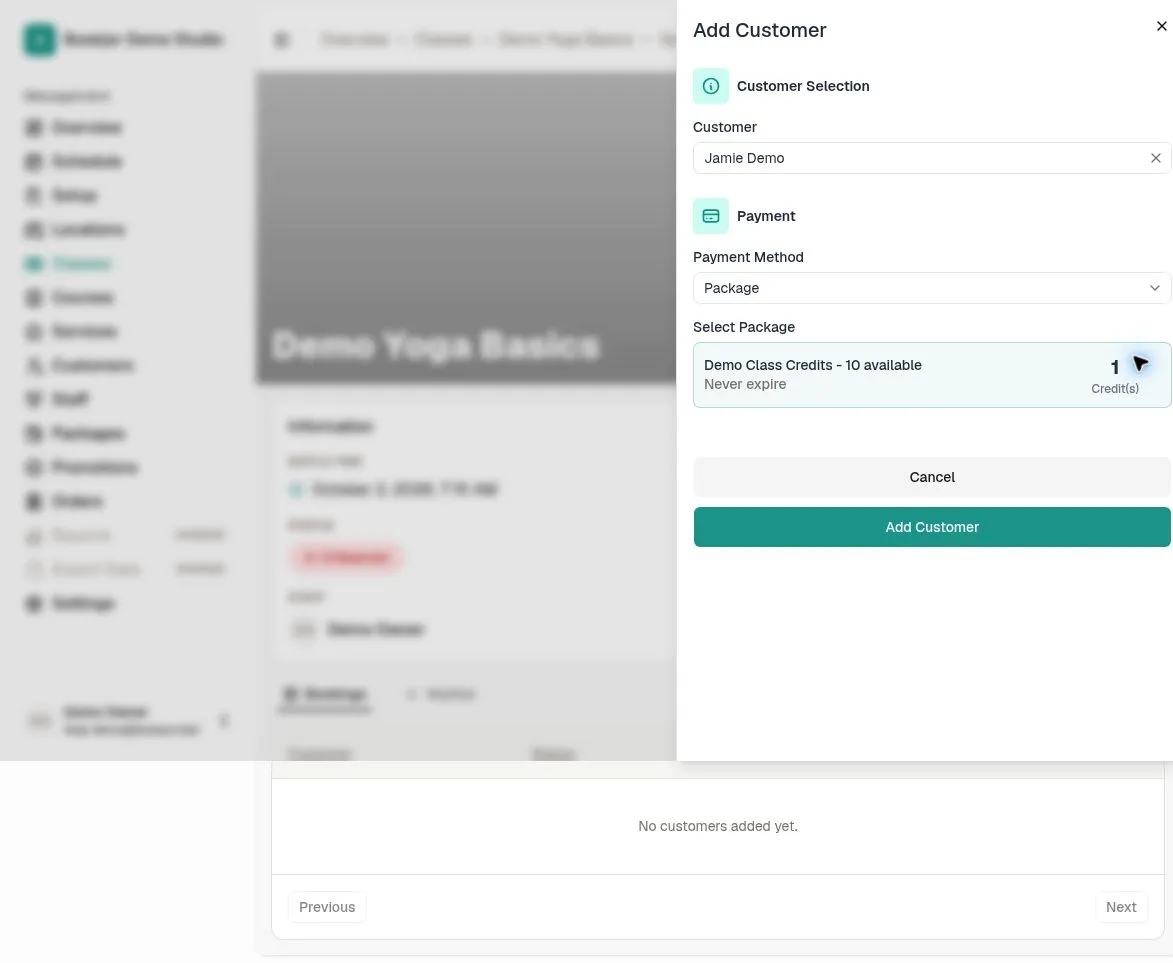
Click Add Customer on the session detail page. Search by the customer’s display name and select the correct profile.
If the customer does not have a profile, create one from Customers first. Email is only displayed when your role can view contact details.
Choose payment method and package
Choose Package, Pay Later, Offline collection, or Free. Pay Later appears only when the class has cash pricing and records an unpaid booking at that price. Free does not charge the customer.
Choose Offline collection only after the full payment has been collected outside Bookjor. The class cash price is used when configured; otherwise enter the positive Amount collected. This records the payment, rather than requesting or collecting it online.
Package lists the customer’s active packages accepted by this class. Credit packages show the combined balance and required cost; insufficient balances are disabled. Active passes show unlimited access instead of a credit deduction.
Confirm and enroll
Review the customer and payment details, then click Add Customer. Resolve any booking conflict before continuing. After success, check the customer roster and booking status.
If the session has an existing waitlist, respect its order. A request can join the waitlist when enabled rather than reserve a place; Offline collection requires an available confirmed place and cannot be used for waitlisting.