
Open the Classes page
From your admin dashboard, click Classes in the main sidebar. You will see a grid of cards showing every class with its cover image, name, student capacity, and duration.
If this is your first class, the grid will be empty and you will see a prompt to add one.
Start creating a class
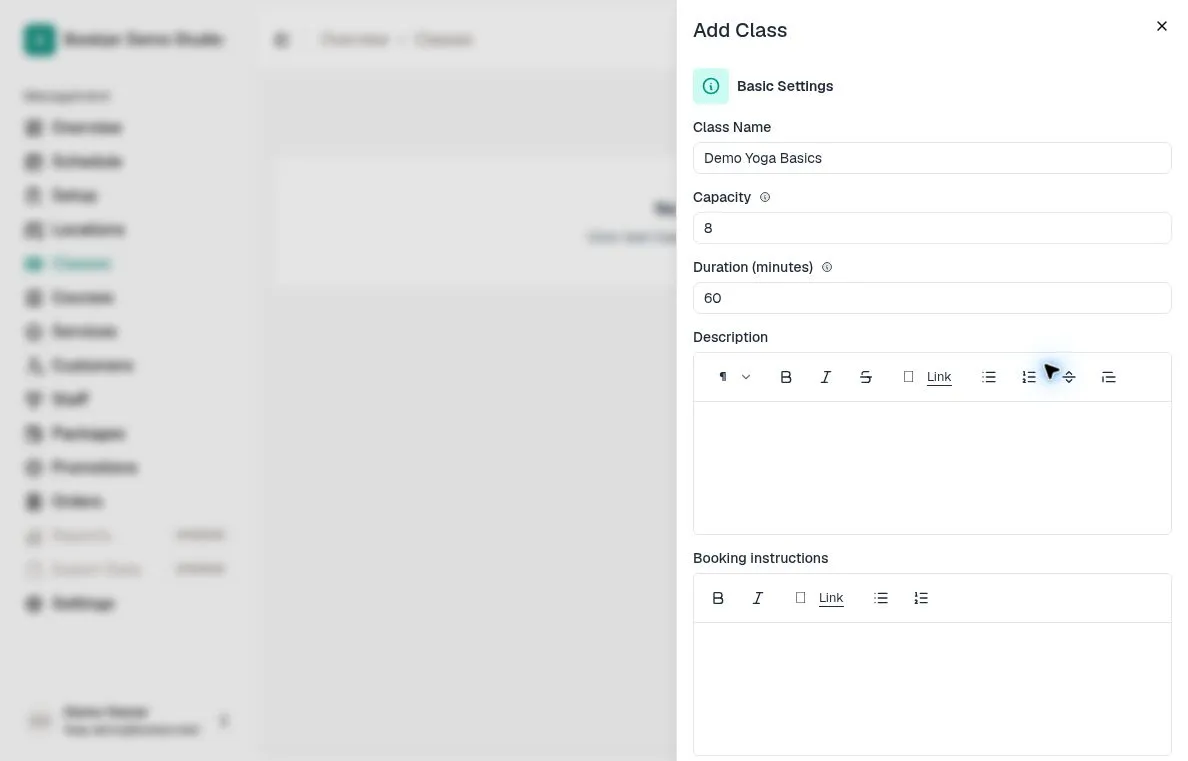
Click Add Class in the top-right corner. A form panel slides open with two sections: Basic Settings and Pricing.
Enter a class name and a description. The description supports rich formatting, so you can add headings, bullet points, and links. This text appears on the customer booking portal, so write something that helps customers understand what to expect.
Use Booking instructions for arrival details or preparation notes. They are included in confirmation emails and shown in confirmed booking details until the booking ends.
Set capacity and duration
In the Basic Settings section, enter the maximum number of students the class can hold. This is the default capacity for the class sessions you add later.
Set the duration in minutes. Common values are 45, 60, or 90 minutes. The duration is used to block out time on the instructor calendar and to show customers how long the session runs.
Configure pricing
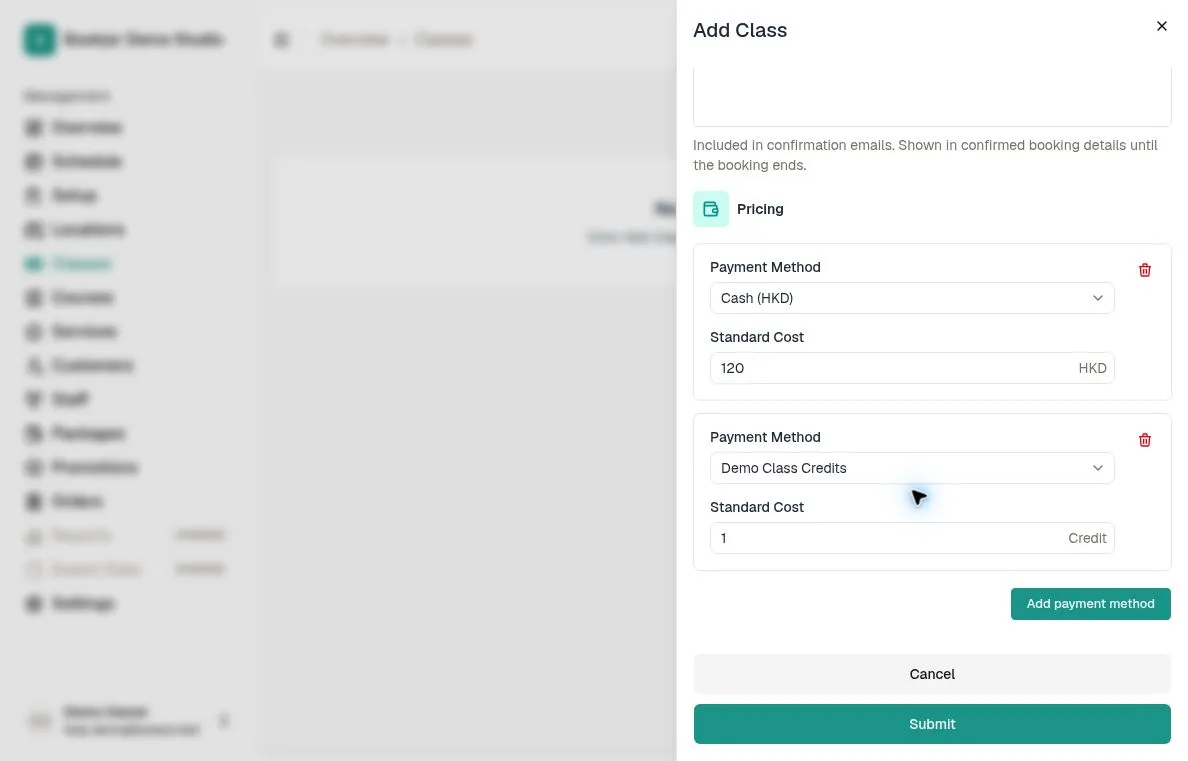
In the Pricing section, add at least one payment method. Choose Cash (shown with the studio currency, such as Cash (HKD)), a credit package, or a pass package. Enter a cash price or the number of credits to deduct; pass packages provide unlimited access during their validity period, so their cost stays at zero.
You can add multiple rows to offer different payment options, such as a cash drop-in price, 1 credit from a class pack, or access through an active pass. Class pricing uses Standard Cost; there is no peak-hour cost field in this form.
Save and upload a cover image
Click Submit to save the class. The dialog closes and the class appears in the grid on the Classes page.
Click the class card to open its detail page. At the top of the page is a header area with a photo icon. Click it to upload a cover photo from your computer. Supported formats include PNG, JPEG, WebP, and GIF. The cover image is displayed on the class card in the customer booking portal.
Add a recurring schedule
Switch to the Recurring tab on the class detail page. Click Add Recurring Schedule to define when and where this class runs.
Select a location, choose the weekdays, set the start time and duration, pick an effective date range, and assign at least one staff member. Select any rooms or equipment needed. Bookjor generates individual sessions from this schedule.