
Enable waitlists in Booking Settings
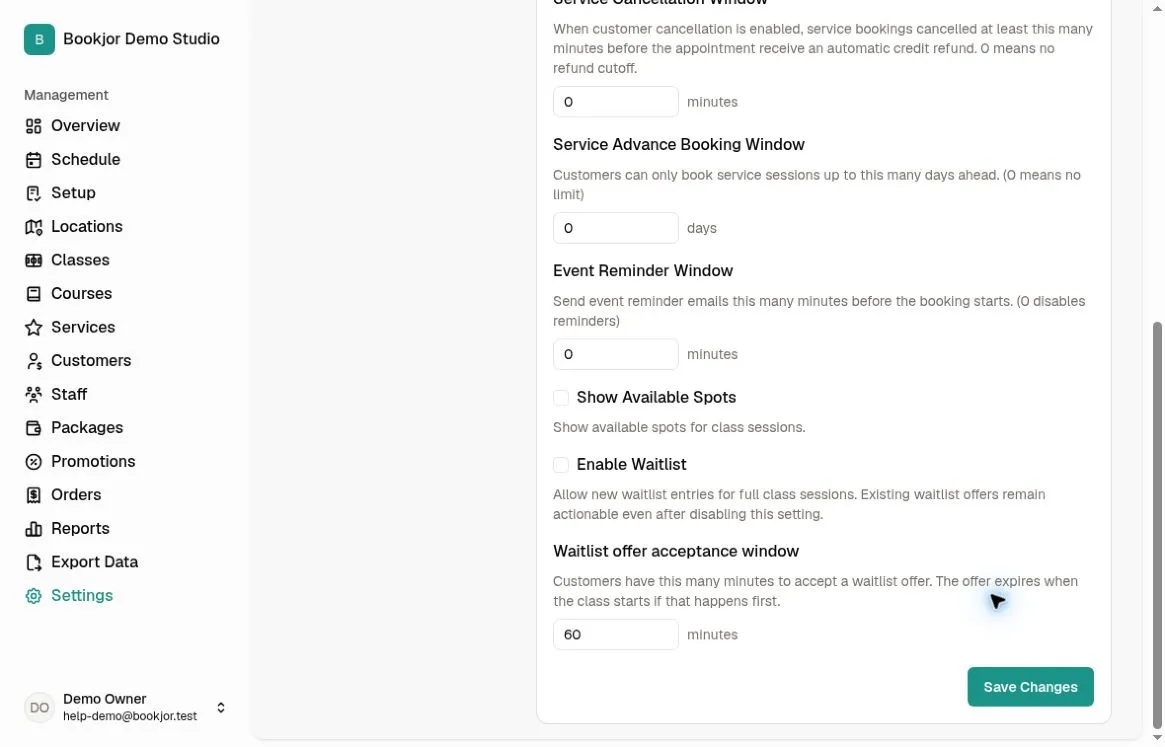
Open Settings → Booking in the admin. Turn on Enable Waitlist to allow customers to join the waitlist for full class sessions, then click Save Changes.
This setting applies to class sessions. It does not create waitlists for courses or private services.
Choose how long customers have to accept
Set Waitlist offer acceptance window to a whole number from 1 to 1,440 minutes. This is the time to respond after a place is offered, not the time to join the queue.
An offer expires at the earlier of its acceptance deadline or the class start. For example, a 60-minute window gives only 20 minutes if the class starts in 20 minutes.
Also review Class Cutoff Window. Customers must book or join the waitlist before this cutoff; an existing offer can still be accepted before its own expiry and the class start. Save Changes after editing.
Explain joining and receiving an offer
On the customer booking site, a full class session can show Join Waitlist when waitlists are enabled and the booking cutoff has not passed. Joining does not reserve a confirmed place or take payment or credits.
When a place becomes available, Bookjor offers it to the next waiting customer. The offered place is temporarily reserved while they decide, and Bookjor sends an offer notification.
The customer can review their entries in My Waitlist. Waiting and an available offer are different states; customers still need to respond to an offer.
Check a session’s Waitlist tab
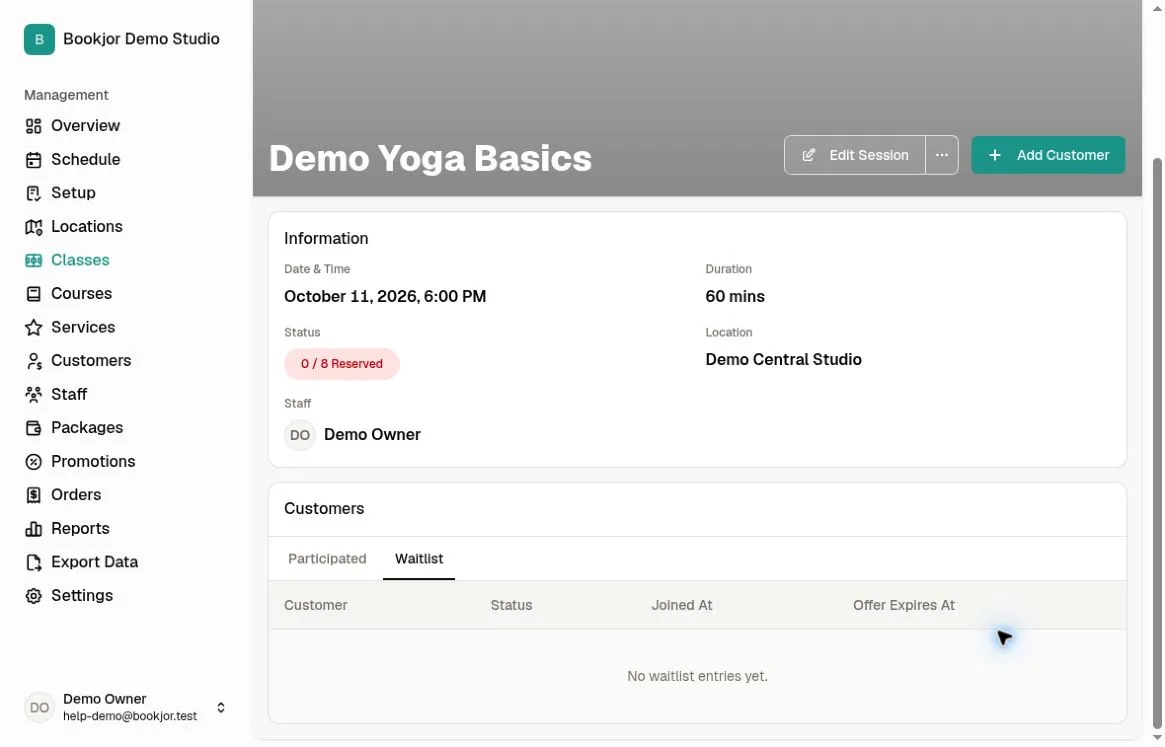
Open Classes, select the class, and use Overview to open the relevant session. Select Waitlist.
Read Customer, Status, Joined At, and Offer Expires At. Waiting means the customer is still queued. Offered means a place has been offered with a response deadline.
Use Previous and Next if the list spans several pages. This tab is for reviewing the queue; it does not provide a manual promote or reorder action.
Help customers accept or leave
Customers open My Waitlist and select Review & confirm for an available place. They review the session, choose an available payment option, and select Confirm booking before the offer expires.
Package eligibility and any required credits are checked at this point. Joining the waitlist earlier does not guarantee that the customer will have an eligible package or sufficient credits when a place is offered.
Some payment methods leave a booking pending until payment or proof is processed. Check the booking and order status instead of assuming that starting checkout completed the booking.
A customer can leave a waiting entry or decline an offer. An expired offer ends that entry and releases the reserved place; it does not automatically put the customer back in the queue. Another waiting customer can receive an offer if the session still has an available place before it starts.
Troubleshoot missing places and disabled waitlists
An active offer reserves capacity, so a session can remain unavailable for direct booking or manual enrollment while the offered customer decides. Manual enrollment does not bypass reserved places.
Turning off Enable Waitlist stops new waitlist entries. Existing offers remain actionable until they expire, so disabling the setting is not a way to cancel an offered place.
If Join Waitlist is missing, check whether the session is full, waitlists are enabled, and the booking cutoff or session start has passed. If an offer cannot be accepted, check its deadline and the selected payment option.