
Open the session detail
Open Classes and select the relevant class card. On the Overview tab, find the session you need to change.
Click the session row to open its details and review the enrolled customer list so you know who will be affected.
Cancel the class session
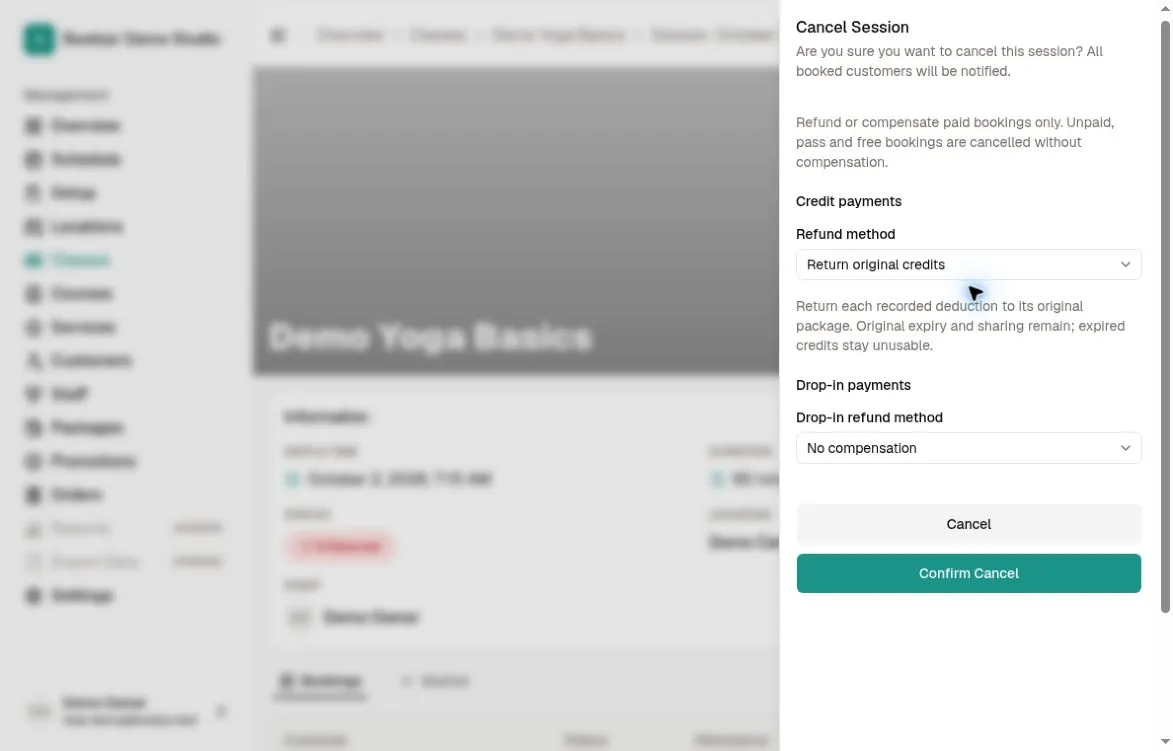
Open More Options > Cancel Session on the class session detail page. The sheet has separate Credit payments and Drop-in payments sections. Both initially use No compensation.
For Credit payments, choose No compensation, Return original credits, or Grant configured credits. For Drop-in payments, choose No compensation or Grant configured credits. Only successful positive payments qualify; unpaid, free, zero-amount and pass bookings receive no compensation.
Understand the credit choices
Return original credits restores each recorded deduction to its original package entitlement, preserving its expiry date and sharing. Credits that have expired remain unusable.
Grant configured credits creates a credit-package grant for each eligible participant. Choose a credit package, a positive amount, and an optional future expiry date; leave the date blank for no expiry. This does not refund money to a card or bank account.
Review both payment groups, then confirm cancellation. The session remains available in canceled-session history, and affected customers and assigned staff are sent cancellation notifications. Compensation options require permission to manage customer packages.
Reschedule instead of canceling
To change the date, duration, location, staff, or resources, click Edit Session on the session detail page and save the updated form. For a time-only move, you can also use the Staff or Location calendar, switch to a view with time slots, drag the session, and confirm the proposed time.
Bookjor checks overlapping staff, resources, and enrolled customer bookings, as well as time blocks. Review conflicts before confirming. The customer roster is preserved, and a moved recurring session is managed independently from its recurrence.