Open the Recurring tab
Navigate to the detail page of the class you want to schedule. Click the Recurring tab near the top of the page.
If this class already has recurring schedules, you will see a card for each one showing the weekdays, time range, location, and assigned staff.
Start a new recurring schedule
Click Add Recurring Schedule. A form panel slides open from the right.
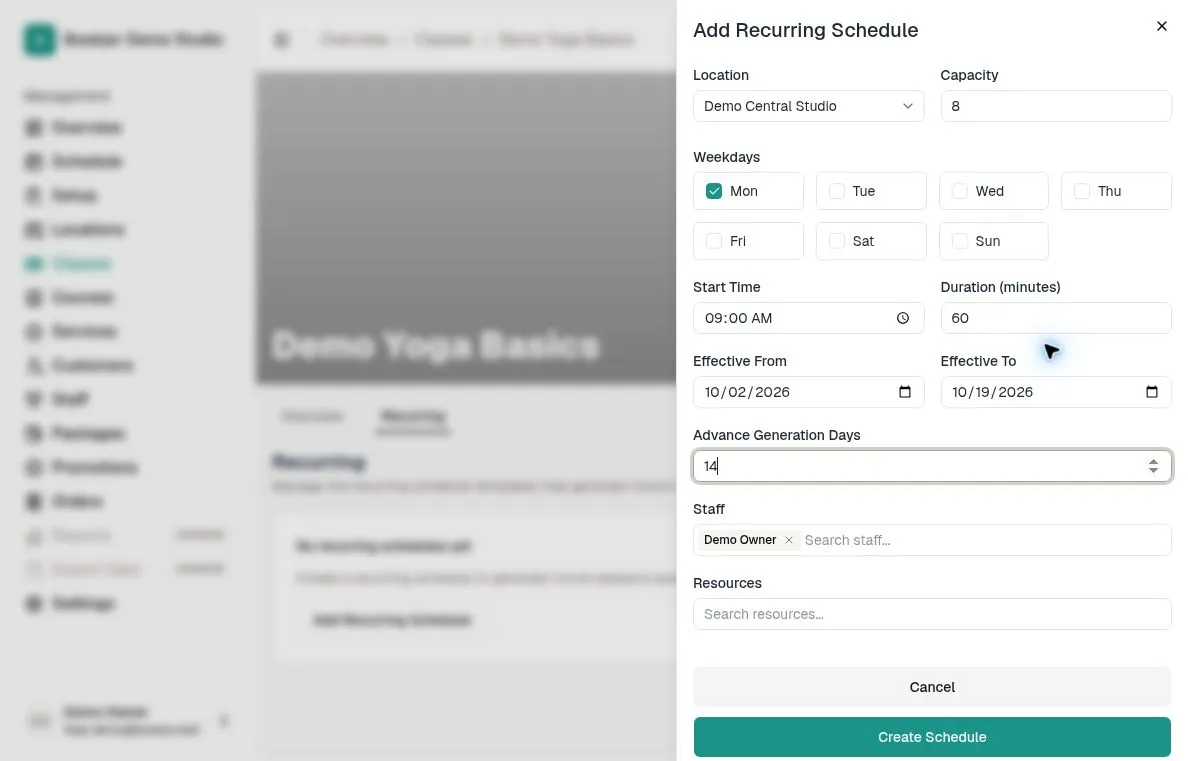
Select a location from the dropdown. The capacity field is pre-filled with the class default, but you can change it if this schedule needs a different limit.
Choose weekdays and time
Tick the checkboxes for each day of the week the class should run. At least one day is required.
Recurring times use the studio timezone configured in Settings. Choose the start time and duration; the end is calculated. For example, 09:00 plus 60 minutes ends at 10:00.
Set the effective date range and generation window
Choose an Effective From date. This is the first day Bookjor will start generating sessions. It defaults to today.
Optionally choose an Effective To date if the schedule is temporary, such as a six-week program. Leave it blank for an ongoing schedule that runs indefinitely.
Set Advance Generation Days to control how far into the future sessions are created. The default is 30 days, and the maximum is 90. Customers can only book sessions that have already been generated.
Assign staff and resources
In the Staff field, search and select one or more instructors who will teach this class. Their personal calendars will be blocked during these times.
In the Resources field, search and select the rooms or equipment spaces where the class takes place. Only resources belonging to the chosen location are shown.
Save and manage schedules
Click Create Schedule. Bookjor generates sessions within the advance generation window. A recurring-rule conflict can prevent saving; individual conflicting dates may be skipped even when the rule is saved. Use the missing-sessions troubleshooting guide to check gaps.
Click Edit to change a recurring schedule. Future unbooked sessions still linked to it can be updated or removed; booked sessions whose time, location, staff or resources would change, or whose dates fall outside the rule, are preserved as standalone sessions. Review existing sessions separately after an edit.
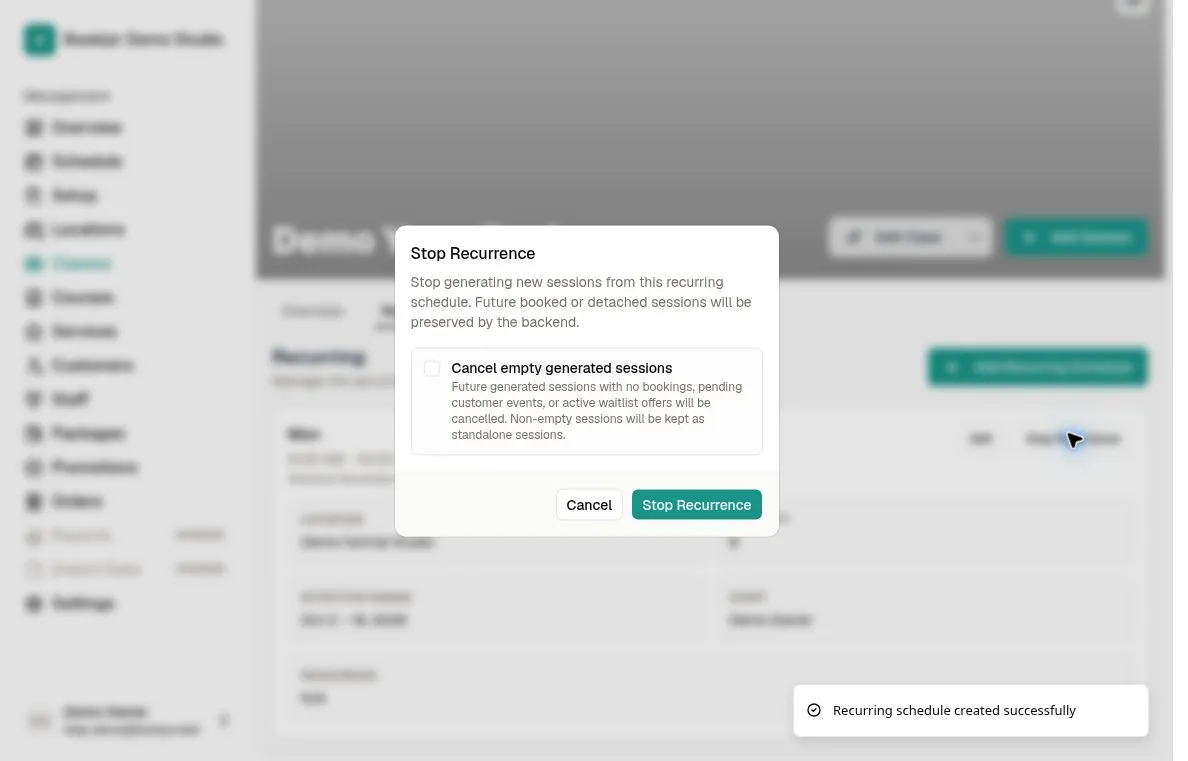
Click Stop Recurrence to stop future generation. Leave Cancel empty generated sessions unchecked to keep existing future sessions. If checked, only empty generated sessions without bookings, pending customer events, or active waitlist offers are canceled. Sessions with those commitments and sessions detached by individual changes to time, location, staff or resources are preserved; a capacity-only edit does not detach a session.