
Open the Staff page
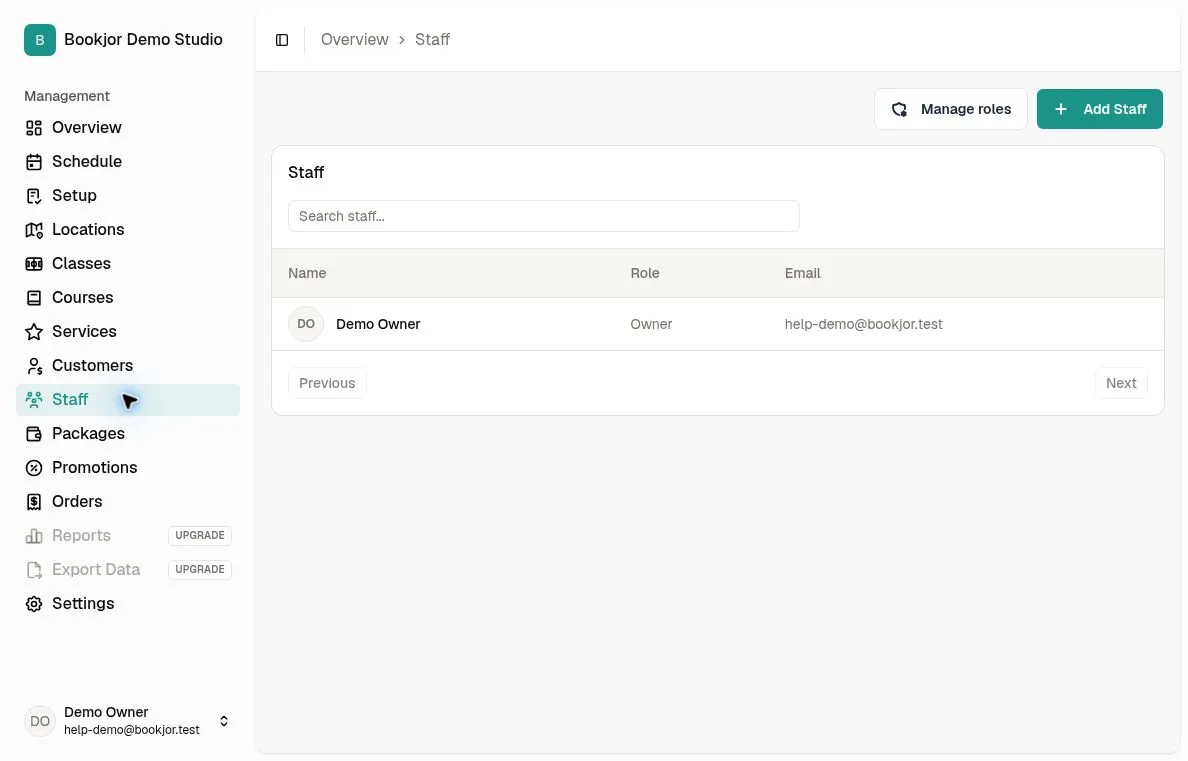
From your admin dashboard, click Staff in the main sidebar. You will see a table listing every staff member with their avatar, name, role, and email address.
If your studio is new, you may be the only person listed. Click any row to view a staff member's full profile and schedule.
Only the studio owner can create staff accounts, assign roles, and manage roles. Other staff need View staff to browse the directory; access to individual profiles and schedules depends on their permissions.
Add a new staff member
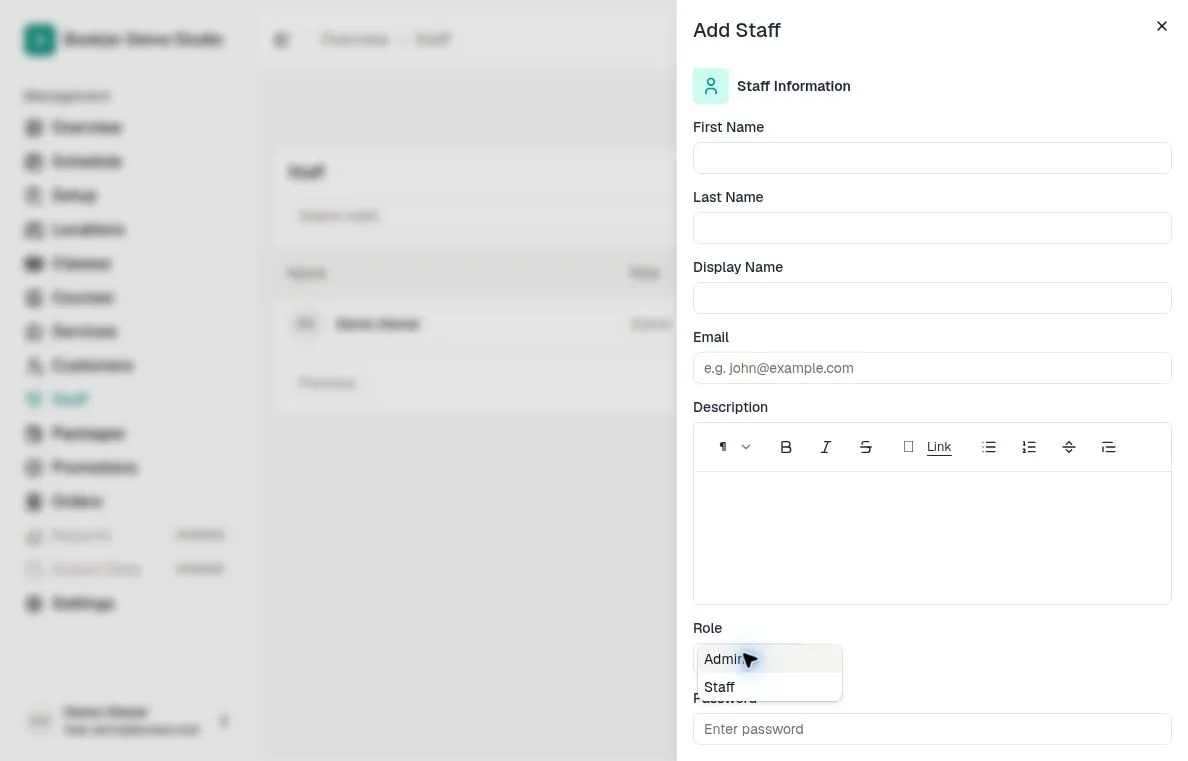
Click Add Staff in the top-right corner. Enter the person's first name, last name, display name, email address, and a temporary password.
The display name is what customers see on the booking portal and in class listings. Use a professional name such as "Coach Maya" or "Tom R." rather than a legal full name.
The password must be 8–72 characters. This creates a login account directly; it is not an invitation-link workflow. If the studio’s staff limit has been reached, review the limit shown before adding another account.
Choose a role
Choose one of the studio’s roles from the Role dropdown. Each role has its own permissions; a name such as Admin or Staff does not guarantee a particular level of access.
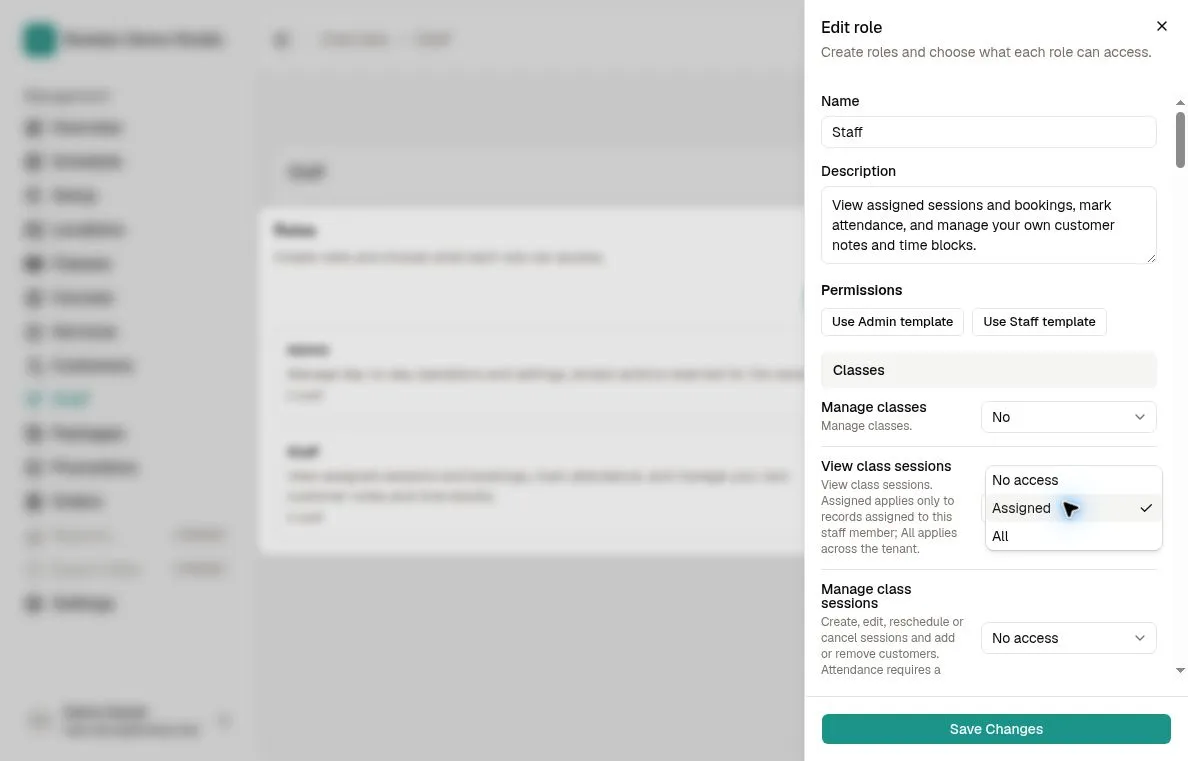
To create or adjust a role, close the staff form and choose Manage roles > Add role or Edit role on the Staff page. Enter its name and optional description, optionally apply the Admin or Staff template, then review every permission before saving.
Some permissions use Yes/No. Others use No access, Assigned, or All to control which records staff can access. Assigned limits actions to relevant records, such as the staff member’s own service bookings or unavailable time. Changing a permission can also adjust its dependencies; review those changes.
The owner is shown in the staff list and retains owner access separately from assignable roles. You cannot turn another employee into the owner or change the owner’s role through this dropdown. A role cannot be deleted while staff are assigned to it.
Add an optional description
Use the Description field to add a short bio or specialization notes. This text may appear on the customer booking portal when customers view instructor profiles.
Descriptions support rich formatting, so you can add links, bold text, or bullet points for certifications and teaching styles.
Upload a staff avatar
After creating a staff member, open their detail page and upload an avatar photo. The avatar appears in the staff table and on the customer-facing instructor profile.
Use a clear headshot with good lighting. A professional photo helps customers recognize instructors and builds trust on the booking portal.
View and edit staff details
Open a staff profile to review their information and any schedules or statistics your permissions allow. Use Edit Staff to change profile details; the role field is available only to the owner for non-owner staff.
Staff can edit their own profile. Editing another staff member requires Edit staff; non-owners cannot edit the owner. A login email can be changed only by its account holder or the owner. Profile editing does not grant permission to change roles.