
Open registration and enter your details
Open the Bookjor admin site. If the workspace finder appears, choose Create your account to open registration.
Enter your first name, last name, email address, and an 8–72 character password. Choose a unique Subdomain of up to 20 lowercase letters, numbers, or hyphens, starting and ending with a letter or number; for example, acme-studio becomes acme-studio.bookjor.com.
Choose workspace settings and complete setup
Select Default Language, Currency, and Timezone carefully. These appear read-only in Settings > General after registration.
Review the Terms & Conditions and Privacy Policy, select the agreement checkbox, complete the security check, and click Complete Setup. After successful registration you are signed in and taken to the workspace dashboard.
Set up your brand and location
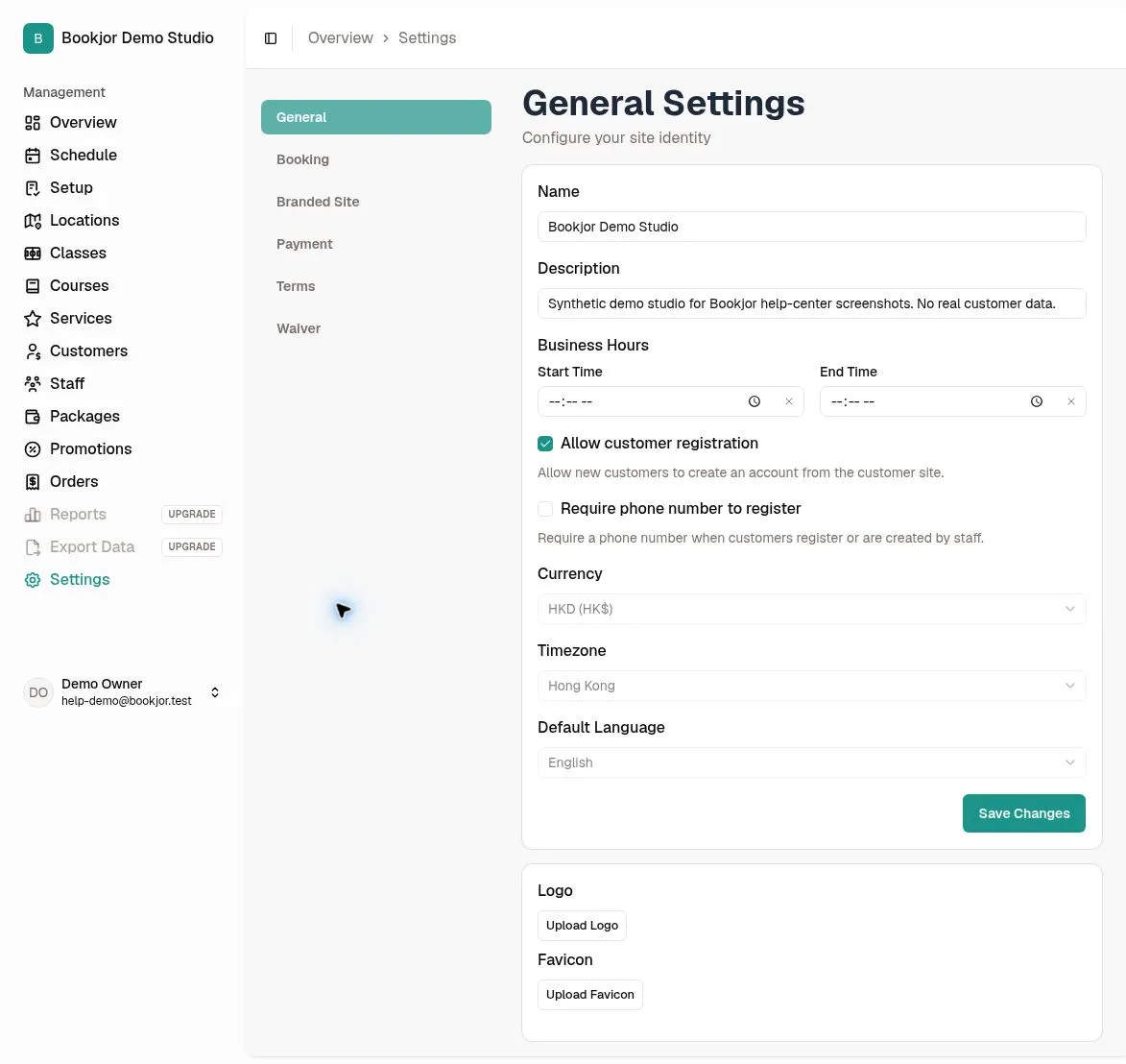
Go to Settings > General to set your studio name and description, upload your logo and favicon, and review customer-registration options.
Open Locations and add your physical studio location, then add its rooms or other resources. Check names and addresses before creating schedules.
Add staff and check their roles
Open Staff and click Add Staff. Enter first name, last name, display name, email, and a password, then choose from the available roles.
Review the selected role’s permissions to make sure each staff member has the access they need.
Set up payments
Go to Settings > Payment. To use Stripe, enter the requested display name, contact email, and merchant country, then choose Create connected account and complete Onboard to collect payments.
Return to Payment Settings to check connection and checkout readiness. Creating the account alone does not mean Stripe is ready to accept payments.
Preview the customer site
Open your studio subdomain and review the branding, bookable items, prices, registration, and payment choices as a customer.
Check an intended booking before sharing the site with customers. Use the related setup guides below for location, staff, and payment details.