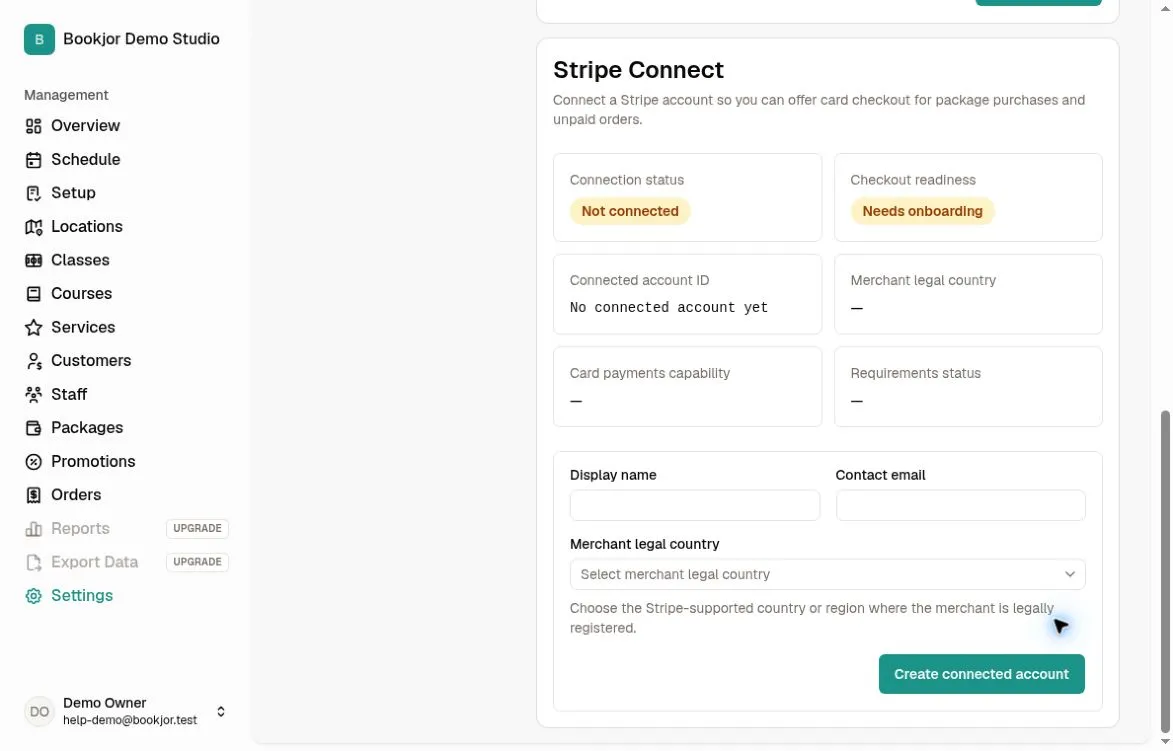
Open Settings > Payment
Open Settings in the sidebar and select Payment. The page includes billing details, an Airwallex payment link, bank transfer settings, and Stripe Connect.
Only the studio owner can save payment settings or manage Stripe. Bank transfer and Stripe can be available together, but Stripe checkout depends on the connected account’s readiness.
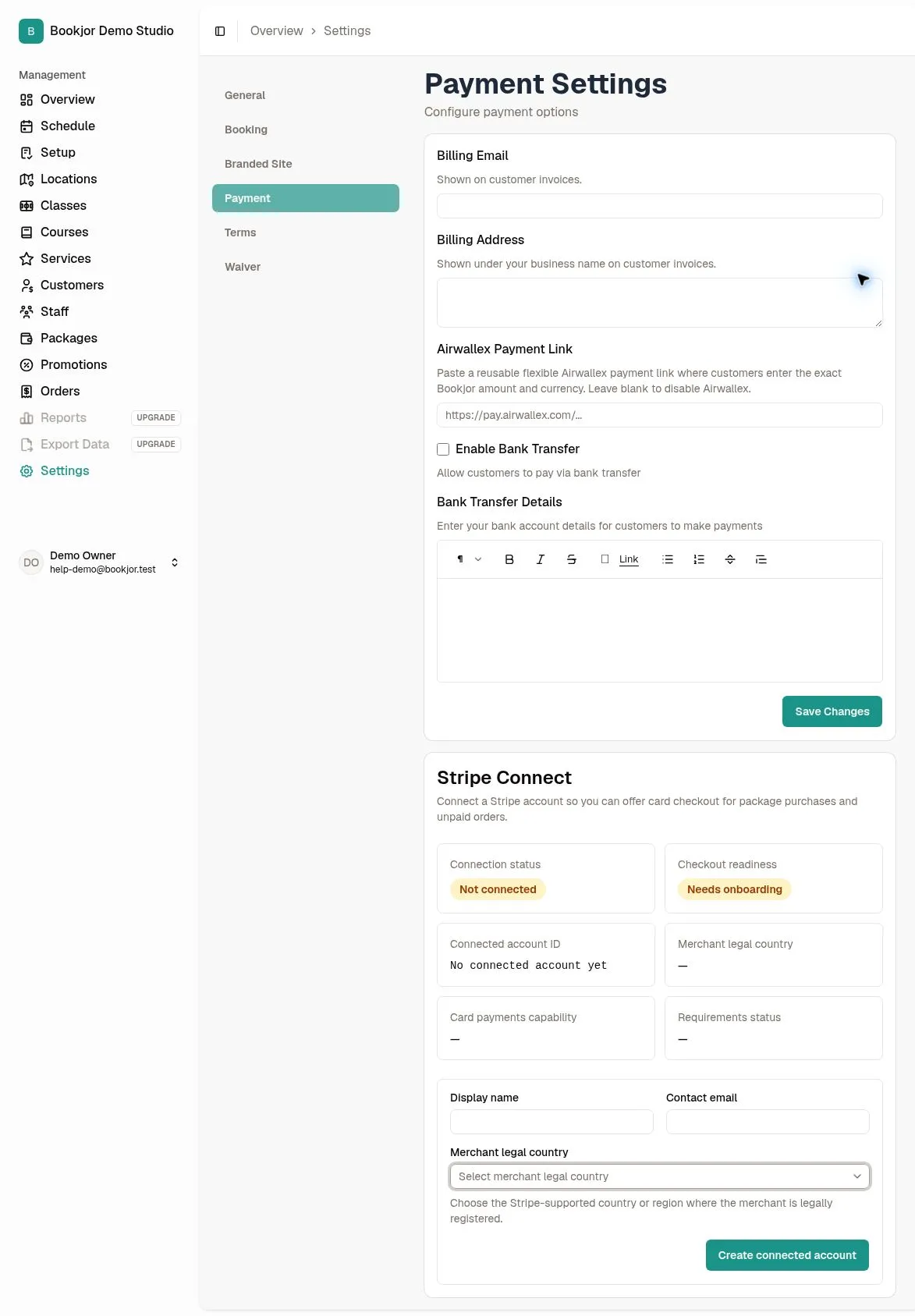
Enable bank transfers if needed
Select Enable Bank Transfer and enter your bank details and payment reference instructions in the rich-text editor. The editor is present even when bank transfer is disabled.
Click Save Changes. Customers see the saved instructions when choosing bank transfer; review any submitted payment proof and verify receipt in Orders before accepting a transfer.
Create a connected account
If no Stripe account is connected, enter Display name and Contact email, then select Merchant legal country from the searchable country/region list.
Choose the supported country or region where the merchant is legally registered, then click Create connected account. The form creates a connected account; it is not an account-switching control.
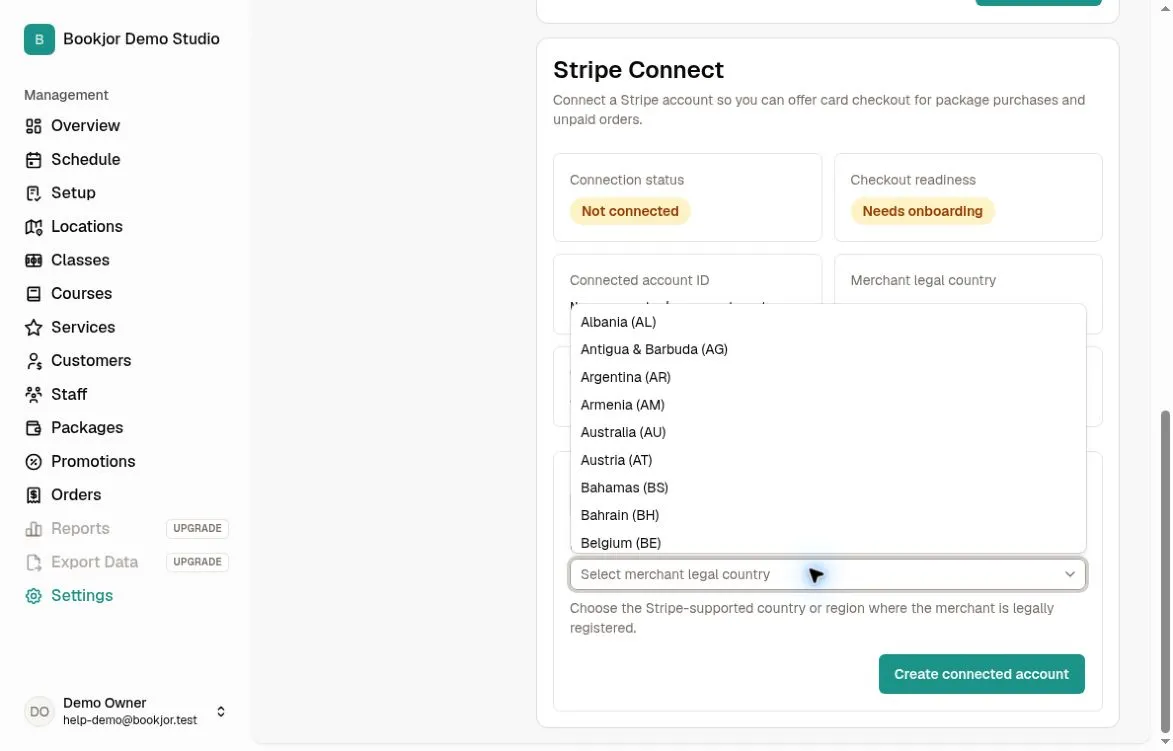
Complete onboarding when prompted
If Onboard to collect payments is shown, click it to continue to Stripe in the same browser tab. Follow Stripe’s prompts for the information required for your account.
Return to Settings > Payment and refresh to check the latest status. Verification times can vary.
Check checkout readiness
Review Connection status, Checkout readiness, Connected account ID, Merchant legal country, Card payments capability, and Requirements status.
Connected alone does not mean checkout is ready. Checkout readiness requires an active card-payments capability and no currently due or past-due onboarding requirements. If onboarding is complete but checkout is not ready, review the status message; the onboarding button may no longer be shown.
If Stripe status is unavailable, read the error and try again later. You can still edit and save bank transfer settings.