
Open Settings > General
From your admin dashboard, click Settings in the sidebar and then select the General tab. This page controls your account name, description, business hours, and branding assets.
Currency, time zone, and default language are set during registration and cannot be changed here.
View settings is required to open this page. Edit general settings controls the text and business-hour fields, while Edit branding separately controls logo and favicon uploads. Ask the owner to check your role if upload buttons are missing.
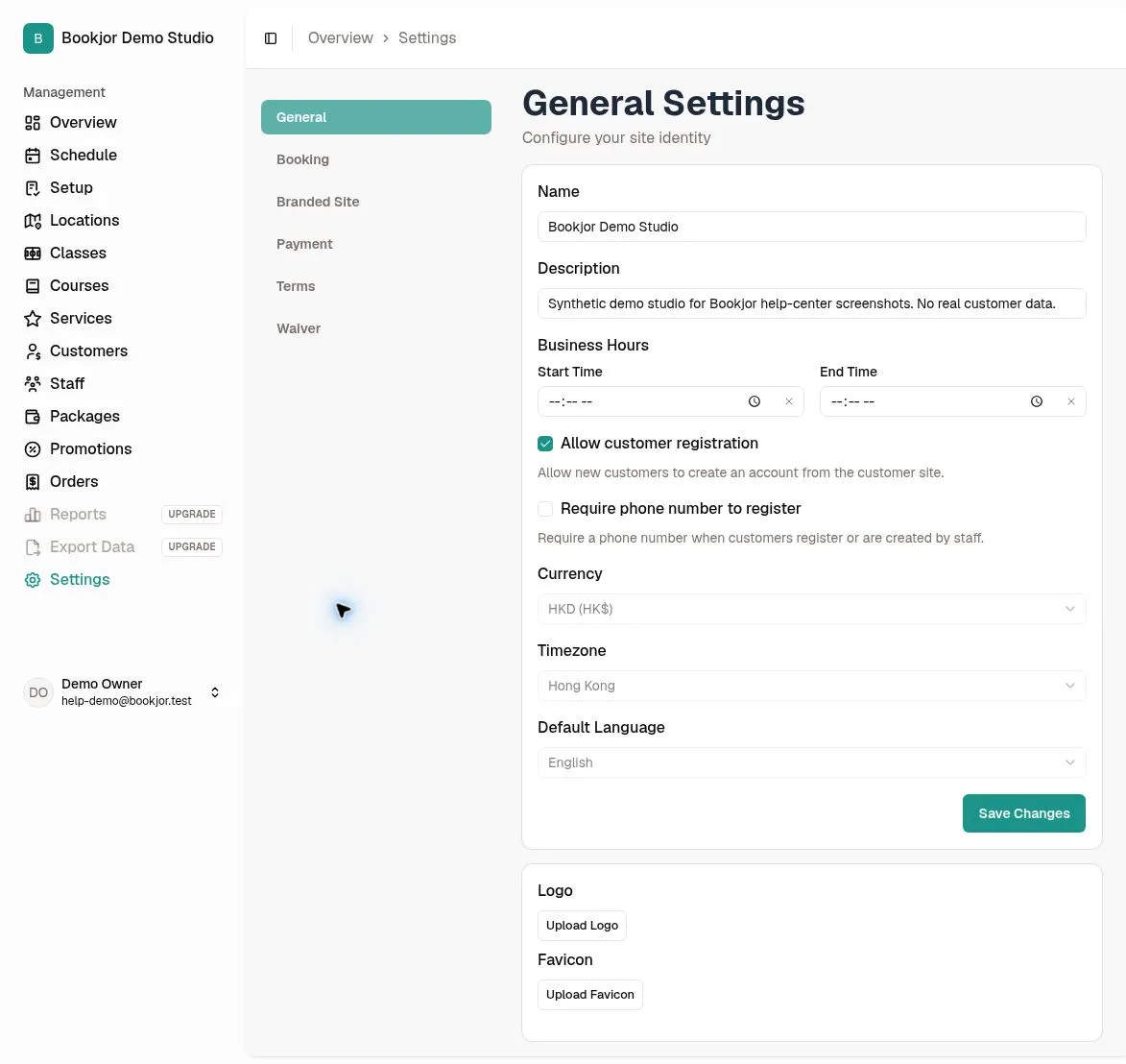
Review your account name and description
Before uploading images, check that your Name and Description are correct. The name appears in browser tabs, emails, and the booking portal header. The description is used for SEO and social sharing.
You can also set business hours here. These are display-only and do not restrict scheduling — they simply tell customers when you are normally open.
Upload your logo
Scroll to Logo and click Upload Logo. Choose a PNG, JPG/JPEG, WebP, or GIF file no larger than 5 MiB. The upload is saved separately from the general-settings form, and a preview appears when it succeeds.
The logo appears on the customer booking portal. If the file picker allows other image formats, convert them to one of the supported formats above before uploading.
Upload your favicon
Below the logo, click Upload Favicon. Use PNG, JPG/JPEG, WebP, GIF, or ICO, no larger than 1 MiB.
Choose a clear square image that remains recognizable at browser-tab size. A favicon is the small icon next to the page title.
Check the customer booking portal
Open your public booking URL in a new browser tab. Check the logo in the page header and the favicon in the browser tab.
If an image looks blurry or cropped, upload a clearer version. If you still see the old image, refresh the page; browser caches can delay visible changes.
Replace images when rebranding
To replace your logo or favicon, repeat the upload steps. You do not need to delete the existing image first.
If you also change the name, description, or business hours, save the general-settings form separately.