
Open the Locations page
From your admin dashboard, click Locations in the main sidebar. You will see a grid of cards showing every studio address you operate.
Each card displays the location name, address, and a cover photo if one has been uploaded. Click any card to view its details.
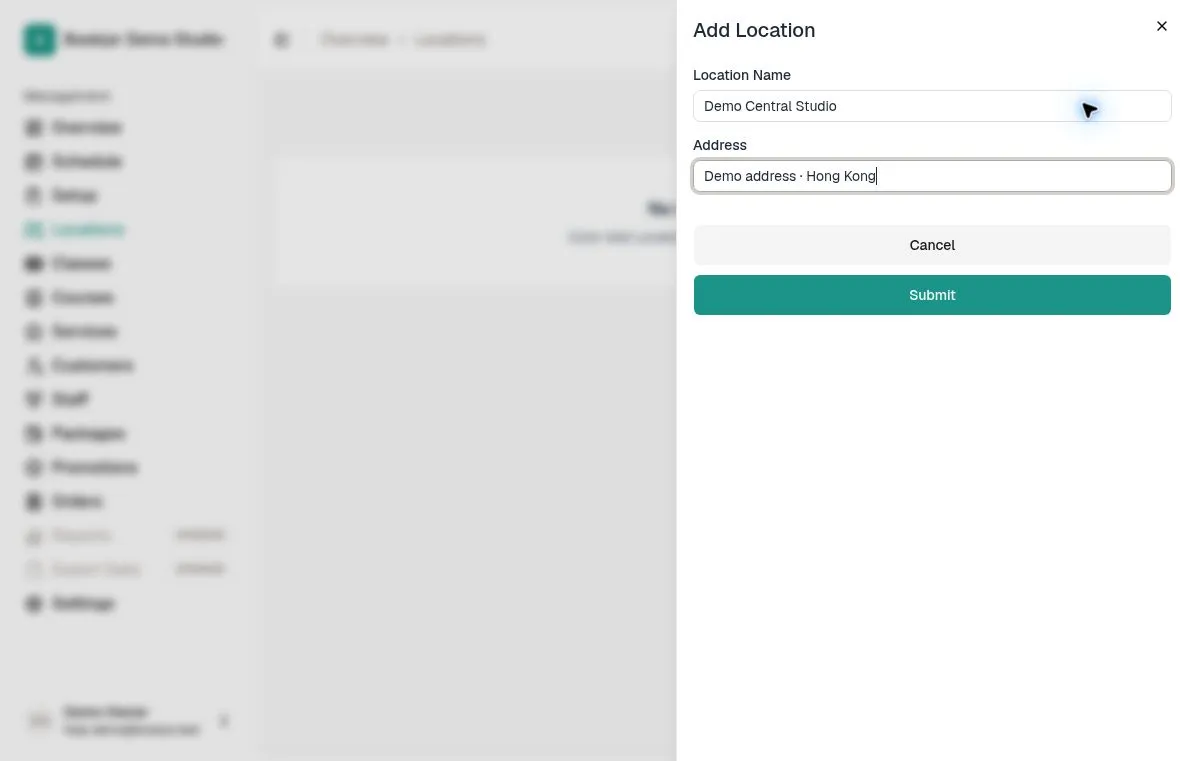
Add a new location
Click Add Location in the top-right corner. Enter a name for the studio. The address field is optional but recommended.
After saving, open the location to edit its name and address. Before deleting a location, review its resources and bookings: deletion also stops its recurring schedules and cancels eligible empty generated sessions.
Upload a location cover photo
Open a location detail page and click the camera icon in the top-right corner of the header. Select a high-quality image of the studio interior or exterior.
The cover photo appears at the top of the location card in the admin grid and helps staff quickly identify the right venue.
Add resources to a location
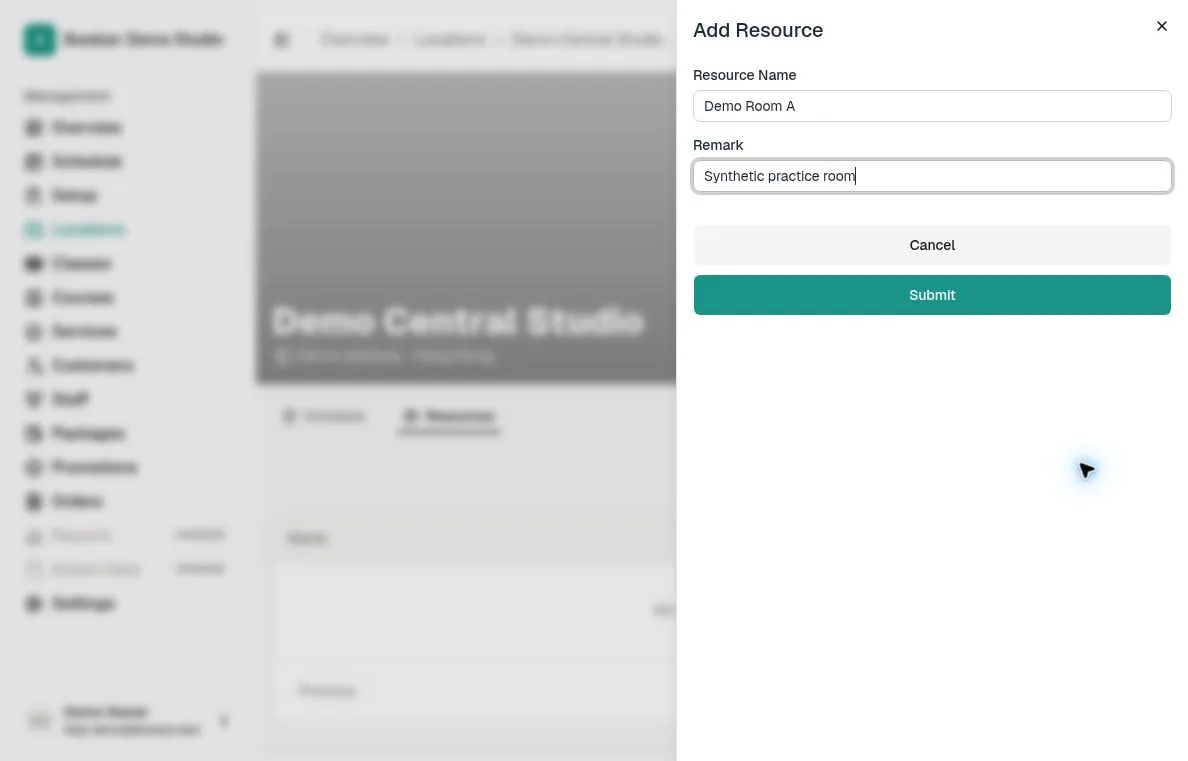
Inside a location detail page, switch to the Resources tab. Click Add Resource and enter a name and an optional remark. Resources represent the rooms or equipment spaces used for class sessions, multi-session courses, or private appointments.
Examples of good resource names: "Studio A", "Reformer Room", "Private Suite 1", or "Hot Yoga Room". The remark field is useful for internal notes like "Max 12 mats" or "No shoes allowed".
View the location schedule
Open the Schedule tab to view class sessions, course sessions, private bookings, and time blocks available to your role. Choose the calendar view and date range you need.
To move an editable event, switch to a view with time slots, drag it, and confirm the proposed time. Permissions, booking status, conflicts, and time blocks can prevent a move; review any warning instead of assuming every event can be dragged.
Preview from the customer side
Open your public booking portal and check how locations and resources appear to customers. Make sure names are clear and the address is easy to find.
If something looks off, return to the admin panel, edit the location or resource, and refresh the portal to verify the change.