
First check whether the session exists
Open Classes, select the class, and check its Overview session list for the expected date. Then open Recurring to inspect the relevant schedule. Compare the same class and location, not just the class name on the customer booking page.
If the session already exists in the admin, check its status and customer booking rules separately. Avoid creating a duplicate just because a customer cannot book it.
Check weekdays and effective dates
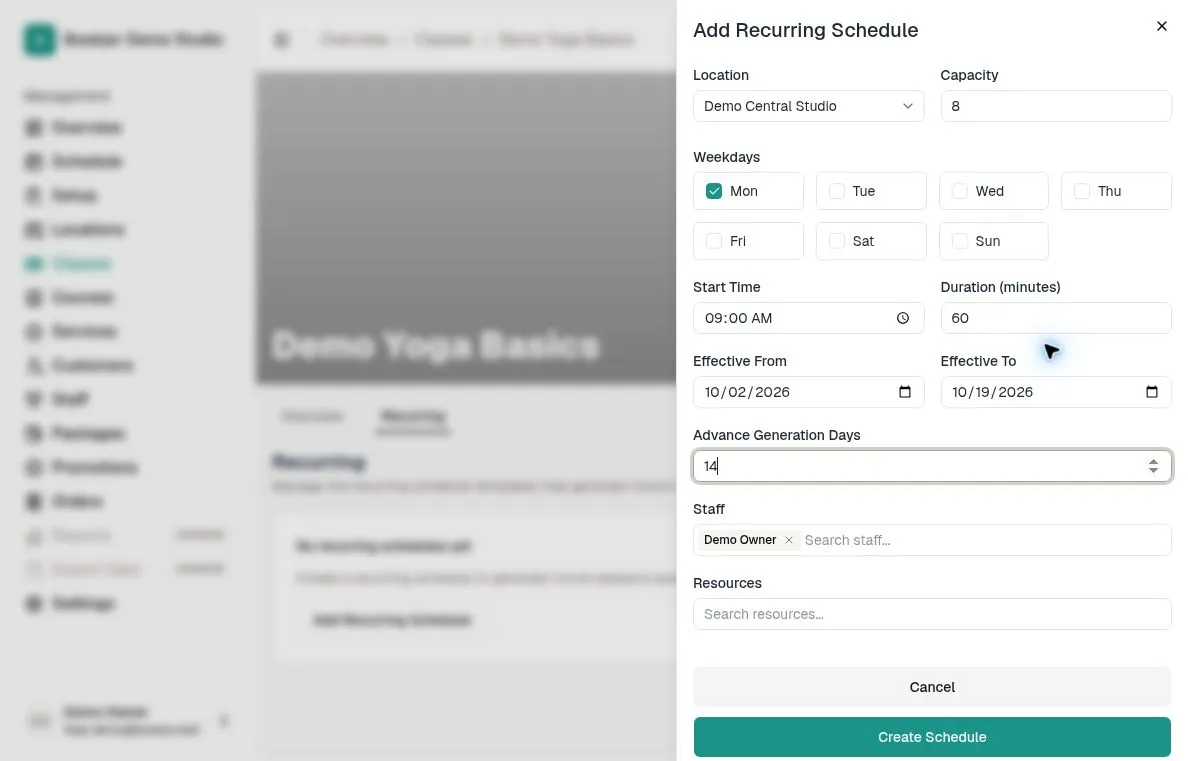
Check Weekdays, Effective From and Effective To on the intended recurring schedule. A Monday-only rule does not create Tuesday sessions; the effective start date does not create a session unless that date matches a selected weekday.
Dates before Effective From or after Effective To are outside the rule. A blank Effective To keeps the rule open-ended, but does not create every future session at once. Check whether someone stopped the recurrence.
Check how far ahead sessions are generated
Advance Generation Days controls the rolling generation window. The form defaults to 30 days and accepts 1–90. Bookjor uses today in the studio timezone, adds this number of calendar days, and caps the range at Effective To if set.
For example, if today is October 13 and the window is 14 days, the horizon reaches October 27. Sessions are created only for selected weekdays within the effective dates. If Effective From is after October 27 in this example, no sessions will appear yet.
The window advances as the background process runs. Customers can only book sessions already created. Dates within the window may still be skipped because of conflicts, and generation does not finish at a guaranteed time.
Compare the same timezone and full time range
Recurring weekdays and start times use the studio timezone configured in Settings. Check that timezone before deciding a session is on the wrong date or hour; a customer viewing from another timezone may see a different local date or time.
Compare the start and the full duration, not only the displayed hour. Record both the studio timezone and the timezone used by the screen where you noticed the gap.
Look for conflicts on the missing date
Check the assigned Staff and Resources for overlapping sessions, bookings or unavailable-time blocks during the full session. A recurring rule conflict can prevent saving the rule; an individual occurrence conflict can skip that date while other dates are created.
Review any conflict message shown when creating or updating the schedule. Resolve the actual scheduling clash with the responsible person before changing assignments or time.
Clearing a conflict alone does not guarantee an older gap will be filled. Routine background generation moves forward beyond the dates already processed; it does not automatically retry every previously skipped date.
Look for a moved, canceled or independently managed session
Search the class session list and relevant calendars for the original session, including a new date or time. An individually moved recurring session is managed independently, so later rule changes do not simply move it back.
When a rule is updated, future unbooked sessions still managed by the recurrence can change or be removed. Booked sessions whose time, location, staff or resources would change, or whose dates fall outside the rule are preserved as standalone sessions. Do not assume they disappeared just because they no longer follow the recurring pattern.
Changing a session’s time, location, staff or resources detaches it from the rule; a capacity-only edit does not. A session canceled by staff keeps its occurrence slot and is not automatically recreated by the recurrence.
Check whether recurrence was stopped
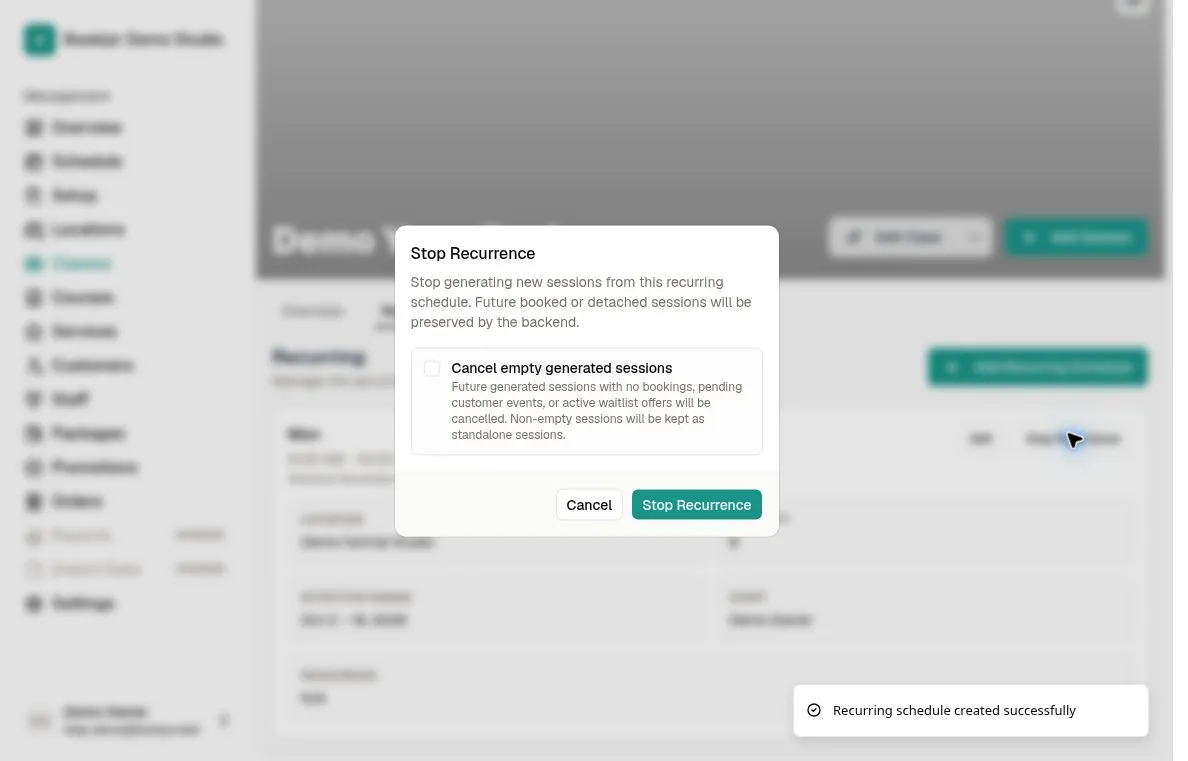
Stop Recurrence stops future generation. With Cancel empty generated sessions unchecked, existing future sessions are kept; with it checked, eligible empty generated sessions can be canceled.
The stop flow preserves sessions with bookings, pending customer events or active waitlist offers, and sessions detached by individual changes to time, location, staff or resources. A capacity-only edit does not detach a session. This can explain a pattern where some dates remain and others are gone. Do not use Stop Recurrence as a refresh or repair button.
Fix the cause and check the affected dates
If the rule is wrong, review the intended correction and its impact before using Edit and Update Schedule. Updating the rule updates the future sessions still linked to it, so it can affect more than the missing date. It does not guarantee that canceled or detached occurrences will be recreated.
For a single genuinely missing date, consider Add Session only after checking for an existing or moved session and resolving conflicts. Adding a one-off session does not change the recurring rule. Follow the one-off-session guide and verify the date, staff and resources.
After saving your changes, reopen the session list and check the affected dates. Review any preserved booked sessions separately. You can check that sessions were created without making a booking.
Contact support if sessions are still missing
Provide the class and schedule identifiers if available, location, expected missing dates and times, studio timezone, selected weekdays, effective range and Advance Generation Days. Include any visible error and when the schedule was last created, edited or stopped.
Add whether a session was moved, canceled, already booked or individually changed, plus a screenshot of the relevant schedule and session list. Avoid unrelated customer information. This is more useful than repeatedly saving or recreating the entire schedule.