
Open the class detail page
Navigate to the Classes page and click the card of the class you want to add a session for. You are taken to the class detail page.
Make sure you are on the Overview tab.
Start adding a session
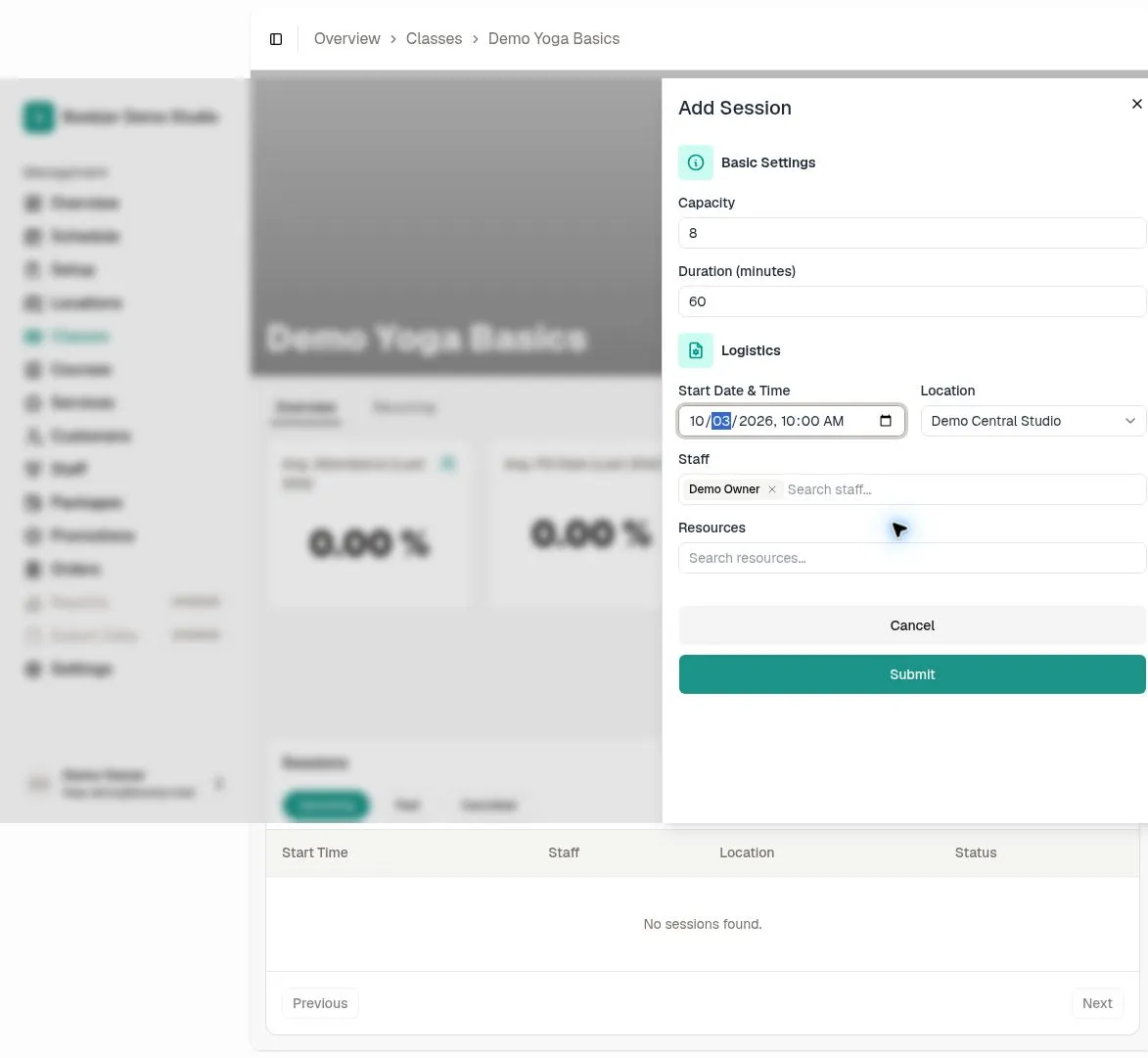
Click Add Session near the top-right of the page. A form panel slides open.
The Capacity and Duration fields are pre-filled with the class defaults. You can change them if this specific session needs a different limit or length.
Set the date and time
Use the Start date-time picker to choose when the session begins. The picker uses your local timezone.
The session end is calculated from the start time and Duration. There is no separate end-time field to fill in.
Choose location, staff, and resources
Select a location from the dropdown. The resources list is filtered to show only rooms and spaces at that location.
Choose at least one staff member. Resources are optional; select any rooms or equipment the session needs from that location.
Save the session
Click Submit to create the session. If a conflict is reported, review the affected staff or resources and adjust the session before saving. After creation it appears in the Overview session table.
Customers can book the session when the booking window, capacity, payment, and other booking requirements allow. If Add Session is missing, check your staff role permissions.