
Open the staff profile
Click Staff in the sidebar, open the staff member, and select the Unavailable time tab.
The table lists the title, start time, and end time for every existing block.
The tab and calendar blocks follow your View staff unavailable time permission. Adding or deleting requires Manage staff unavailable time; Assigned access covers your own blocks, while All covers other staff too.
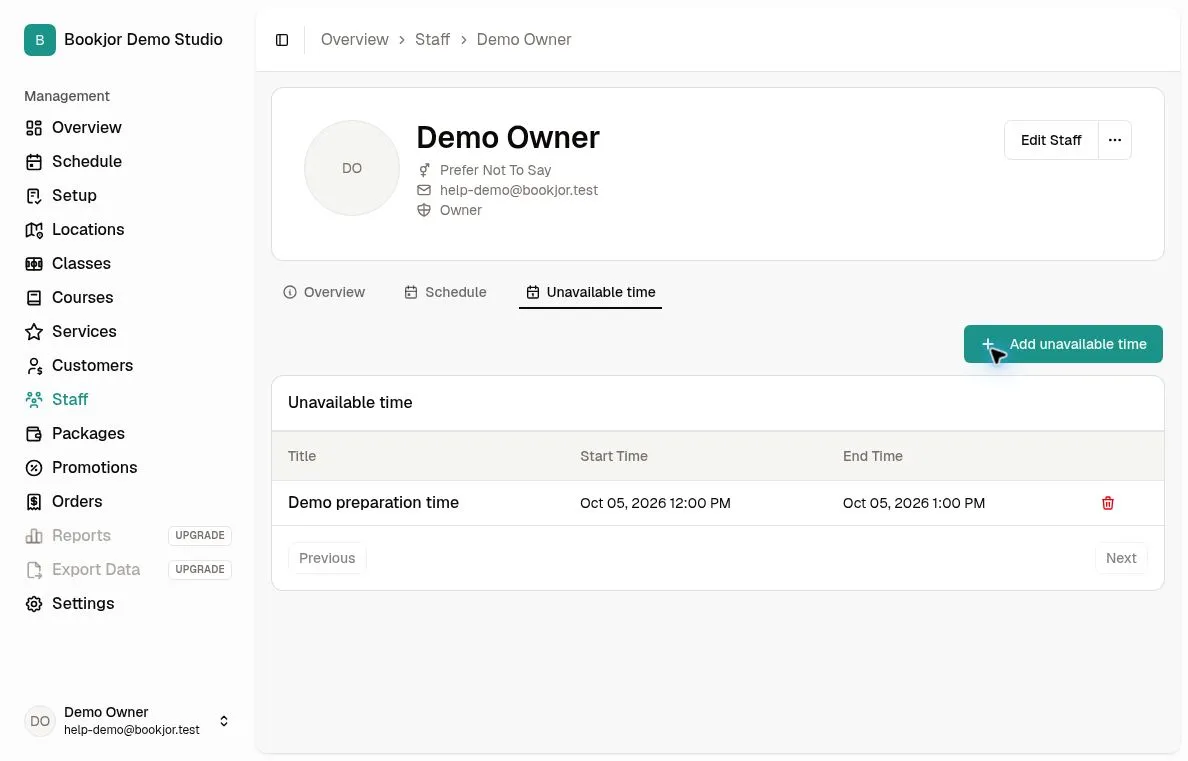
Add unavailable time
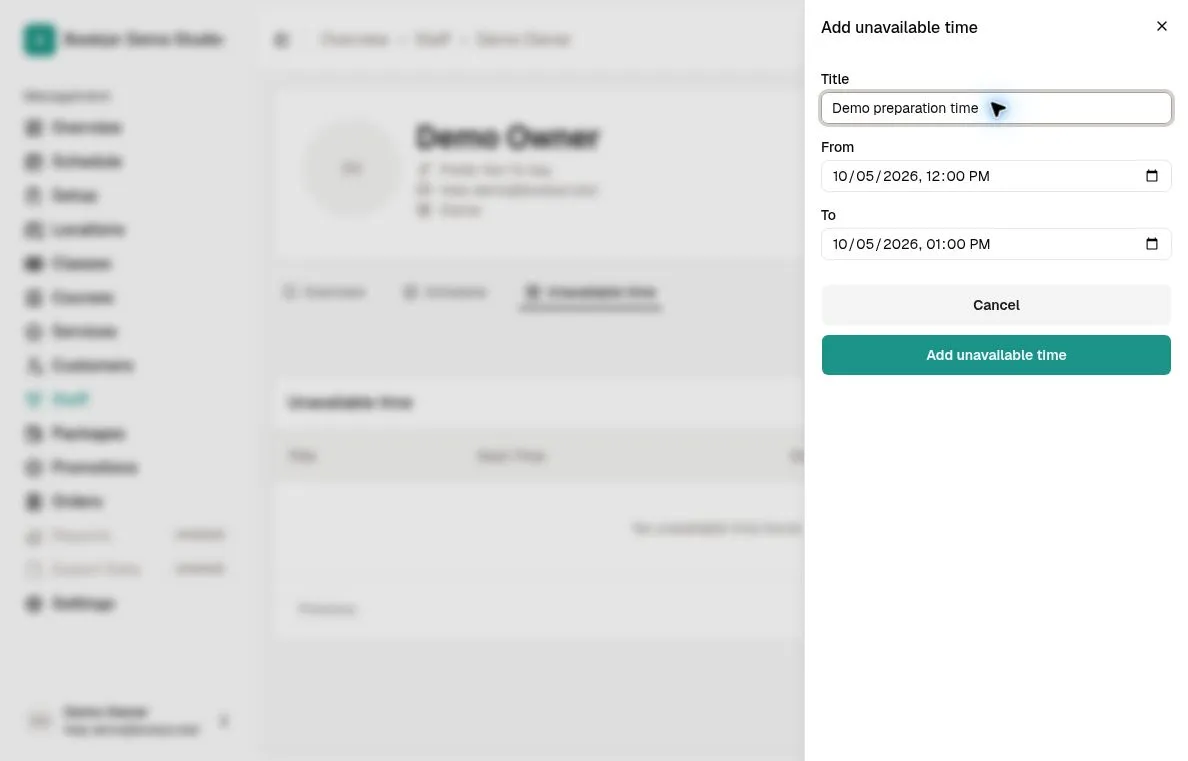
Click Add unavailable time. Enter a short title, such as Annual leave or Medical appointment, then choose the From and To date-times.
The end time must be later than the start time. The title can contain up to 50 characters.
Bookjor checks for existing conflicts before creating the block. If the period overlaps an existing booking or session, adjust or reschedule that commitment first; adding unavailable time does not cancel it.
Check the schedule
Save the block and open the staff Schedule tab or the main Schedule page. Blocks you have permission to view appear on the calendar and in event details.
The block prevents overlapping bookings and sessions, even if the person making a booking cannot view the block’s details.
Remove a block
Return to Unavailable time and delete the block when it no longer applies. Deletion is permanent and immediately removes it from schedule conflict checks.