
Check the service and location
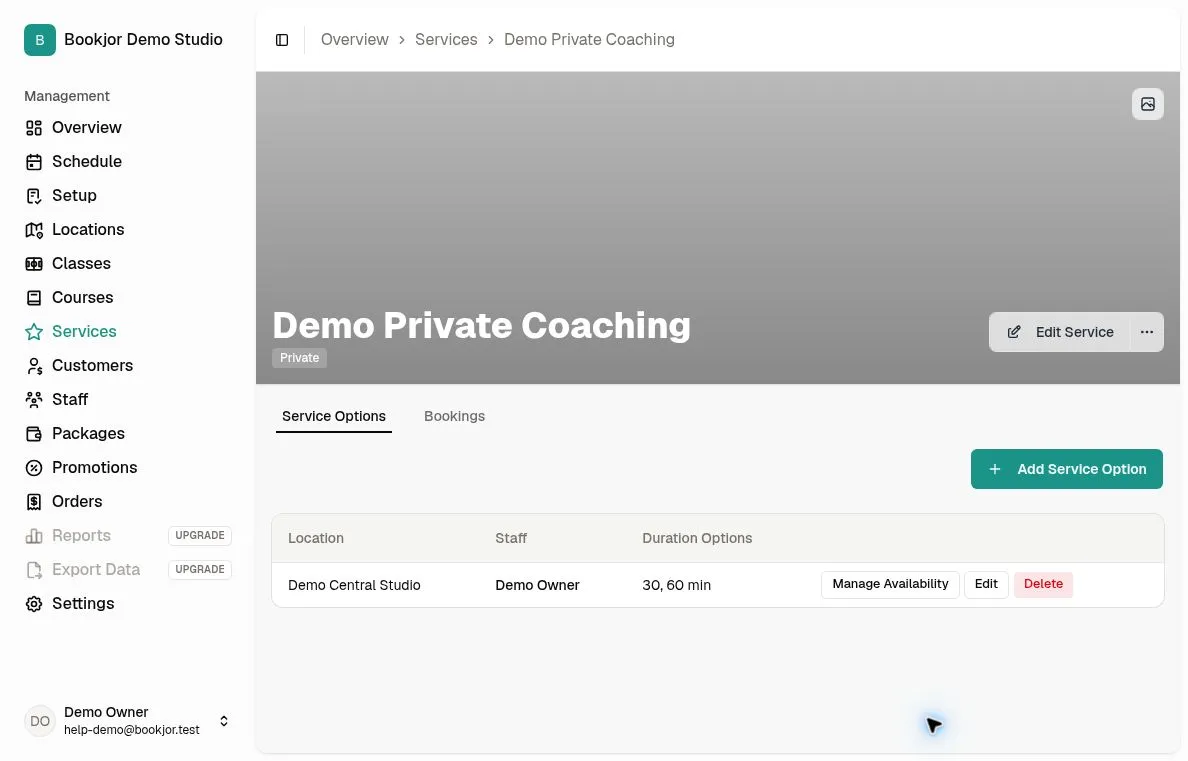
Open the same private service and location the customer selected. In the admin, go to Services, open that service, and choose Service Options. Check that the expected option exists for that location and booking target.
If the service or option itself is missing, start with its setup. An existing service or listed provider does not mean there are bookable times. Note whether the customer cannot select a booking target, cannot select a date, or sees no times for the selected date and duration.
Match the booking target and duration
Compare the customer’s selected staff member and duration with the option in Service Options. Choose Edit for that exact Service Options row and check Durations (minutes); a time available for one option or duration may be unavailable for another.
The full appointment must fit. For example, a 60-minute appointment starting at 11:30 needs continuous availability until 12:30. A free start time alone is not enough.
Check the option’s weekly availability
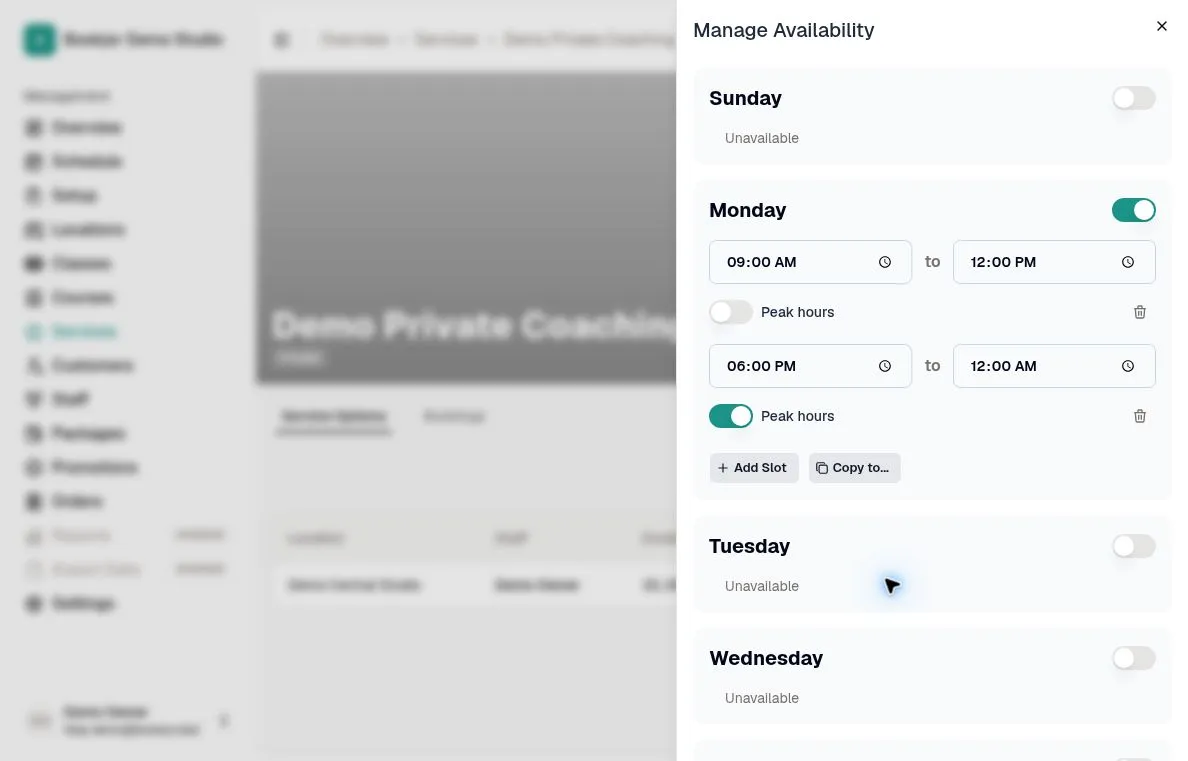
Open Manage Availability for that exact option. Check the required weekday, its enabled time ranges, and any gaps for breaks. Weekly hours belong to the service option; adding a staff member alone does not set them.
Customer start times are generated in 30-minute increments from each availability range’s start. A selectable date in the calendar is not a promise that the chosen duration has a free slot. Check the time list for the actual date and duration.
Check staff unavailable time
Open the selected staff member’s Unavailable time tab and compare each block’s start and end with the whole appointment. A block can remove a slot even when it lies inside weekly availability.
Your role may not allow you to see a block’s details. Ask someone with the right access to check the period rather than deleting leave or other commitments to make a slot appear.
Look for overlapping bookings and sessions
Check existing bookings and sessions for the selected staff member and the customer. Both pending and confirmed events can reserve time, including classes and other private bookings.
An apparently empty staff calendar is not enough: the customer may already have a conflicting event, or your view permissions may hide a commitment. Do not assume a pending booking leaves the time free.
Keep staff and resource checks separate
A service option has one staff member or one resource as its booking target. Private appointments select a staff member; rental services select a resource. Check which workflow you are comparing.
For a rental, check the selected resource’s bookings and Resource unavailable time. A free staff calendar does not establish that a rental resource is free. Do not assume every private service needs a resource.
Compare dates in the studio’s timezone
Weekly hours are interpreted in the studio’s timezone, while the customer booking page displays times in the browser’s timezone, identified in its footer. Compare the same instant, not just the same clock reading; past start times are excluded.
For hours that cross midnight, review both days. An end time of 00:00 in the weekly editor means midnight at the end of that day; a booking still needs continuous availability for its full duration.
Check the service advance-booking limit
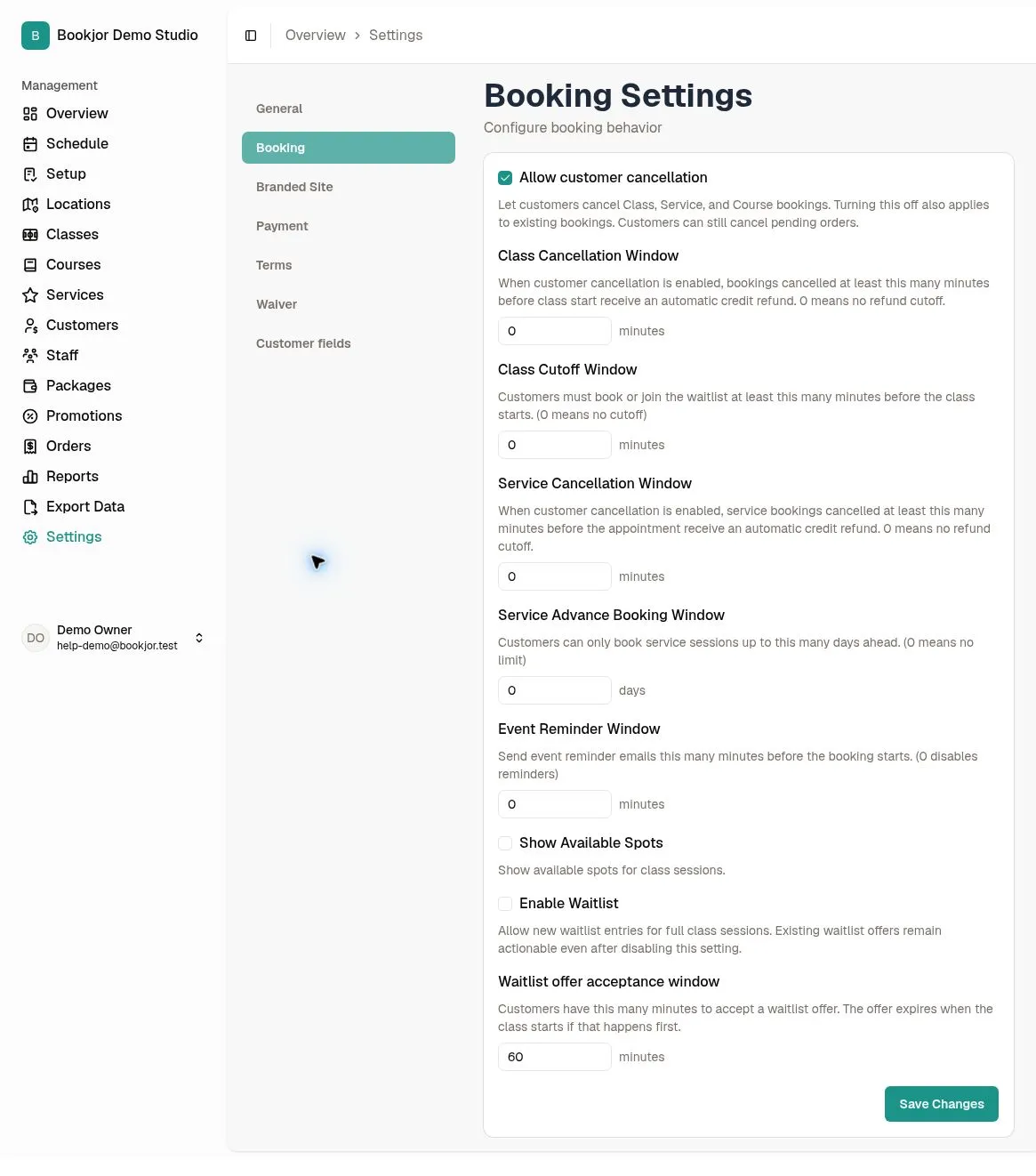
Go to Settings > Booking Settings and check Service Advance Booking Window. A positive value limits how far ahead customers can start a private-service booking, through the end of today plus that many calendar days in the studio’s timezone.
For example, if today is October 12 and the value is 7, eligible start times extend through the end of October 19. A value of 0 removes this advance limit, but does not create availability or remove conflicts. Class Cutoff Window is a different setting.
Do not use an admin booking as proof of customer availability
The admin New Booking flow can accept a manually chosen start and positive duration without the customer weekly-hours or advance-window checks. A time that works there is not proof that customers should see it online.
Admin bookings still check customer, staff, and resource conflicts. Creating an internal booking is not a way to override those conflicts or repair the customer’s available-time list.
Recheck the same selection and collect useful details
After an authorized setup correction, save it and reopen the customer booking flow with the same service, location, booking target, date, and duration. Try another offered duration or date to narrow the issue. Checking the time list does not require placing a booking; a displayed slot can still change before confirmation.
If no times appear, contact support with those selections, the studio timezone, the browser timezone shown on the customer page, the expected start and end, and a screenshot of the empty time list. Include relevant booking references if known; avoid sending unrelated customer details.