
Open Customer fields
Go to Settings > Customer fields. Your studio needs custom fields enabled on its plan, and your role needs permission to manage customer fields. If the page is missing, ask the studio owner to check your access and plan.
Custom fields belong to primary customer profiles. Family member profiles do not have these fields.
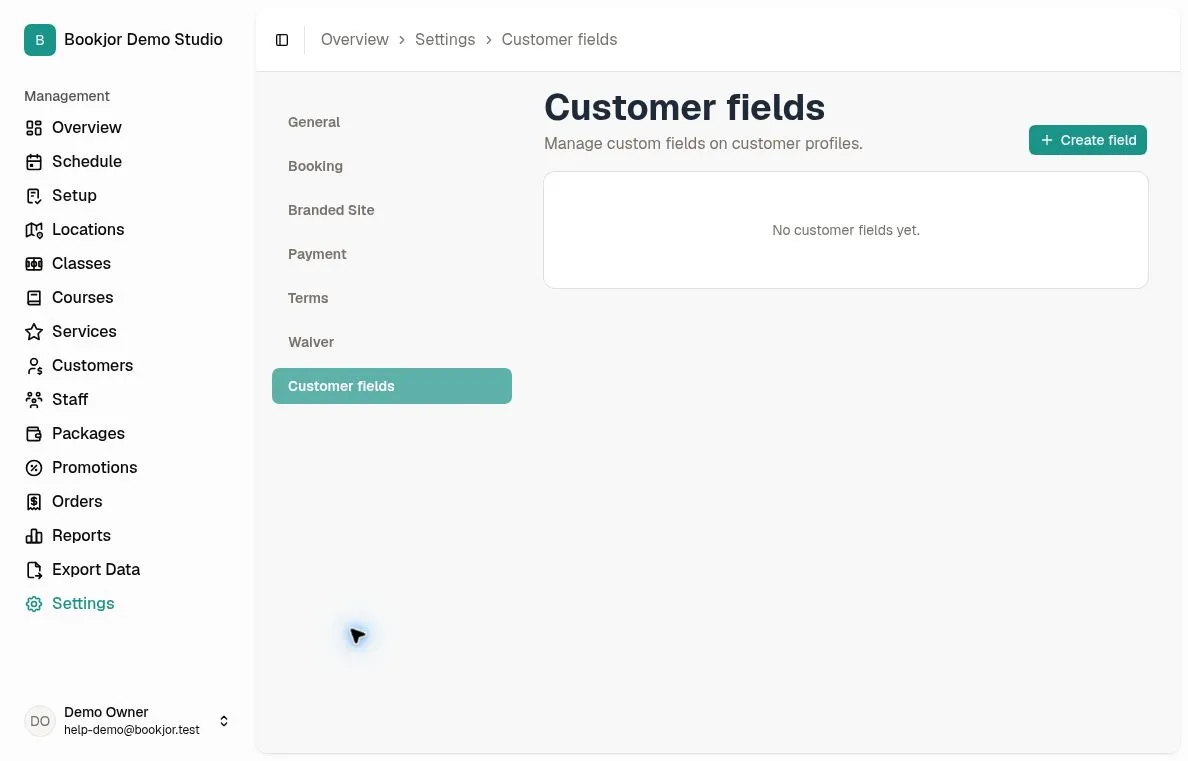
Create a field and name it
Click Create field. Enter a Name in the language marked Default language · required. You can also add names in English, Hong Kong Traditional Chinese, and Simplified Chinese.
Customers see the name in their selected language when a translation is available; otherwise, Bookjor uses your studio’s default-language name. The management list shows the default-language name.
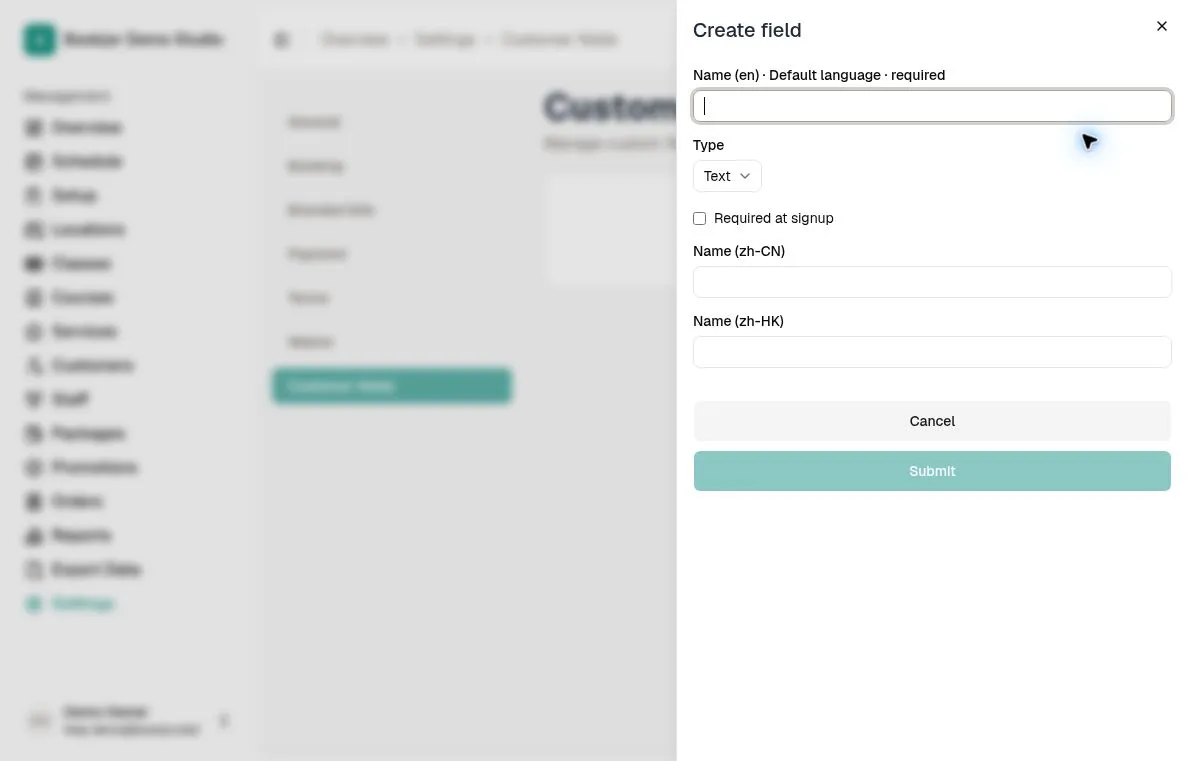
Choose the answer type
Choose Text for a written answer, Number for a numeric answer, or Yes / No for a choice between those two answers. For example, use Text for a referral source or Number for years of experience.
Numbers support decimals, negative values, and zero. Yes / No starts unanswered; choosing No is a valid answer, including when the field is required.
The type cannot be changed after creation. Check it before saving; if you need a different type later, create a new field.
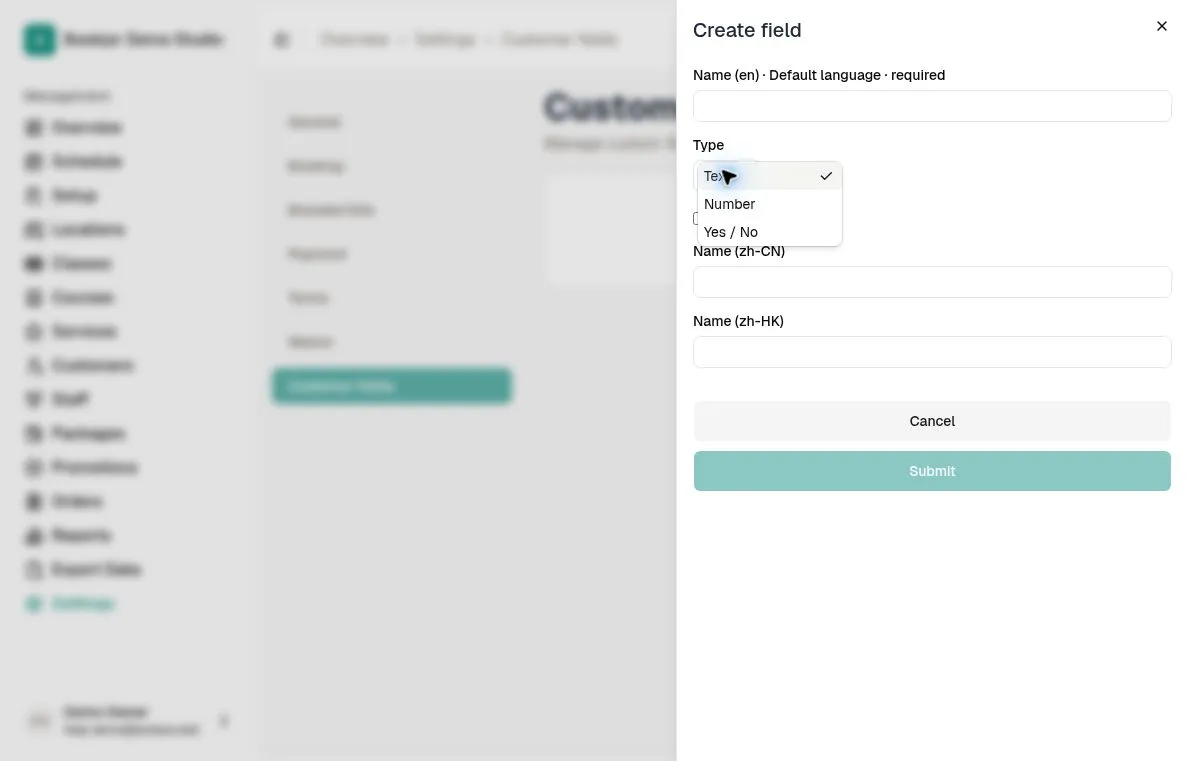
Decide whether it is required at signup
Select Required at signup if every new self-registering customer must answer this question. Only active required fields appear during signup. Leave this off for information customers or staff can fill in later on the customer profile.
Existing customers and customers created by staff or through imports are not forced to fill in missing signup-required answers. Once a required field has an answer, it cannot be cleared while the field remains required.
Click Submit and check that the new field appears with the correct type and Required at signup or Optional badge.
View or update a customer’s answers
Open Customers, select a primary customer, and find Customer fields in Overview. Staff with normal customer-view permission can read answers; staff with customer-management permission can update active answers through Edit. Managing field definitions is a separate permission.
Customers can also edit active fields in their own profile. Unanswered is different from No or 0. You can clear an optional answer; to allow a saved required answer to be cleared, first make that field optional.
Edit names or stop collecting a field
Return to Settings > Customer fields and click Edit field to change translated names or Required at signup. Click Save Changes. Renaming a field keeps its existing answers.
To stop collecting a field, click Archive field and read the confirmation before confirming. Archiving cannot be undone. It removes the field from signup and editing, and customers no longer see it in their profile. Staff can still read saved historical answers, marked Archived · read-only.