
Identify the customer and the exact booking
Ask whether the package is missing, greyed out, or rejected after confirmation. Note the class session, course, or service option, date, and duration the customer selected.
Confirm the signed-in customer and, for a family booking, the selected participant. Open that customer’s profile under Customers and review Packages. A package held by another profile is not automatically available.
Check that this item accepts the package
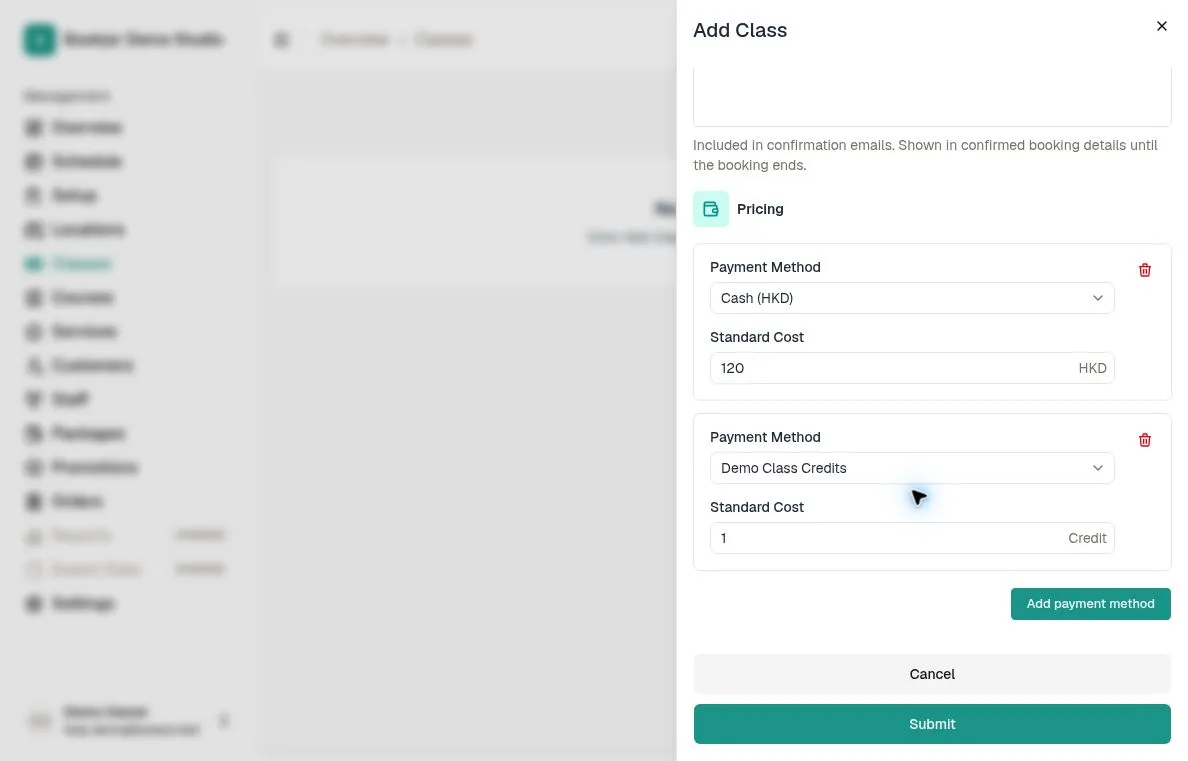
Open the class, course, or service option and review its pricing. The same package must be listed as a payment method for that item; owning a package does not make it valid for every booking.
For a private service, check the selected option, booking target, and duration. Compare the credit cost shown at checkout, including any applicable peak pricing. An Unlimited Pass also needs to be accepted by that item.
Compare the cost with usable credits
Compare the required credit amount with the balance available for this booking, not the original credits purchased. Different packages are separate balances; credits for one package do not cover another.
My Packages can show credits that do not qualify for the selected event dates. Check each credit period’s start and expiry, and any shared source. If a booking costs 3 credits but only 2 are eligible, the package cannot pay for it. An Unlimited Pass shows N/A in the admin balance column; that alone is not an error.
Check purchase confirmation and activation
If the package was just bought, review its order status and the customer’s Packages tab. A pending purchase is different from a confirmed package waiting for its first booked event. Do not confirm a bank transfer unless the payment has actually been received.
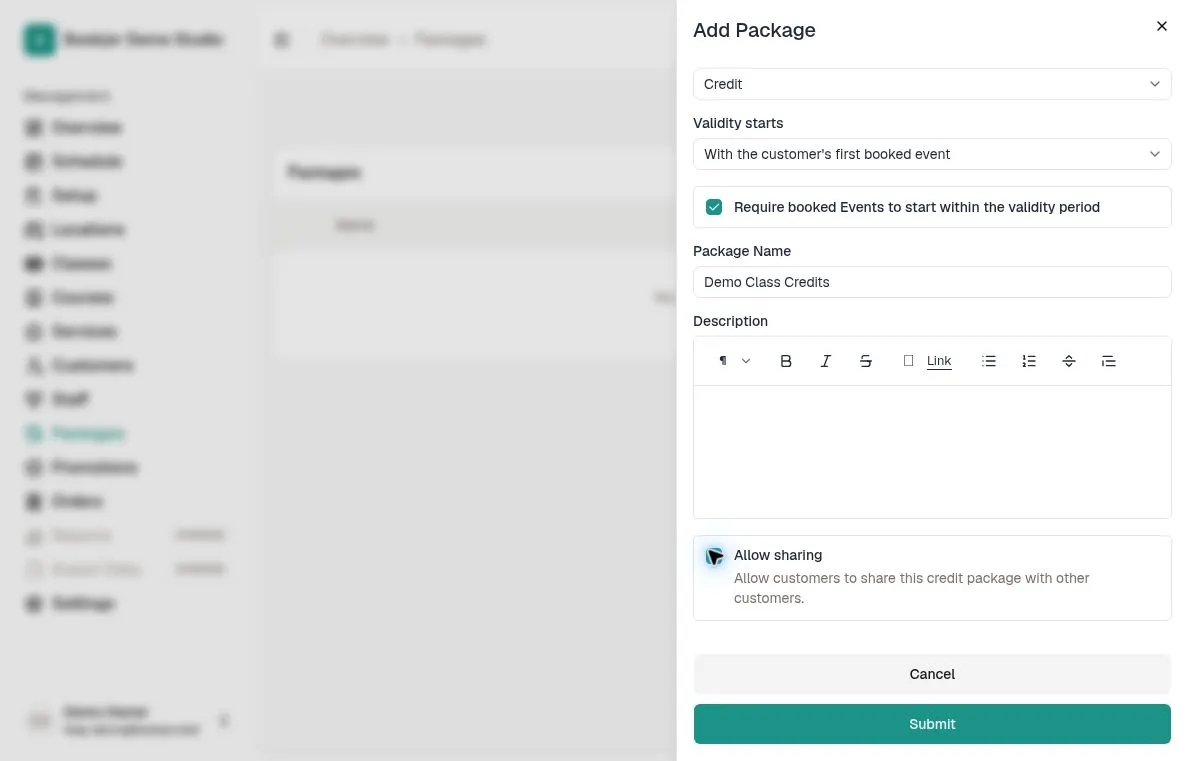
Packages can start on purchase confirmation or with the first booked event. A first-event package can be eligible before it has a start date: its first successful use activates it from that event’s start time, not the time the customer clicks Book. Simply viewing checkout does not activate it.
The creation form below illustrates these rules. Package type, validity-start rule, and whether events must start within validity are creation-only settings.
Check the booking date as well as today
A package must still be unexpired when the booking is made. Every booked event must start on or after the package’s activation date. If its rules require events within validity, each event must also start no later than its expiry.
For a course, check the first and last session dates, not just the enrollment date. One eligible early session does not make the whole course eligible. Compare the actual timestamps and timezone when a date is close to activation or expiry.
For example, a package may still be valid today but fail for an event next month if that event is after expiry and the event-window rule is enabled. If that rule is off, future events may extend beyond expiry, but the package still must be unexpired when booking.
Check shared credits and the family participant
Only Credit packages with Allow sharing enabled can supply shared credits. Unlimited passes cannot be shared. For a normal shared package, check that the owner shared it with the intended customer and that the owner still has eligible credits.
A linked family member can use their own eligible credits. If Allow sharing is enabled, they can also use the primary customer’s eligible owned credits. Credits shared to the primary customer by someone else are not passed on to family members. Selecting the primary customer instead of the participant changes whose packages are checked.
Update the relevant setting
If your role allows it, correct the item pricing or the participant selection, then recheck. Do not grant a duplicate package or mark an unpaid order paid just to bypass the issue.
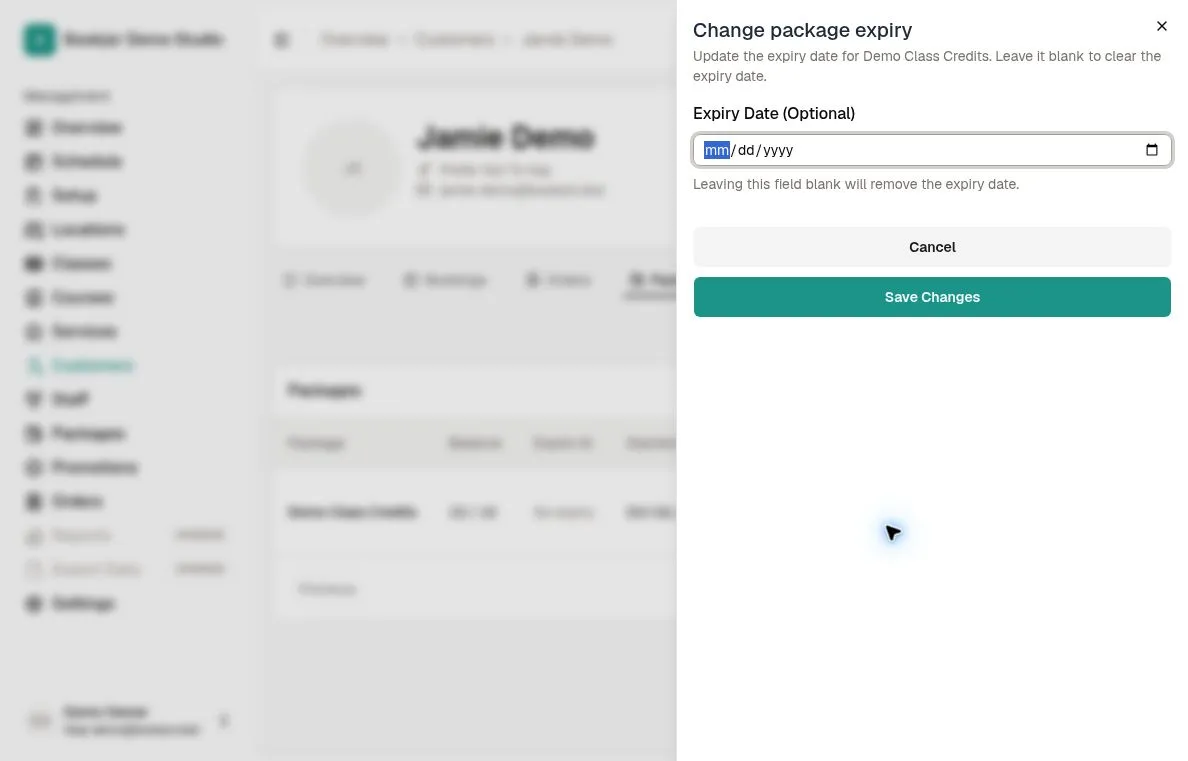
Change Expiry is available only for eligible active Credit packages with remaining credits and the required permission. It cannot reactivate an expired package, activate a pending package, or edit an Unlimited Pass. Clearing the optional date removes expiry; it is not a renewal action. Follow the expiry guide before saving a change.
Separate package problems from booking restrictions
If the package is offered but the booking still fails, read the exact message. A full class, closed booking window, duplicate booking, or scheduling conflict may block the booking independently of the package.
Refresh the booking page after saving your changes and select the same participant, item, date, and duration again. Package eligibility is checked again when the booking is submitted; a previously displayed balance is not a reservation of credits.
Collect the details support needs
If the cause is still unclear, send support the package name, customer or booking reference, selected participant, item and option, event dates and duration, displayed usable balance, and exact error text. Include the related package purchase order reference when relevant.
Use a cropped screenshot of the package or payment section and note the timezone shown. Avoid sending unrelated customer records or payment details. You do not need to create another paid booking to collect this information.