Open the Orders page
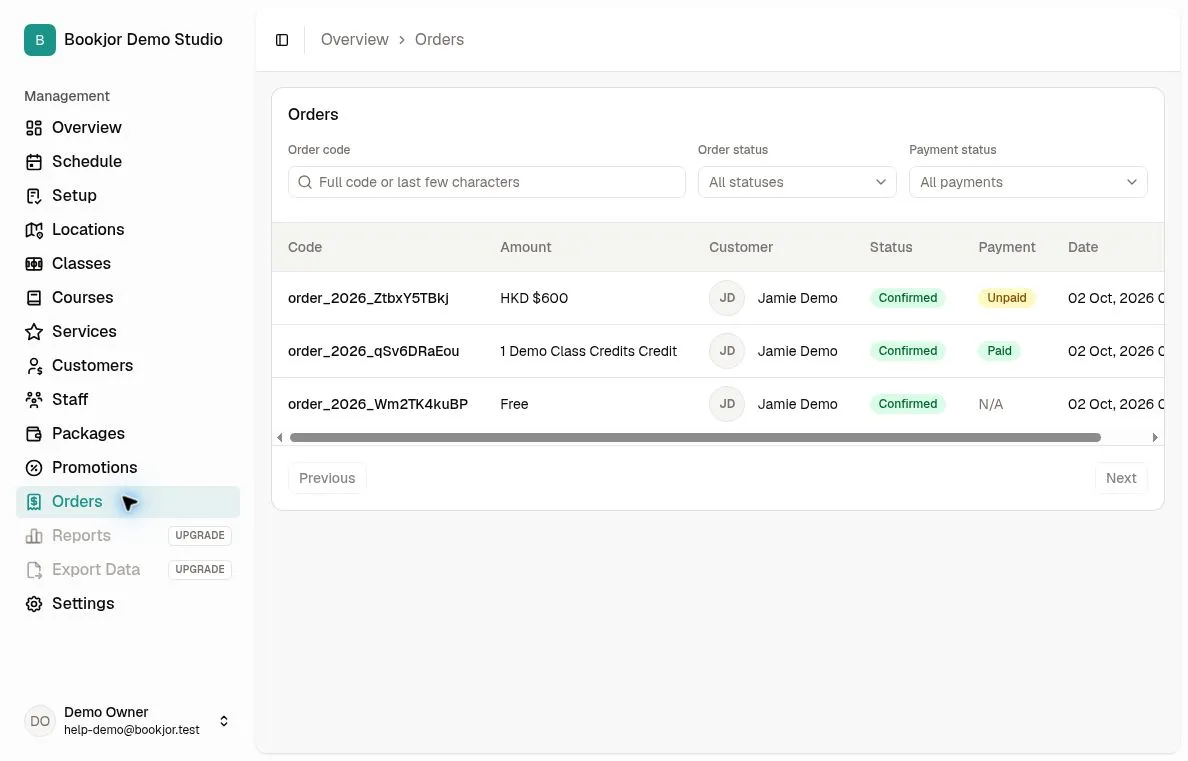
Click Orders in the sidebar. You need permission to view orders; managing orders is a separate permission.
Each row shows the order code, amount, customer, order status, payment status, and creation date. Zero-value orders show N/A for payment status.
Search and filter orders
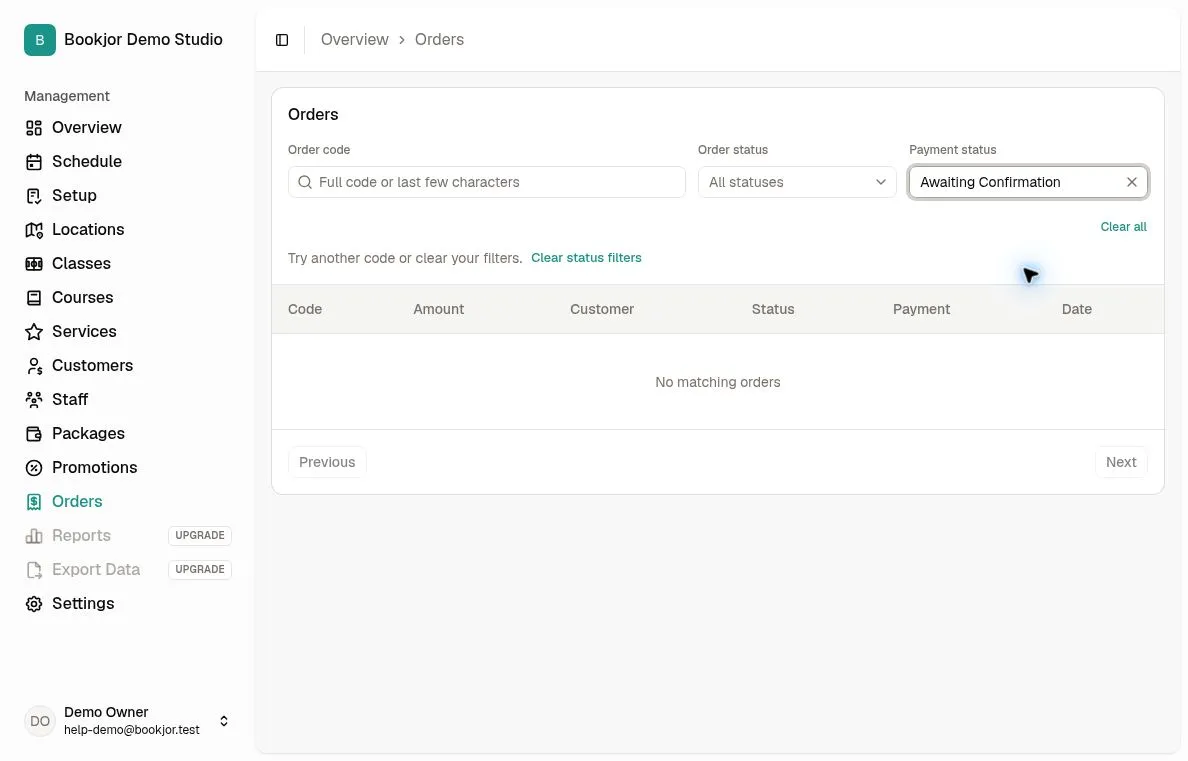
Use Order code to search, then combine it with Order status (Pending, Confirmed, or Cancelled) and Payment status (Unpaid, Paid, Awaiting Confirmation, Failed, or Refunded). Clear individual filters or use Clear all to reset them.
Awaiting Confirmation identifies payments awaiting review. Open Order Transactions to check the payment method and any attached proof; it does not mean that funds have been received.
Confirm a pending order
Open the order and check its items, payment status, and successful transactions. For a bank transfer awaiting review, verify receipt and accept the transaction first.
If the order is still Pending and you have permission to manage orders, click Confirm Order, read the confirmation dialog, and click Confirm to deliver or confirm its items.
Confirm Order changes the order and its items; it does not accept an awaiting transaction or turn an unpaid order into a paid one.
Review the detail and history
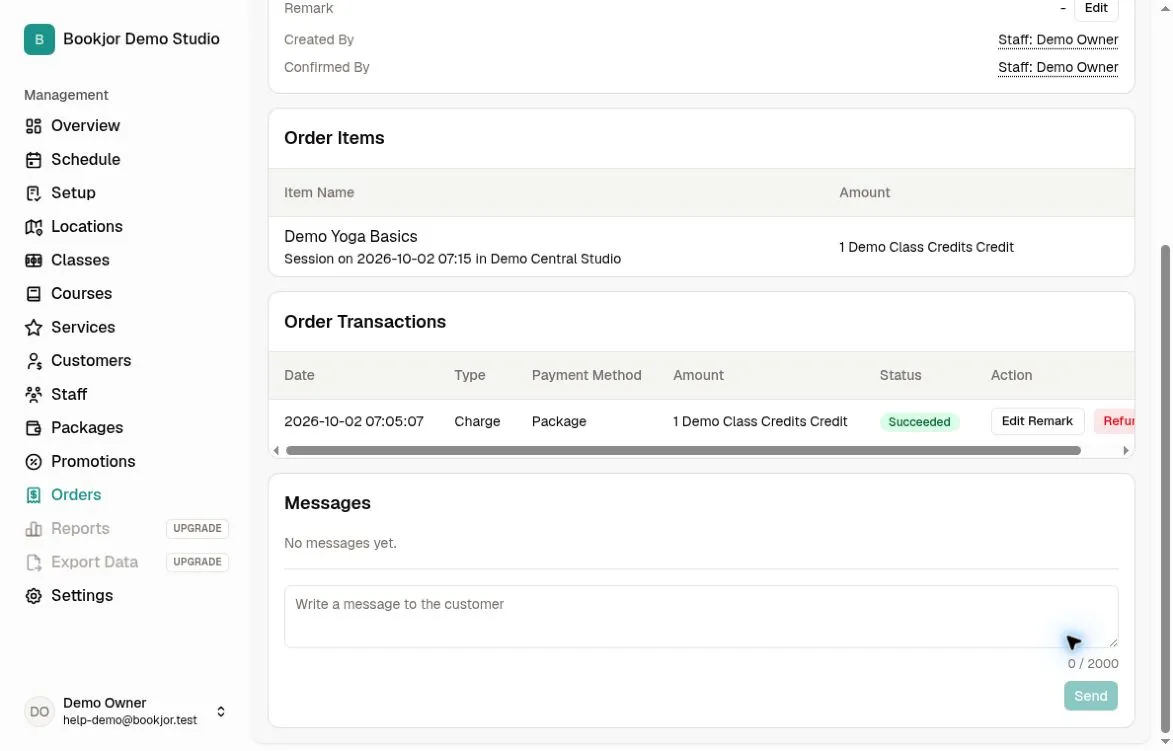
The detail page shows the customer, items and their amounts, total, order and payment status, remarks, and details of who created, confirmed, or canceled the order, where available.
Transactions show type, payment method, amount, status, time, and transaction remarks. Order managers can view attached proof and use the order’s message thread to resolve questions with the customer.