
Check the expected promotion
Open Promotions and select the offer the customer expects. Check whether it uses Auto promotion or Promo code, then review checkout with the same customer, items, and payment method.
An automatic promotion does not need a code. A promo code must be entered and applied; merely seeing the offer name in the admin does not make it apply. You can check the discount without placing an order.
Check the code exactly
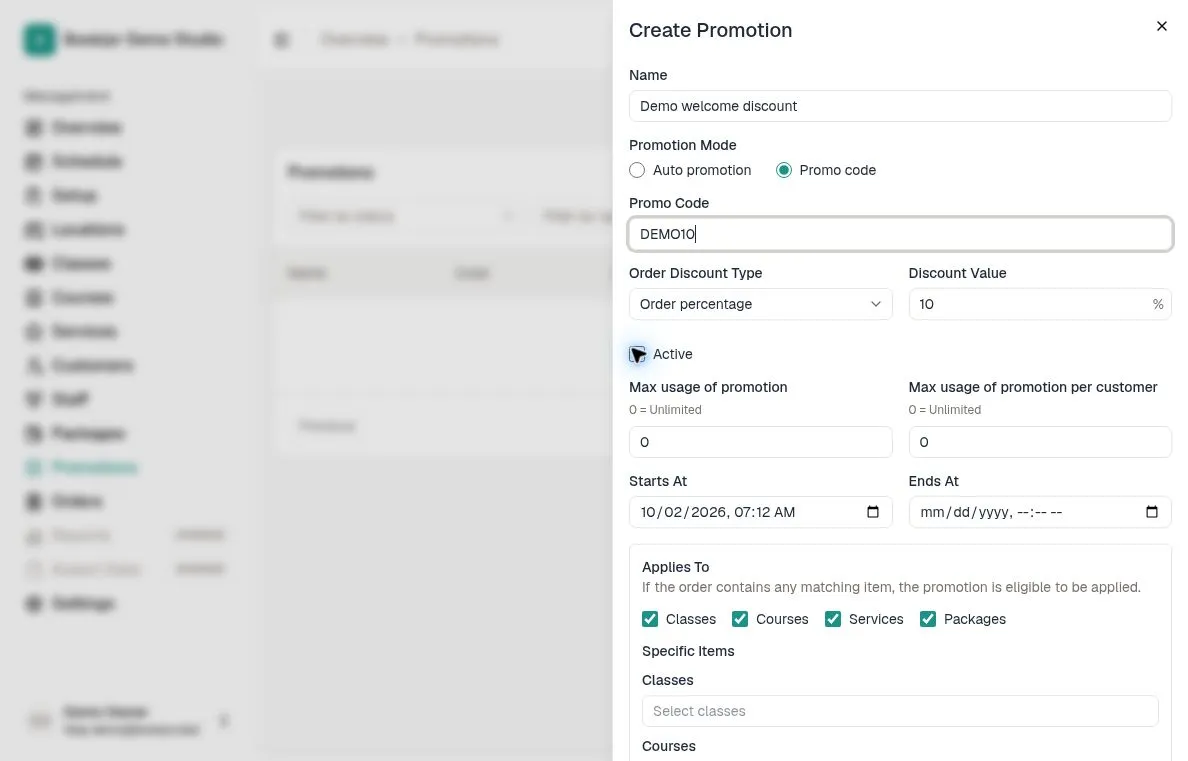
Compare the entered code with Promo Code, including uppercase and lowercase letters. Codes are case-sensitive: DEMO10 and demo10 are different.
In customer checkout, choose a payment method, then use Add promotion code and Apply. If a code is still waiting to be applied, apply it or remove it before continuing. Read the displayed error rather than repeatedly submitting the order.
Check Active and the current time
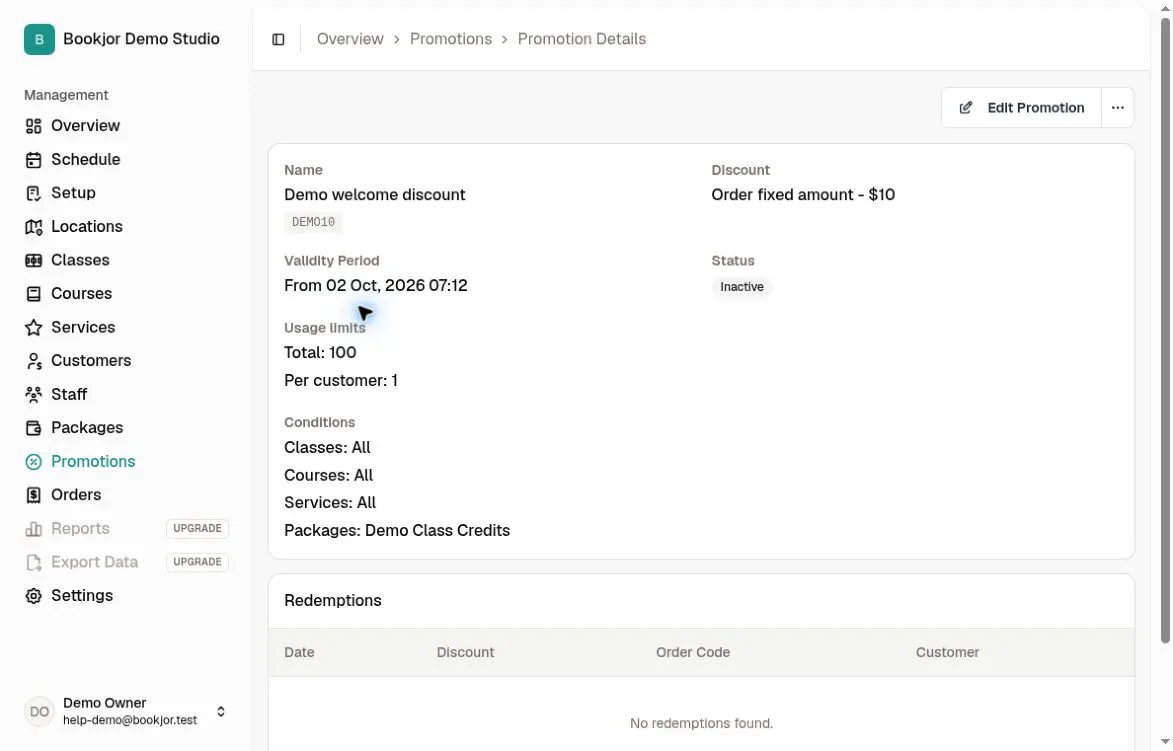
Open the saved promotion details. An Inactive offer cannot apply. Check Starts At and any Ends At. The admin input and detail display use your browser’s local timezone; do not assume they show the studio timezone.
Eligibility uses the time the promotion is evaluated, not the future class or appointment date. It must have started and must not have reached its end time. An empty end date does not override an inactive status or usage limit.
Match the item type and specific item
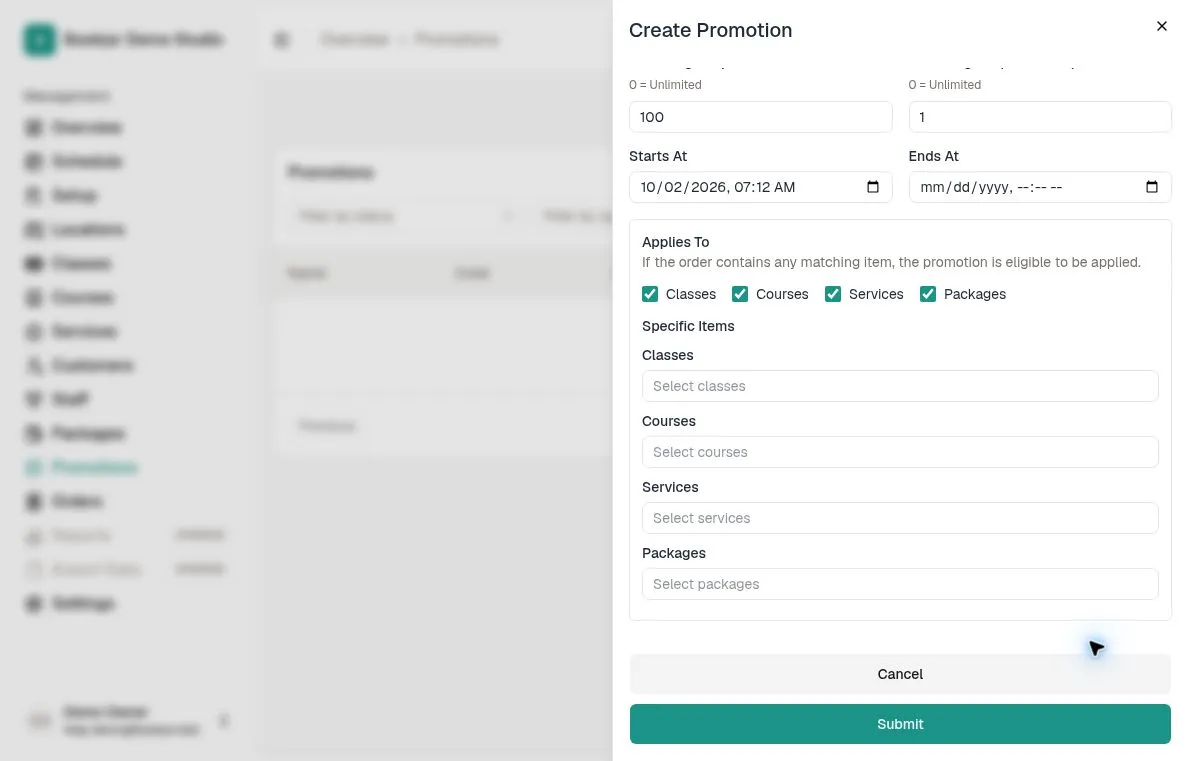
Check Applies To: Classes, Services, Packages, and Courses are separate item types. For each enabled type, check whether All items or Specific items is selected, then verify the actual selected item. The screenshot below shows an older layout; follow the All items and Specific items controls in your admin.
The order must match the promotion’s item restrictions. Buying a package is different from using its credits or pass to book. An offer restricted to one package does not mean every package, class, or service qualifies.
Check the payment method
Package-credit or pass payments, Pay later, and Offline collection are not eligible for promotions. A code can produce an error for an ineligible method; an automatic offer can simply be skipped.
Buying a package with an eligible money-payment method can qualify if its item restrictions are met. A cash-priced customer checkout can also become free after a 100% discount; a zero final total does not by itself mean the promotion failed. Recheck the discount and total after changing the payment method.
Check total and per-customer usage
Compare Max usage of promotion and Max usage of promotion per customer with Redemptions for this offer and the actual customer checking out. Each limit is separate; 0 means unlimited for that limit.
An active promotion may have reached a usage limit. A redemption can be recorded before payment finishes, so do not count only paid orders. Only change a usage limit if you intend to extend the offer; creating another customer or deleting records is not a fix for incorrect usage counts. If usage looks inconsistent, collect the relevant order reference for support.
Check competing automatic offers
Only one promotion is applied to an order. A promo code does not stack with an automatic discount, and an invalid code does not automatically fall back to an automatic offer.
The current automatic selection checks only the 5 newest active offers without codes, then applies the first eligible one. It does not choose the greatest discount. An older offer can be left out even if newer candidates fail their date, item, or usage checks. Review overlapping campaigns before assuming the offer with the largest saving will win.
Review the discount on the eligible items
Check Order Discount Type and Discount Value on the saved offer. Order percentage and Order fixed amount are different; a fixed amount uses the studio currency.
Check the displayed discount and final total for the actual checkout. Fixed discounts cannot exceed the eligible subtotal. For an order with several items, check the discount and final total for that exact order; a single-item preview may not tell you the total.
Try checkout again
After saving your changes, try checkout again with the same customer, items, and payment method. Enter the promo code again, or clear it to check whether an automatic discount appears. You can check the updated total without completing the purchase.
If it still fails, share the promotion name or ID, code if relevant, item names, payment method, exact error, and the time and timezone of the attempt. Include an existing order reference if available and a screenshot with unrelated customer or payment details hidden.