Handle orders and payments

Add a promotion

Create a code-bearing or site-wide auto-promo from the Promotions page: pick a discount type, schedule, and the conditions that decide which carts it applies to.

1

Open Promotions and click Add

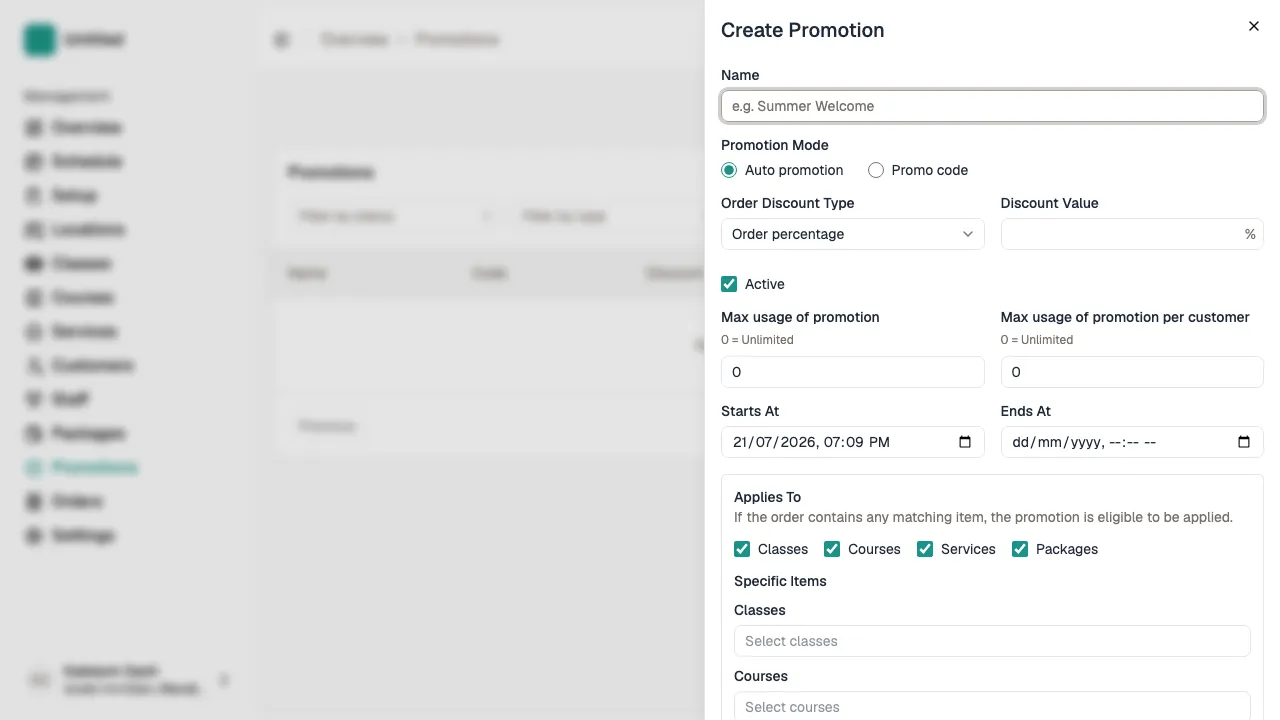
From your admin dashboard, click Promotions in the sidebar to open the promotions list. Click the Add button in the top-right corner. A side sheet slides in from the right on desktop, or up from the bottom on mobile.

The list behind the sheet shows every promotion your studio has ever created, including inactive and expired ones. Use the filter chips above the list to narrow it down once you have a few rows.

2

Name the promotion

In the "Promotion name" field, enter the name customers will see. The name is stored as the display name for your tenant's default locale; you can add translations for other locales from the promotion's detail page after saving.

Tip Phrase the name the way a customer would expect to read it in the cart total (e.g. "Summer 20% off classes"). The name shows up in the order summary, so an internal label like "PROMO-Q3-2026" is harder for customers to recognise than a customer-facing one.

3

Choose code or auto-apply

Pick a mode: "Apply automatically" creates a site-wide auto-promo with no code, applied at checkout when the cart matches. "Code" creates a code-bearing promo; the code field appears below the radio, and customers enter it during checkout to unlock the discount.

Code uniqueness is per tenant and case-sensitive, so "WELCOME10" and "welcome10" are two different codes. A code can be at most 100 characters.

Tip Use auto-apply for site-wide campaigns (e.g. "10% off everything in August"). Use a code for targeted campaigns (e.g. "WELCOME10" for new customers, shared by email or QR code), so you can track redemptions against a specific channel. Auto-apply is also limited to your 5 most recently created active auto-promos — if you keep more than 5 active at once, the older ones are not evaluated, so use a code for any campaign that needs to be reliably reachable.

4

Set the discount type and value

Discount type: choose "Order percentage" for a percentage off the order subtotal, or "Fixed amount" for a flat currency amount. The two are not interchangeable; percentage vs fixed amount changes both the math the customer sees at checkout and the rounding behaviour.

Discount value: enter the number only (no "%" or "$" symbol). For "Order percentage", the value must be a positive number up to 100. For "Fixed amount", the value is in your tenant's currency.

Tip Pick one consistently per campaign. Mixing percentage and fixed-amount promos in the same cart is fine, but a single promotion that says "20% off" and a separate one that says "$20 off" will apply independently.

5

Decide active, starts at, and ends at

Active: leave on to make the promotion available immediately, or turn off to keep it inactive — the promotion stays in the list but does not apply at checkout. You can flip this later from the detail page.

Starts at: the date and time the promotion becomes valid. Required. If you set a future time, the promotion is saved but does nothing at checkout until that time arrives.

Ends at: optional. If blank, the promotion runs until you turn it off. If set, the promotion automatically stops applying after that time.

Tip A promotion is only honored when Active is on AND the current time is at or after StartsAt AND (EndsAt is blank OR the current time is at or before EndsAt). Leave EndsAt blank for evergreen promos; set it for time-boxed campaigns so they switch off without staff intervention.

6

Restrict which kinds of items

In the "Applies to" section, three checkboxes decide which kinds of items the promotion can apply to: Classes (group sessions), Services (1:1 private bookings), and Packages (prepaid credit bundles). At least one must stay on — the form will not save if all three are off.

Turn off the kinds the promotion should not touch. A "20% off your first class" promo would leave only Classes on. A "$10 store credit" promo might leave all three on so the discount applies no matter what the customer is buying.

If the cart contains at least one item of a selected kind, the promotion is eligible for the matching items — non-matching items in the same cart are not discounted. For example, a Classes-only promo applied to a cart of [Yoga, Massage] discounts the Yoga but leaves the Massage at full price.

Tip Classes = group sessions, services = 1:1 private bookings, packages = prepaid credit bundles. Most "first-class-discount" promos only need Classes on; turning the other two off avoids the surprise of the promo silently applying to a service booking.

7

Pick the specific items

For each kind you left on in the previous step, a combobox appears. Type to search and chip the specific items the promotion should apply to. If you leave a combobox empty, the promotion applies to all items of that kind.

For example, with "Classes" on, you could chip only "Beginner Yoga Mon 7pm" and "Beginner Yoga Wed 7pm" to make the promotion apply to those two specific classes but no others. Leaving the combobox empty would make it apply to every class in your schedule.

Tip Empty selection is the right default so the promotion survives new items being added later. Use chips only when the promotion should not apply to a sibling item (e.g. only one specific class out of a family of similar classes).

8

Cap usage

Two optional fields. "Max total uses" caps the total number of times the promotion can be redeemed across all customers; 0 or blank means unlimited. "Max uses per customer" caps how many times a single customer can redeem the promotion; 0 or blank means unlimited.

For a code-bearing promo, the cap is per-code (and per-tenant for the same code). For an auto-promo, the cap is per-promotion. Redemptions are recorded when the order is created, not when the customer enters the code at checkout.

Tip Set "Max total uses" for a fixed-budget campaign (e.g. "the first 50 customers to use SUMMER20 get $20 off"). Set "Max uses per customer = 1" for one-shot codes like WELCOME10, so the same customer cannot keep applying the same welcome discount on repeat orders.

9

Save and verify

Click Save in the footer of the sheet. The sheet closes, the new row appears in the list, and a toast confirms the promotion was created. The list shows the promotion's name, discount, validity period, and applicability summary at a glance.

Click the row to open the detail page. Confirm the Name, Discount, Period, Applicability, and Limits all read back the way you intended. From the detail page you can also edit any field, view the redemptions table, or add translations for other locales.

Tip After saving, test the customer-side flow yourself with a small cart. A typo in the specific items you selected — for example, picking the wrong class by an identical name — is the most common reason a new promotion "does nothing" at checkout. A 30-second test save you an afternoon of customer support.