
Find the order and its transaction
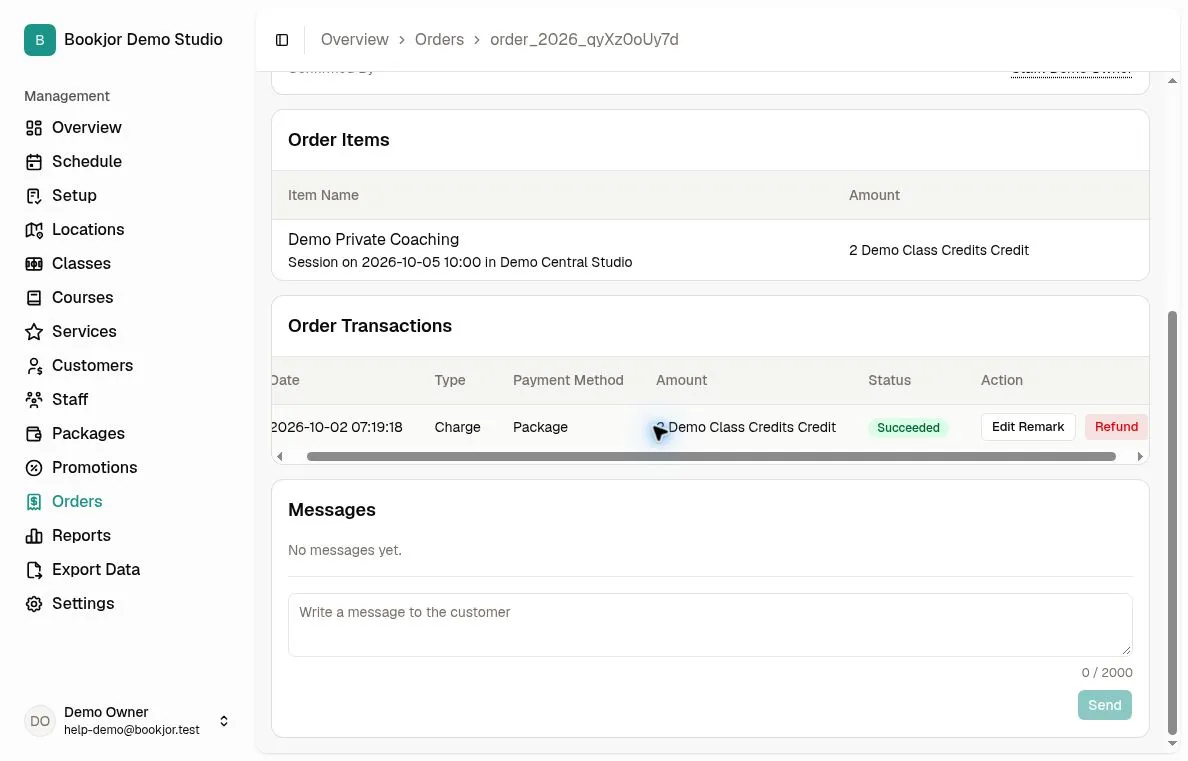
Open Orders, search for the order code, and open the order. In Order Transactions, check the payment method, amount, type, and status of the exact transaction you want to refund.
You need permission to view orders to open the detail, and permission to manage orders to refund a transaction. Viewing an order alone does not grant refund access.
Check whether the transaction can be refunded
The Refund action is available for a Succeeded Charge paid through Stripe or package credits that has not already been refunded. Pending or failed payments, pass uses, and credit grants or top-ups are not eligible for this action.
Bank transfers and other offline payment methods are not supported by this Refund action. Do not use Accept or Reject as a substitute: those actions review a pending payment, rather than return money already received.
Check the full amount and where it goes
Refund returns the entire selected transaction. There is no partial-amount or refund-reason field. If an order used credits from multiple packages, each deduction has its own Charge row; refunding one row does not refund the other rows.
For Stripe, Bookjor submits a real refund of the original Stripe payment through the connected Stripe account. This is not just a change to the payment record.
For package credits, the spent credits return to the original source package, which may belong to the owner of a shared package. This does not pay cash, create a new package, or extend the original package’s expiry.
Review the confirmation before refunding
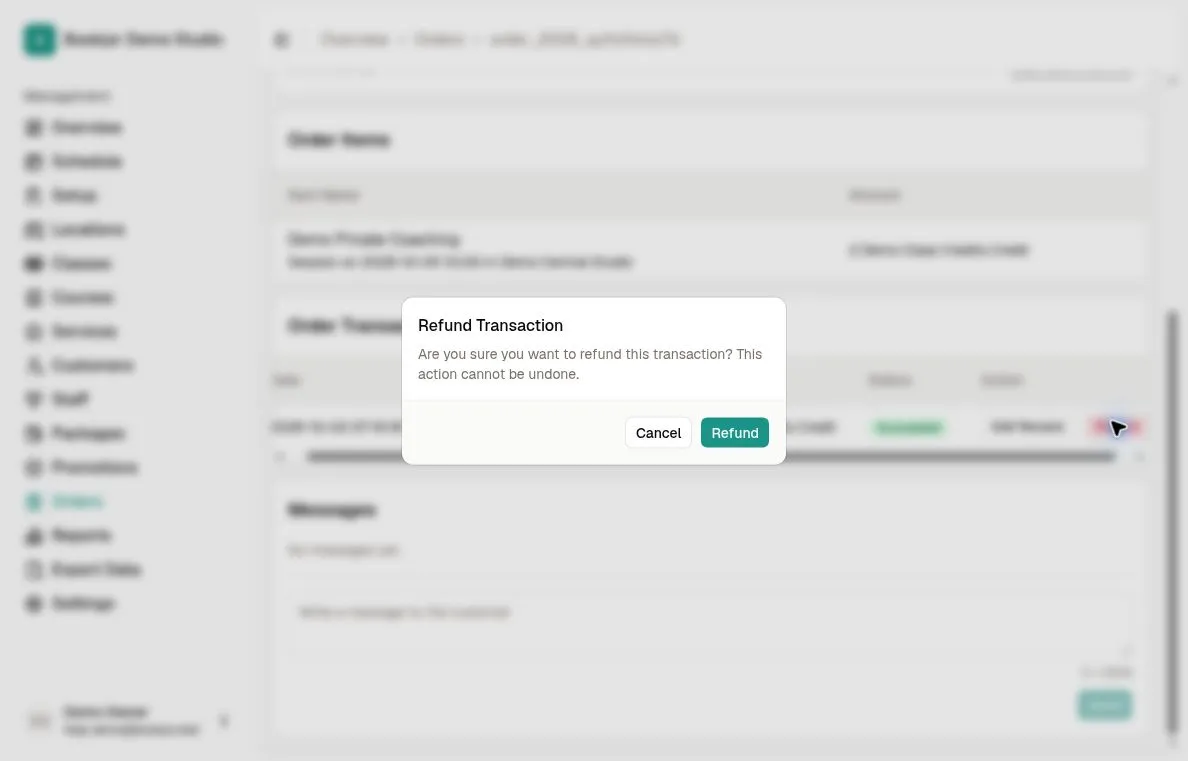
On the eligible row, click Refund. The Refund Transaction dialog warns: “Are you sure you want to refund this transaction? This action cannot be undone.” Choose Cancel if the transaction or amount is wrong.
When you have checked the transaction and intend to return its full amount, click Refund in the dialog. The button shows Refunding... while the request is running. Wait for the result rather than submitting again.
Check the refund record and both statuses
After a successful refund, reopen or refresh the order and check Order Transactions. A separate Refund transaction is added. The original Charge remains listed as Succeeded, but its Refund action is no longer available.
Check Payment Status separately from Order Status. A successful Stripe refund sets Payment Status to Refunded. For package-credit refunds, Payment Status becomes Refunded only when no positive, successful, unrefunded charge remains on the order. Refunding a transaction does not itself change Order Status.
Handle bookings and purchased packages separately
A transaction refund does not cancel a class or course enrollment, cancel a service booking, or revoke a purchased package or pass. Review those items separately and use the relevant booking or package workflow when a separate change is needed.
Avoid returning the same value twice. Booking cancellation may have its own credit-return options; check the existing transactions and package balance before choosing another return action.
Check history before retrying an error
If the request fails or the result is unclear, refresh or reopen the order and inspect Order Transactions before retrying. A Stripe request can already be recorded as Processing even when the interface reports Failed to refund transaction. An error message is not proof that no refund was started.
A Processing or Succeeded Stripe refund blocks a duplicate request. Processing can update when Stripe reports the result. If the history remains unclear, ask the studio owner or support to check the order and Stripe refund status before trying again.