Open the booking detail
Open Services, select a service, and switch to Bookings. Click the booking you need to change.
The booking detail page shows the customer and provider information.
You need View service bookings and Manage service bookings for this appointment. With Assigned access, actions apply to bookings already assigned to you. Edit and cancel controls are disabled after cancellation.
Reschedule
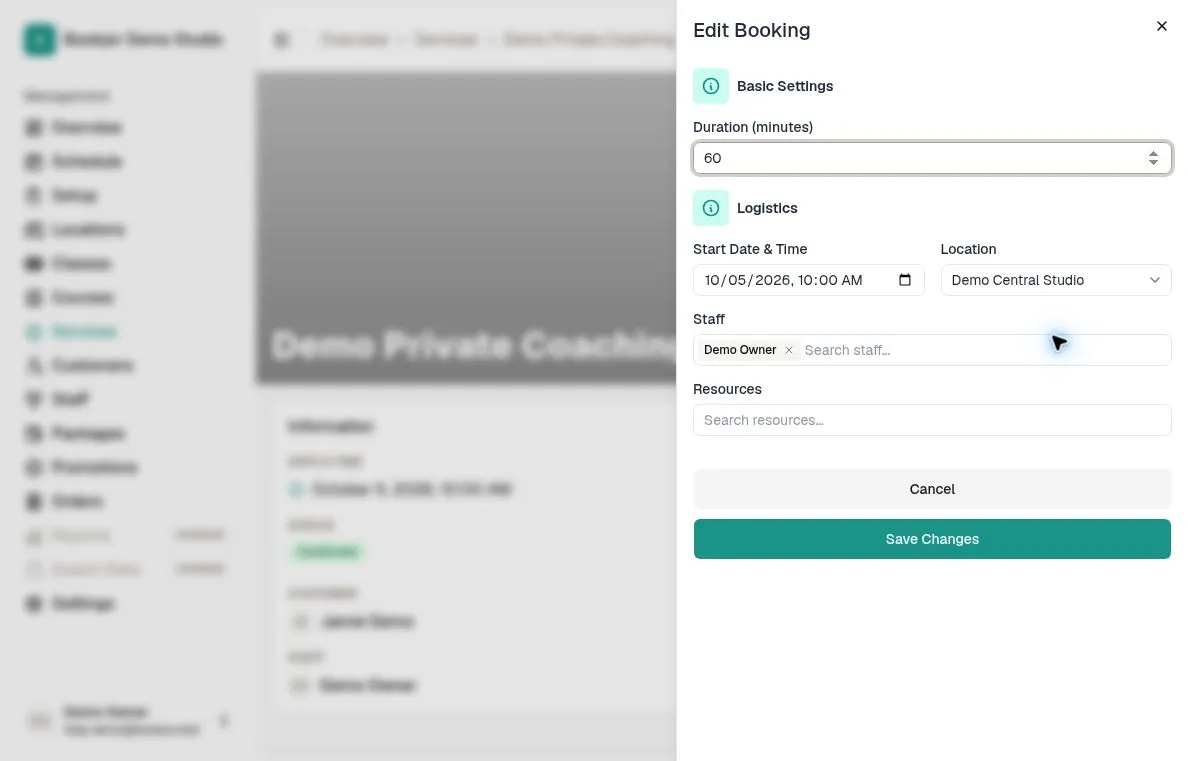
Click Edit Booking. Change the start time using the date-time picker and adjust the duration if needed. Select the location, staff, and resources for the new time.
Bookjor checks for conflicts when you save. If the new time overlaps with another booking, an error appears and you must choose a different slot.
Conflict checks cover the customer, assigned staff, resources, and unavailable time. A time change sends a rescheduling notification to the customer. If you remove yourself from a booking that you can only view when assigned, you may lose access after saving.
Choose compensation and cancel
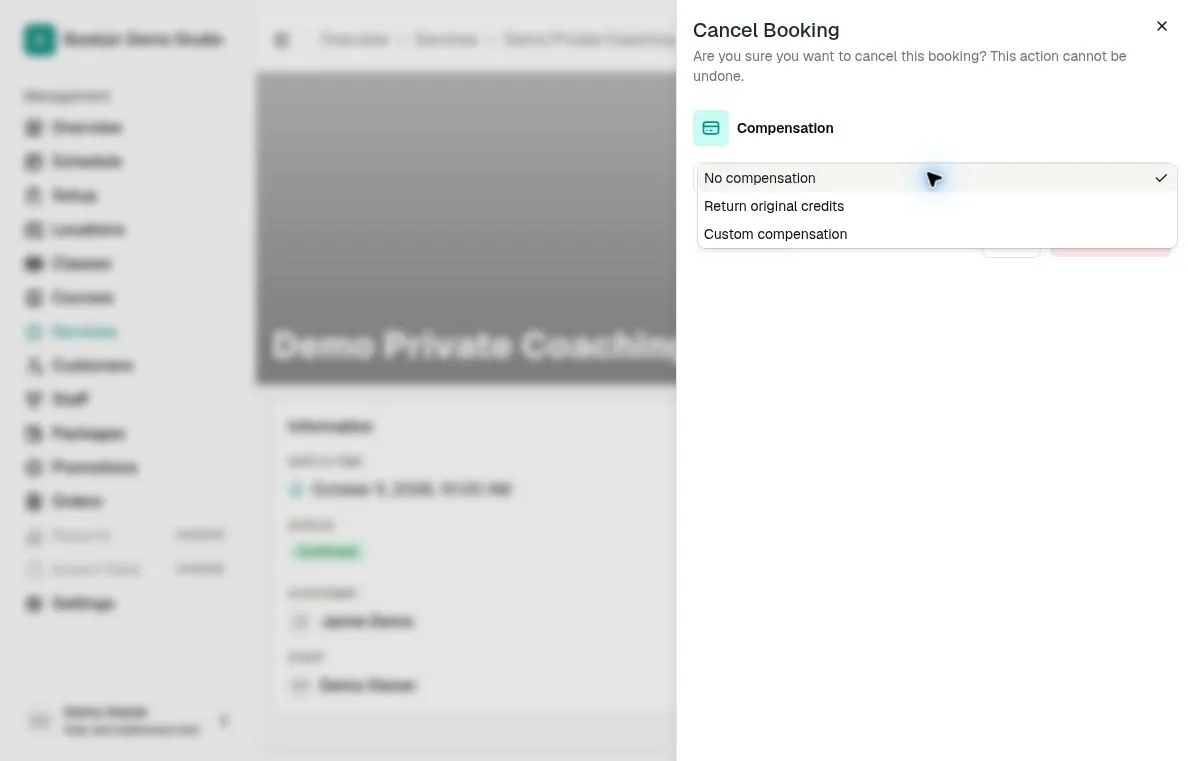
Open More Options > Cancel Session on the booking detail page. The default is No compensation. Returning or issuing credits also requires Manage customer packages; without that permission, compensation choices are hidden.
Return original credits is offered for credit-package bookings. It returns eligible recorded charges to their original customer packages. There must be one customer booking linked to a single-item order. Its credit charges must be successful and not yet refunded, and the original credit-package records must still exist and match the recorded payment. Cash, card, pass, mixed-payment, or multi-item orders are not eligible for this private-booking option.
Original expiry dates are kept, so credits returned to an expired package remain expired.
For Custom compensation, select a credit package, enter a positive amount, and optionally choose a future expiry date. Pass packages are not offered as compensation. This creates a separate credit package for the customer rather than refunding a card or cash payment.
Review the selected option and confirm cancellation. The booking becomes Cancelled and the customer is notified. If returning original credits is unavailable, review the order and choose another appropriate option; do not assume any refund occurred.