
Open Forms in the admin dashboard
Creating, editing, and publishing forms requires a Pro or Deluxe plan and the Manage forms permission. In the admin sidebar, open Forms.
Use a form for questionnaires like a first-visit intake. To collect signed consent, use a waiver instead; see Use waivers to capture customer consent in the related guides below.
Open a draft in the builder
Click Create form to open a new draft, or click Edit next to an existing form to continue working on its draft.
Set the Page title to First visit questionnaire. Click Save draft when you want to keep your progress without publishing.
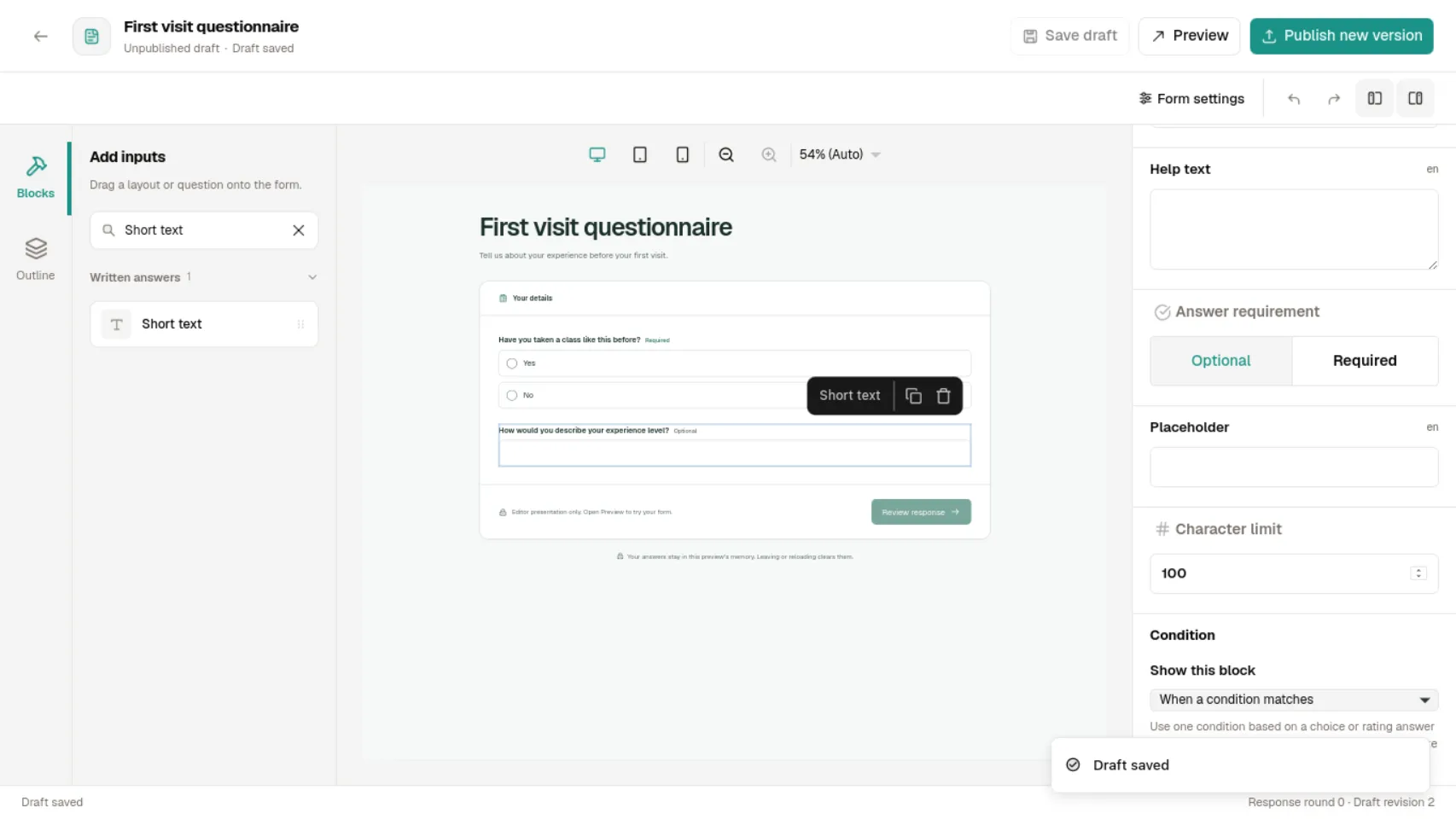
Add a required question and a conditional follow-up
From Blocks, drag a Single choice question onto the form canvas. Set its label to “Have you taken a class like this before?” Set the two labels under Choices to Yes and No, and select Required.
Drag a Short text question below it, such as “How would you describe your experience level?” In its Condition settings, set Show this block to When a condition matches. Select the experience question, set the operator to Equals, and select Yes. Even if you make the follow-up required, customers only have to answer it when it is shown.
Preview both answers and check the mobile layout
Click Preview. Select Yes and check that the follow-up appears. Switch to No and check that it disappears.
Switch to Mobile and repeat both choices to check that the question, options, and short text field are easy to read and use. Click Back to editor when you are done.
Publish the form and confirm the new version
Click Publish new version, review the confirmation, and click Confirm and publish. Bookjor saves any unsaved edits first. Look for “New version published” or check Version history for the Current version.
The published version is the one customers can fill in. Later draft edits stay private until you publish again. When replacing an existing version, only select Require everyone to fill this form again if previous completions should no longer count. Existing answers are not deleted.
Publishing does not make a form mandatory for bookings. Set Booking requirements separately, or share the form outside booking using the linked guides below.