
Copy the link from Distribution
In the admin dashboard, open Forms and select a published form, such as First visit questionnaire. Open Distribution and click Copy link under Authenticated share link.
If the form is still a draft, publish it first. Archived forms cannot collect new responses. You need permission to manage forms to open Distribution.
Send the link to customers
Paste the link into your own email or message and send it to the customers you want to reach. Copying the link does not send it.
Let customers know they’ll need to sign in to your customer site. The form is not anonymous: Bookjor records who submitted the response and whose profile it’s for.
How customers choose who the form is for
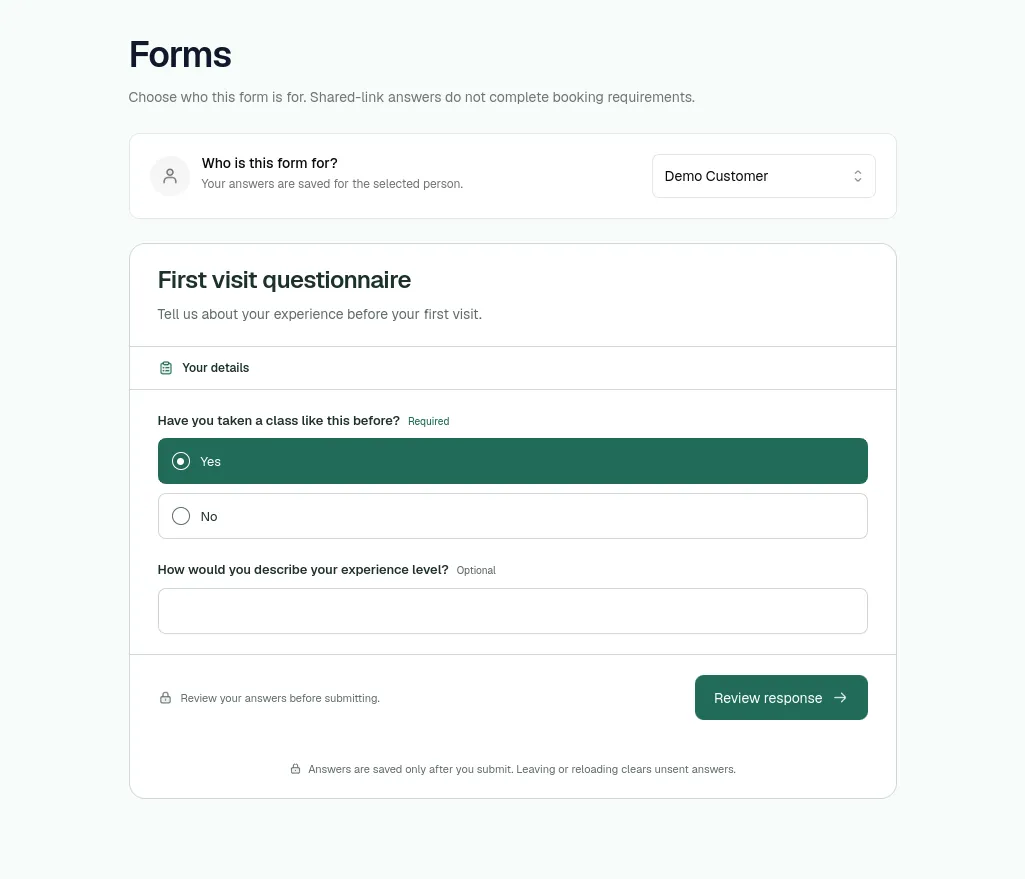
Customers open the link and sign in if prompted. If Who is this form for? is shown, they select their own name or a family member they manage. If the selector isn’t shown, they fill it in for themselves.
In First visit questionnaire, customers answer whether they have previous experience. If they answer Yes, they also see a short question about their experience level.
Review, submit, and check the saved response
Customers click Review response (or the review label set on the form), check their answers, then click Submit response. The page shows Saved response, including a response reference. Submitted answers cannot be edited. If the selected person already has a valid response to this shared form, opening the link again shows that response instead of a blank form.