
Open the published form’s Distribution tab
In the admin sidebar, open Forms and select a published form, such as First visit questionnaire. Open Distribution and find Booking requirements. If the form is still a draft, publish it first in the editor.
Adding or changing requirements needs the Manage forms permission and a Pro or Deluxe plan. Permission to view customer answers does not let you change the rules.
Choose which bookings require the form
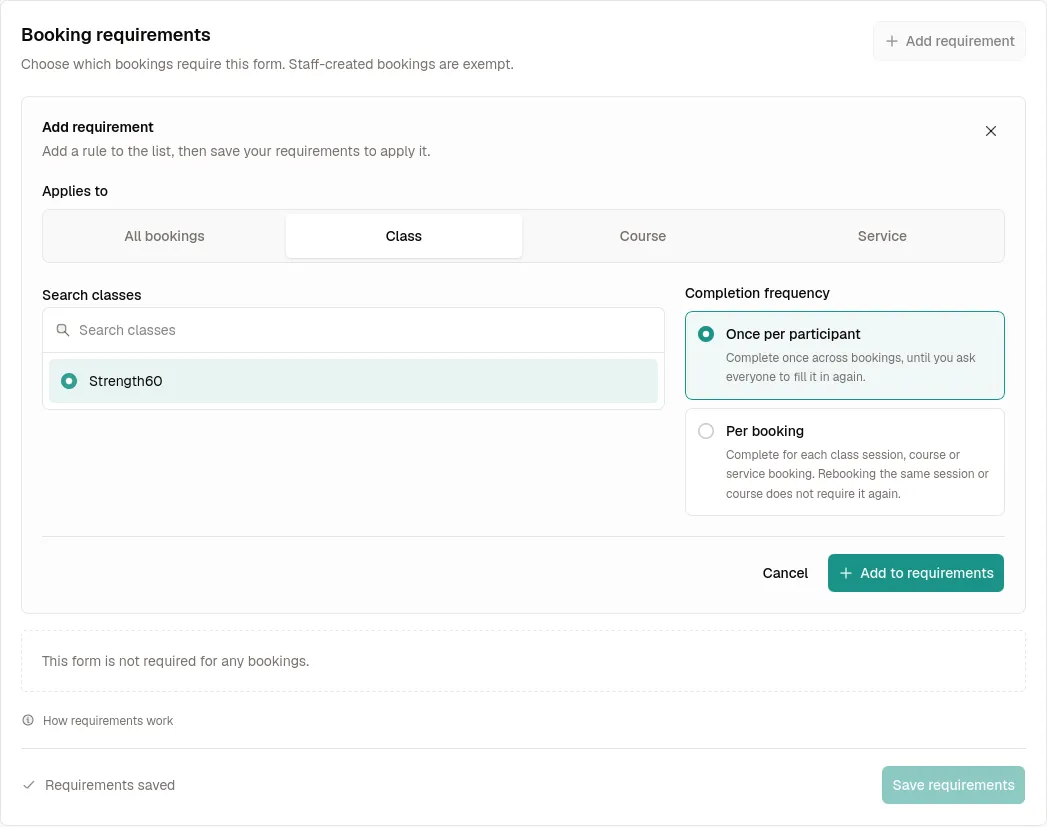
Click Add requirement. Under Applies to, choose All bookings to cover customer bookings for all classes, courses and services, including rentals booked as services.
To limit the requirement, choose Class, Course or Service, then search for and select the offering you want. For example, choose just the introductory class for your First visit questionnaire. For an individual rental, choose its offering under Service.
Set how often each participant completes it
Choose Once per participant to reuse that participant’s booking-form completion across matching bookings, until you publish a version that requires everyone to fill it in again. This is useful for a first-visit questionnaire, even when one customer books for several family members.
Choose Per booking to collect it for each class session, each whole course or each distinct service booking. If a participant already completed the form for a canceled booking, rebooking the very same class session or course does not require another response. Each new service booking needs a fresh response, even after a cancellation.
Add the rule and save
Click Add to requirements. Repeat for any other offerings, review the list, then click Save requirements. This changes only the current form, and applies to matching new customer bookings, not bookings staff create.
If you see Requirements changed elsewhere, compare your unsaved rules with the latest saved rules. Choose Apply my changes to the latest set to keep other additions and apply your removals or frequency changes for the same targets. Review the merged list and click Save requirements again, or discard your changes and load the saved rules.
Know what the customer sees
When a customer starts booking a matching class session, course, service or rental, Bookjor checks the requirements for the selected participant. If a required form is missing, the customer sees Complete the required forms and cannot proceed with the booking until they submit it in that flow. A customer joining a class waitlist must also complete any missing required forms before joining.
After submitting, the customer returns to checkout to review and confirm the booking, or continues the waitlist request. Submitting the form alone does not book a spot, join the waitlist or charge the customer. A response submitted through a shared form link does not count toward a booking requirement.