
Open Settings > Waiver
From your admin dashboard, click Settings in the sidebar and select Waiver. The page shows a single editor for your studio waiver, plus a status banner that tells you whether you are looking at the current published version or a draft.
Your studio has at most one published waiver and one draft at a time. The published waiver is the one customers see; the draft is your private workspace for the next version.
You need permission to manage waivers to open these template settings, save a draft, or publish a version.
Write the waiver
Enter a title such as "General Studio Liability Waiver". This title is shown to customers above the wording on the signing page, so phrase it the way a customer would expect to see it.
Type the body of the waiver in the rich-text editor. You can use headings, numbered clauses, bold, and links to your house rules. Customers can review the formatted text before signing.
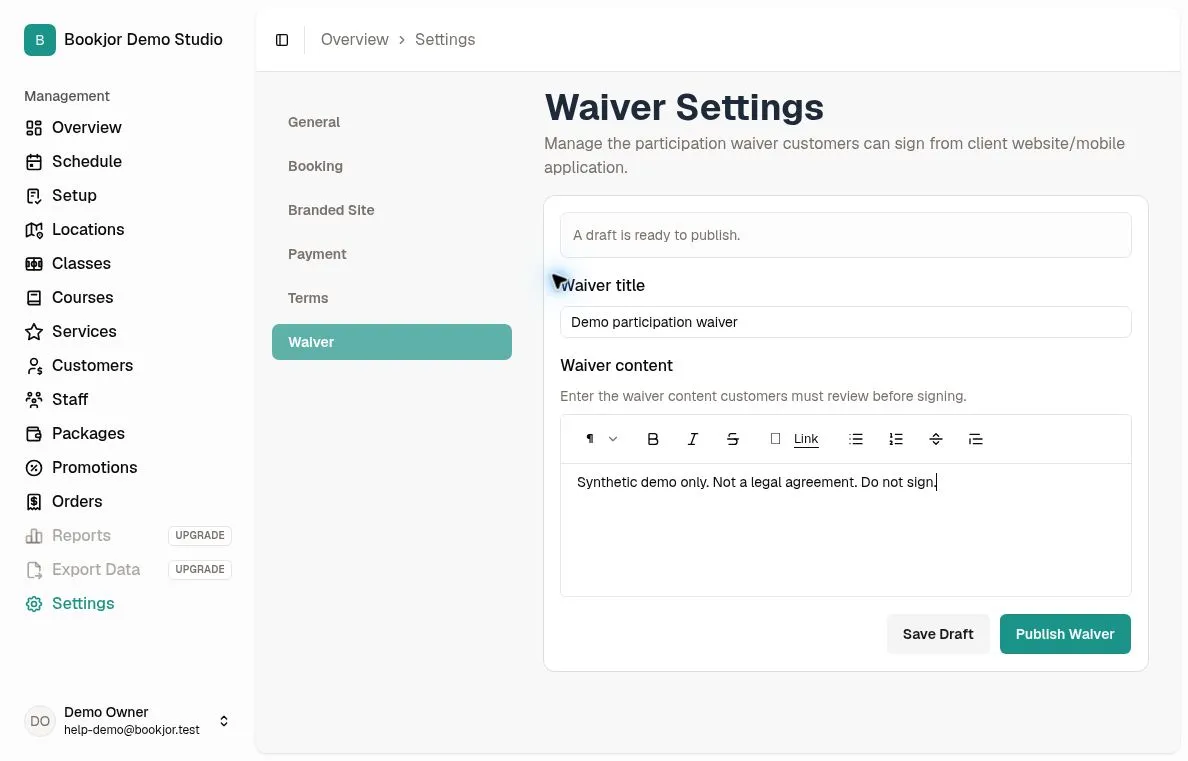
Save a draft first
Click Save Draft to keep your work in progress. Drafts are not visible to customers and are not yet the "current" waiver. Saving often is safe; the form does not publish anything on its own.
The status banner switches to show that you have a current draft. Continue editing until you are happy with the wording.
Publish when ready
Click Publish Waiver. Bookjor first saves the current title and content as a draft, then publishes that draft with the next version number and archives the previous published version. Review the current editor content before publishing.
The new version becomes the current waiver for customer signing and attendance checks. Customers who signed an older version need to sign this version to have a current waiver status.
How customers sign the waiver
A logged-in customer opens the Waiver page from the customer portal. The page shows the published title, the publish date, and the full wording.
Below the wording, the customer enters their name, draws a signature in the signature pad, ticks the agreement checkbox, and submits. Bookjor records the typed name, the signature image, the signing timestamp, and the IP address and user agent against the customer record.
Collect a signature in person
Open the customer’s profile from Customers and click Collect Waiver. This action requires permission to collect customer waivers and a published waiver the customer has not yet signed.
The dialog shows the published title, date, and wording. Let the customer or appropriate signer review it, check the signer name, draw their own signature, and confirm agreement. Then click Collect Waiver to save the record.
Attendance reminder for unsigned customers
When you mark attendance for a session, Bookjor checks each customer against the current published waiver. If a customer has not signed it, a confirmation dialog appears before their attendance is saved.
Read the warning, then either cancel and have the customer sign first, or click Mark attended anyway to record the attendance despite the missing signature. This is a warning, not a mandatory block on attendance recording.
Re-sign when you publish a new version
Publishing a new version makes signatures for previous versions outdated. The customer can sign the new wording, and Collect Waiver becomes available to authorized staff again.
Earlier signatures remain linked to the waiver version they signed. Publishing a replacement does not erase those records.
View a collected signature
On a customer profile you can access, click Signed Waiver to open the existing signature record. The dialog shows the signer name, signing time, signature image, and collecting staff member when applicable.
Use Download PDF in that dialog if you need a copy of the signed waiver. Viewing this existing record does not require the Collect Waiver permission.