
Open the right session or booking
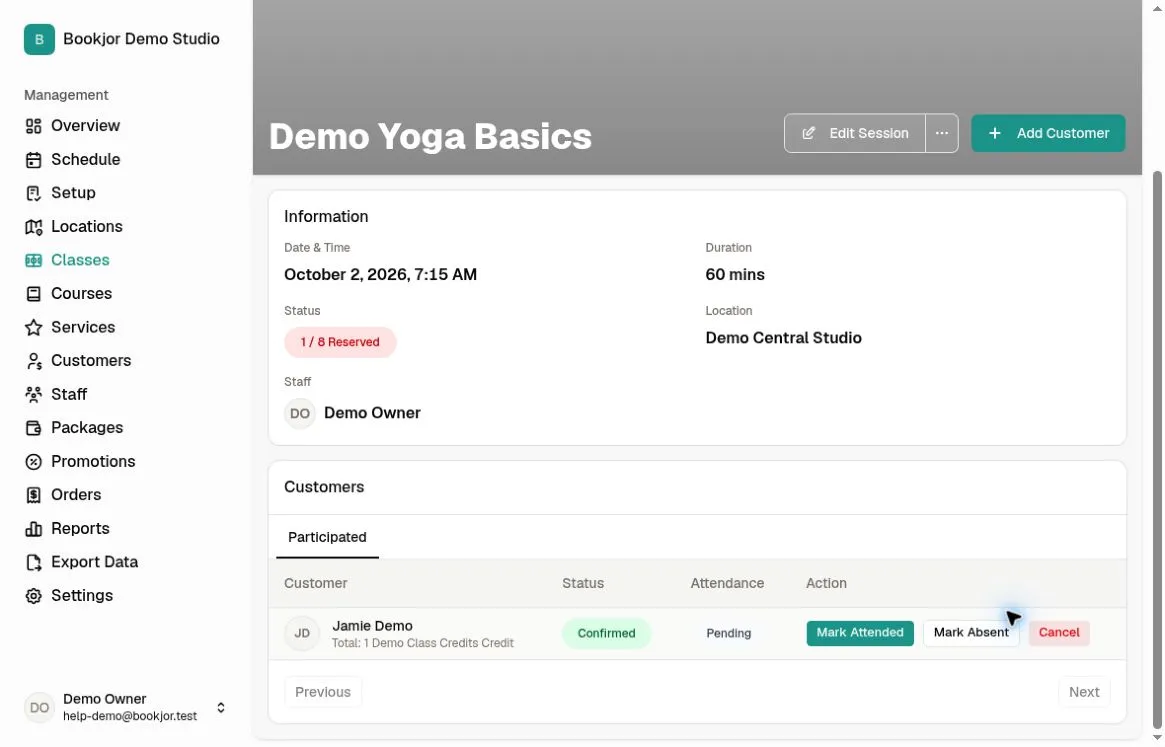
From Schedule, select the class session and click View details, then select Participated in the Customers section. For a course, go to Courses, open the course and then the individual session, and select Customers. Attendance belongs to that session, not to the whole course enrollment.
For a private service, go to Services, open the service, select Bookings, and open the booking details to find Attendance. Check the customer, date, time, and session or service before making a change.
Check booking status and permissions
Attendance actions appear for Confirmed bookings when your role has the relevant class-session, course-session, or service-booking attendance permission. Viewing or managing a booking does not by itself grant permission to mark attendance; assigned-only access also depends on the staff assigned to that session or booking.
Pending attendance means no attendance result has been recorded. It is different from a Pending booking. Pending or Cancelled bookings do not show these attendance actions. If a control is missing, check the booking status and ask your studio owner to check your access.
Mark a customer attended
In a class or course roster, choose Mark Attended for the correct customer. On a private booking, the English button is Mark Attend. Wait for the success message and check that Attendance changes to Attended.
If Waiver not signed appears, review the customer’s waiver status before continuing. The reminder can also appear when the waiver check fails, so an error does not prove the customer has not signed. Choose Cancel to stop and check, or Mark attended anyway only if your studio’s process allows you to continue. Marking attendance does not sign the waiver.
Mark a customer absent
Choose Mark Absent for a customer who did not attend. Wait for the success message and check that Attendance changes to Absent.
Keep the booking status and attendance result separate. Marking Absent does not itself cancel the booking, withdraw a course enrollment, refund a payment, or restore package credits. Use the appropriate cancellation or refund workflow if that is also required.
Correct an attendance result
Reopen the same session or booking and find the same attendee. If the result is Absent, choose Mark Attended (Mark Attend on a private booking). If it is Attended, choose Mark Absent. The opposite action replaces the recorded result; the waiver reminder may appear again when changing to Attended.
There is no reset-to-Pending control in these attendance screens. Do not cancel or rebook just to correct attendance. Wait for success before continuing; if an error appears, reopen the record and check its current value rather than assuming the correction saved.
Review the saved record
Reopen the details to confirm the correct result is still shown. For a course, check the specific session again; changing one session’s attendance does not mark the customer attended for every session in the course.
You can also open the attendee’s customer profile and select Bookings to review their history. Confirmed bookings with a recorded result show Attended or Absent in that table. Make further corrections in the session or booking details, not in the history table.