
Open Responses for a form
In Bookjor Admin, open Forms and click the form name, such as First visit questionnaire. If the workspace opens on a different tab, select Responses.
You need customer viewing permission to read responses and download their files. Permission to manage forms alone does not give you access to answers.
Or start from the participant’s profile
Go to Customers, open the participant’s profile, and select the Forms tab. For a family member, open that person’s own profile, even if someone else submitted the form for them.
This tab lists responses about that customer, not every response they submitted on behalf of others.
Narrow down the list
In the form workspace, use Participant to find the person the response is about. On a customer profile, use the Form picker instead to narrow that person’s history to one form.
Use Channel to choose All, Shared link, or Booking intake. Click a row’s Version label to filter by the version answered. Use Clear filters to return to the starting list.
Open and read the saved response
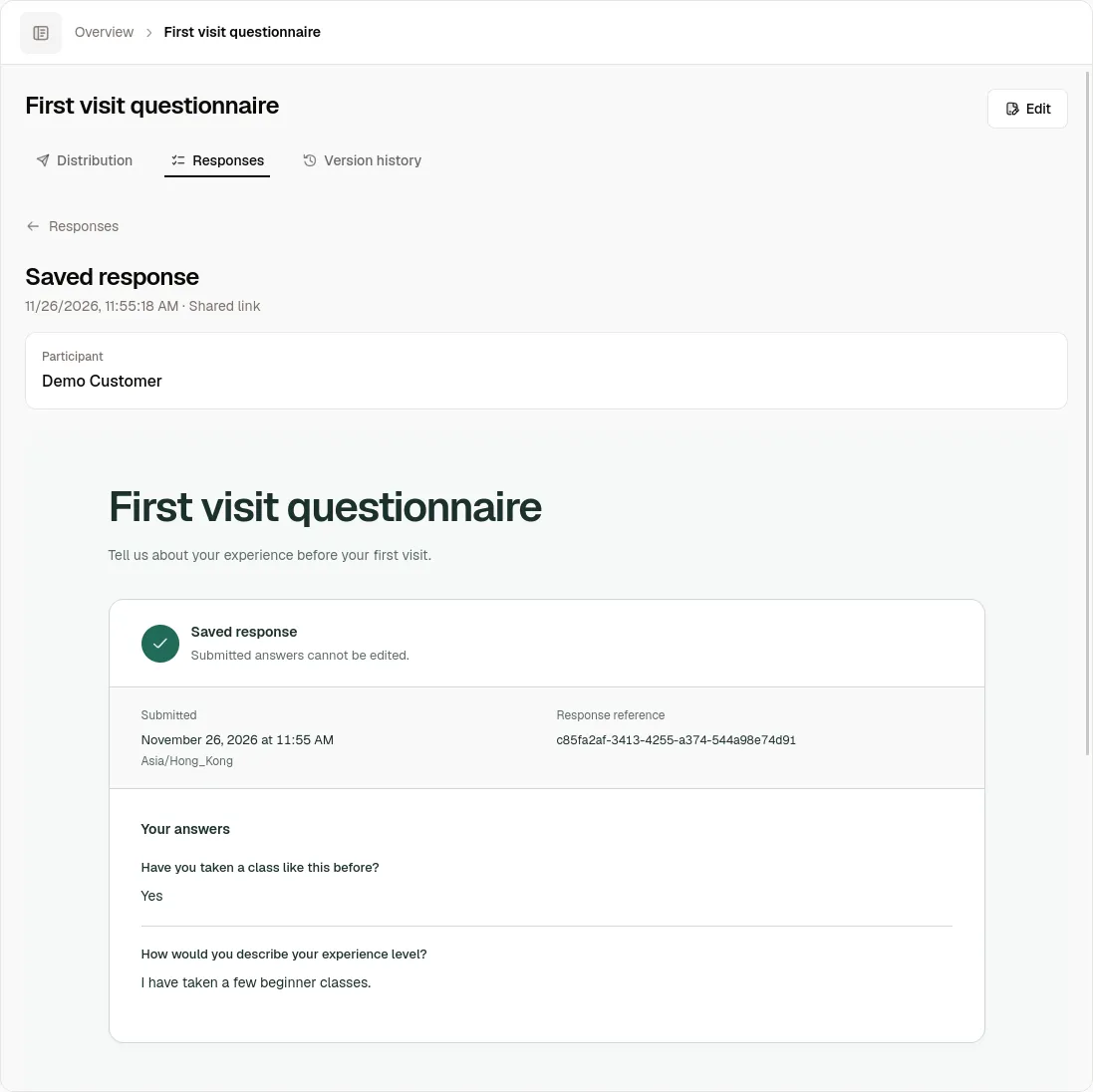
Click View response. On Saved response, check the submission time, channel, and Participant. If someone else filled it in, Submitted by identifies that person. For example, a parent can submit a response about their child.
Review the original questions and answers for the recorded version. If the participant answered Yes to the experience question, you may see an answer to the follow-up about experience level. Later publications do not change this record; the original answers are read-only.
Check booking context in the list
Return to the response list to see any linked booking. A class or service can show its time and location; a course shows its name, not the schedule of its sessions. The answer page does not show booking details.
A standalone Shared link response has no linked booking. If a booking response was reused, it can appear in several rows, one per linked booking. Those rows open the same saved answers; they are not new submissions.
Keep files private and check unavailable records
If the response contains an attachment, download it from the saved response only when you need it for your work. Don’t share downloaded files in public links or chats. Customers can open their own saved responses and files, or those of family members they currently have access to. Having submitted a response for someone in the past does not keep that access open.
If you can’t find a response, clear the filters and check the studio, form, and participant. A form filled out during a booking won’t appear in the list if the booking was never linked to it. If the tab is missing or access is denied, ask the studio owner to check your customer viewing permission. If a response or file still won’t open, retry from the list and report the error to support without including answers or files.