
Open Booking Settings
Go to Settings > Booking and find Event Reminder Window. You need permission to edit booking settings. If the field is disabled or Save Changes is missing, ask your studio owner to check your access.
This studio-wide setting controls how far before a booking starts its reminder is scheduled.
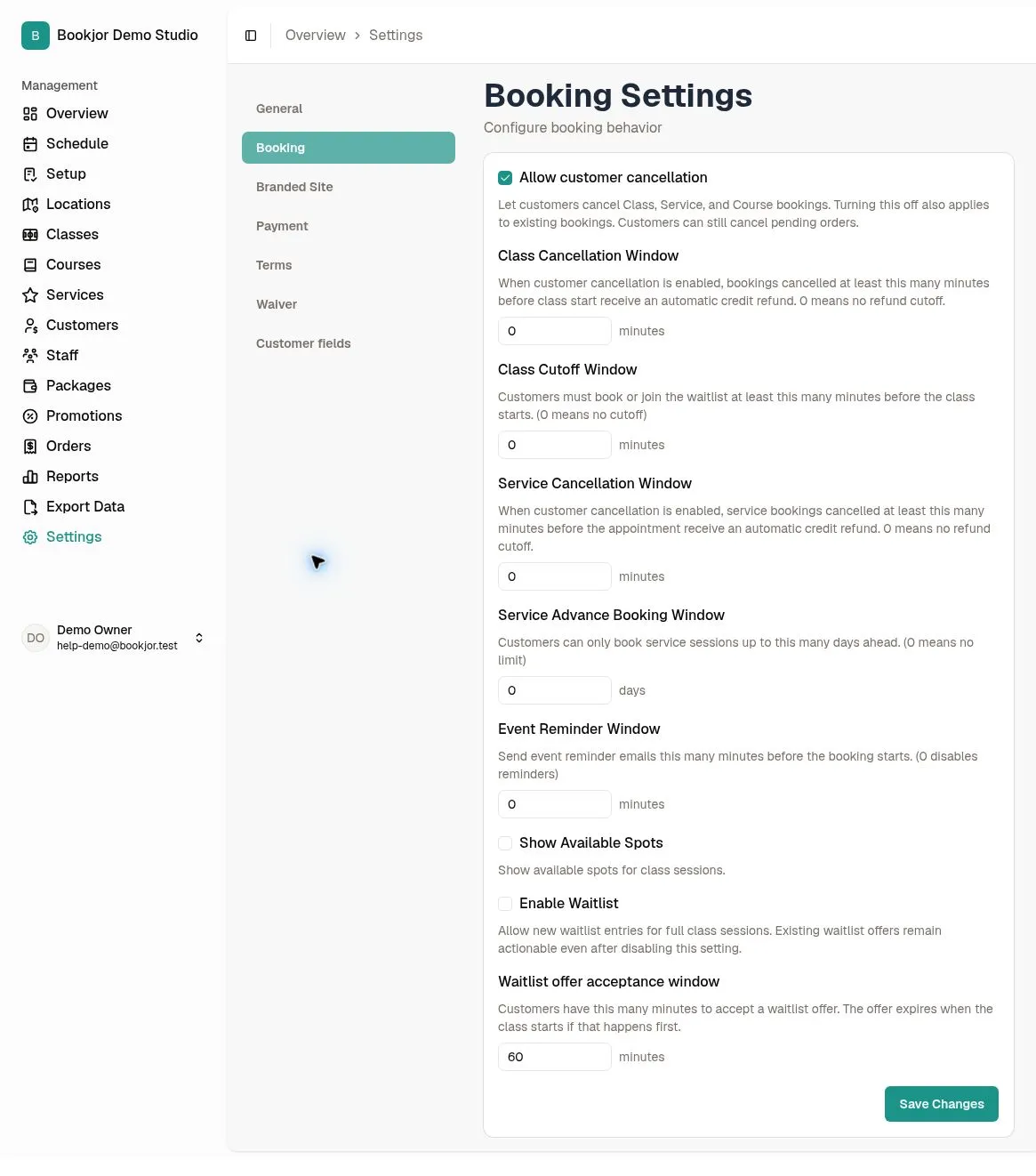
Choose a reminder lead time
Enter a whole number of minutes from 0 to 10,080 (7 days). For example, 60 means one hour before the start; 1,440 means one day before.
Choose a positive value to enable reminders. The calculated reminder time must still be in the future: confirming a booking after that time does not create an immediate catch-up reminder.
Understand which bookings receive reminders
Reminders cover confirmed class sessions, private-service bookings, and course sessions for customers and eligible assigned staff. Staff must still have permission to view the relevant record. Pending or cancelled events and resource-only events are not eligible.
Email reminders require a usable email address. If app push is enabled for the deployment and the recipient has a registered device, a push notification may also be sent. This setting does not guarantee that an email reaches the inbox or that a push appears on a device.
Save and check the new timing
Click Save Changes and wait for the success message, then reopen Settings > Booking to verify the saved value. If an error appears, correct it before assuming the setting changed.
Changing the value queues a background refresh for existing confirmed customer and staff events whose reminders have not been sent. Only recalculated reminder times still in the future are scheduled. Already-sent reminders are not sent again, and saving the same value does not trigger a refresh.
Turn reminders off when needed
Enter 0 and click Save Changes to disable reminders. The background refresh clears scheduled reminders for eligible unsent events; it is not an instant recall of a message already being processed or delivered.
To enable reminders again, save a positive value. Existing eligible bookings are recalculated, but bookings whose new reminder time has already passed do not receive a catch-up reminder.
Check a missing reminder
Check that Event Reminder Window is above 0, the booking is confirmed, and the calculated reminder time was still in the future when the booking was confirmed or the reminder setting changed. Verify the start time and studio timezone.
Check the intended recipient’s email address and spam or junk folder. For push notifications, check the app’s notification permissions and device settings. A reminder is separate from a booking confirmation email.
If the problem continues, contact support with the booking reference, expected start and reminder times, and which recipient is affected. Avoid repeatedly saving the same value: that does not reschedule reminders.