
Find the fee for the right period
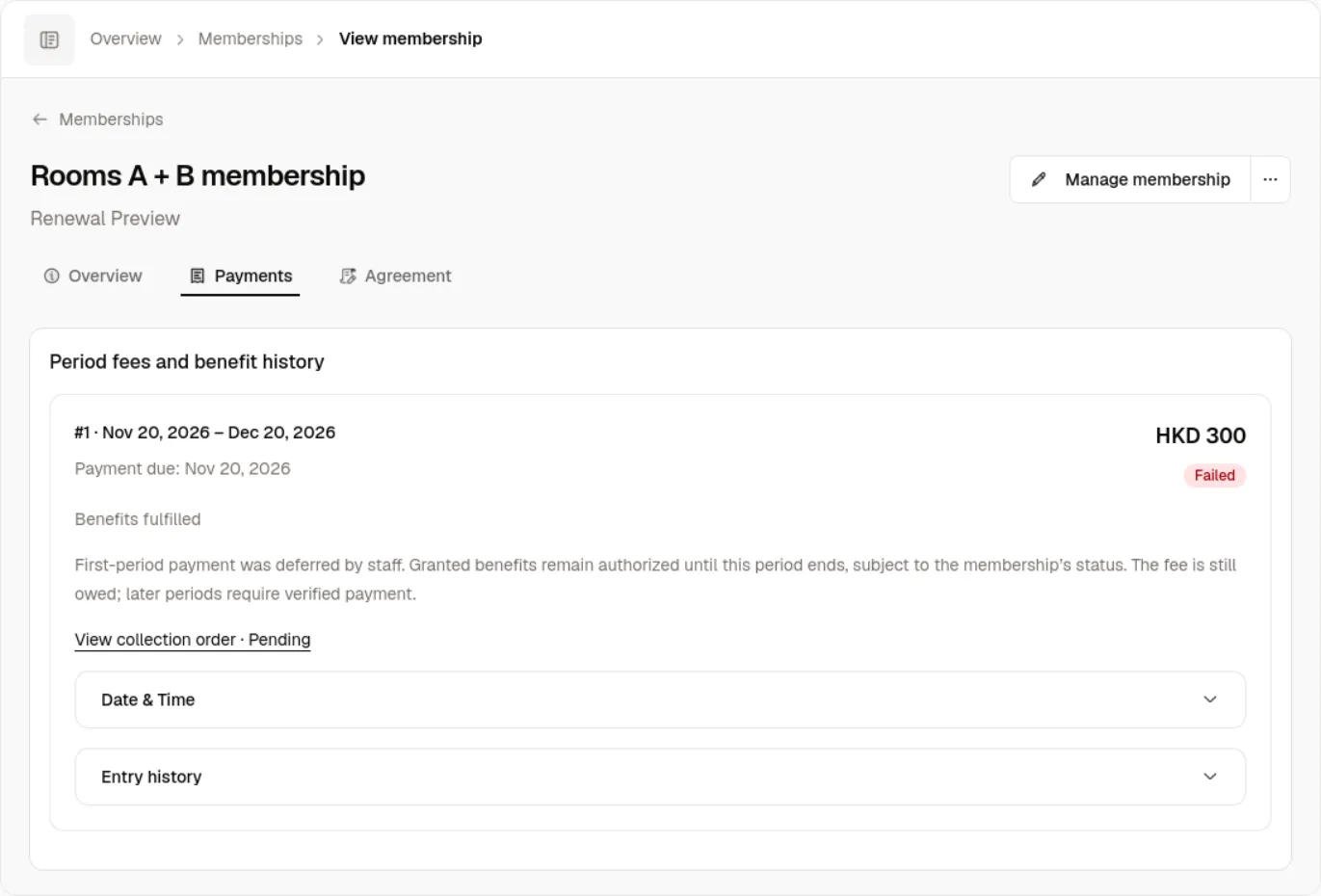
In the admin dashboard, open Memberships, select the member’s agreement, then open Payments. Under Period fees and benefit history, check the period dates, due date, fee, and payment status. Click View collection order to see what was paid and what remains due. You need permission to view memberships and orders; recording payments or closing an invoice also requires permission to manage orders.
A missed payment isn’t cancellation. Scheduled fees can still come due while an agreement is active, but renewal benefits are only usable once the current period is paid. A staff-deferred first payment is a separate exception.
Collect a one-time payment
On the booking site, the member opens My Memberships, chooses the agreement, and uses Pay this period under Payments & usage if that action is available. They can use an enabled payment method, such as one-time Stripe checkout, bank transfer, or Airwallex. Staff must verify bank transfer and Airwallex proof; uploading it or returning from checkout isn’t confirmation.
If the full outstanding amount was received outside Bookjor, staff can use Record offline collection on the fee order when available. Record only money already received. Wait for any unresolved payment attempt to finish before collecting another way.
Late payment keeps the original dates. Paying an old period clears only that period’s balance and grants no usable entries. Members can’t pay future periods in advance.
Let the member opt in to automatic payments
If the studio has an active Stripe card connection, the member can opt in at eligible Stripe checkout, or open My Memberships and choose Set up automatic payments under Automatic renewal payments. The member confirms the fee and authorizes their own card in Stripe. A one-time card payment does not opt them in by itself.
Autopay applies only to eligible future renewals, not to a fee that’s already due. The member can replace the card or select Turn off automatic payments. Turning it off doesn’t end the membership or clear fees owed, and a charge already submitted may still go through.
Check the Stripe invoice after a failed charge
If Stripe declines the charge or asks for authentication, Bookjor does not automatically retry it. If Pay invoice is available, ask the member to use it to complete payment on the same Stripe invoice. Check the order status again before taking another payment.
If the member needs to switch payment methods while that invoice is still open, open the fee order and select Close Stripe invoice when available. Wait for Stripe to confirm closure, then recheck the balance before taking another payment. Requesting closure doesn’t stop a payment that was already submitted.